Date range
The date range bar sits right below the KPI cards. It answers one question — "over what period is the Dashboard measuring right now?" — and it drives both the KPI cards and the products table.


Presets
Click any tab to jump the whole Dashboard to that period:
| Tab | What it covers |
|---|---|
| Today | The current day so far, in your selected timezone. |
| Yesterday | The full previous day. |
| Last 7 Days | Yesterday and the six days before it. Today is not included — this is a "closed" 7-day window. |
| WTD | Week to date — from the start of this week (Sunday) up to and including today. |
| MTD | Month to date — from day 1 of this month up to and including today. |
| Last 30 Days | Yesterday and the 29 days before it. Today is not included. |
| YTD | Year to date — from January 1st up to and including today. |
| Custom | Any range you pick. |
Every page load starts on Today. The range you pick isn't remembered between sessions — this is deliberate, so you always start from the current picture and then drill back.
Custom range
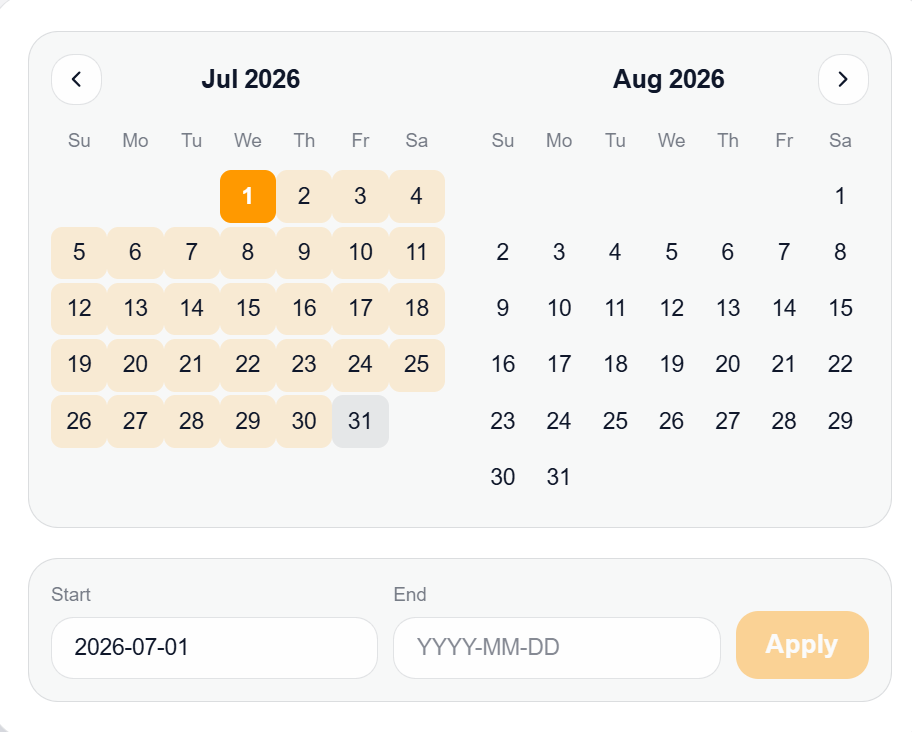
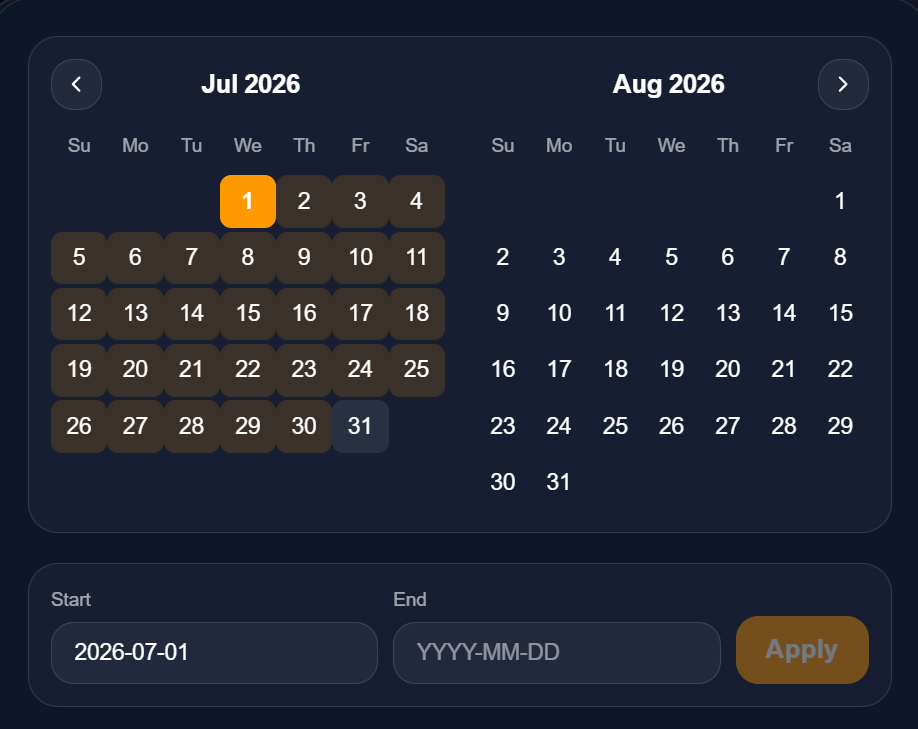
Click Custom to open the calendar. Pick a start day and an end day (or type them into the Start / End boxes as YYYY-MM-DD), then click Apply. Cancel discards your pick.
Prev / Next day
When your custom range is a single day in the past, small Prev and Next arrows appear next to the range bar so you can walk one day at a time without opening the picker again. Next is disabled once you reach today in the current timezone.
Timezone
The little TZ: badge on the right of the bar shows which timezone your range is being measured in. This matters more than most people expect — see the "Set your preferences" guide for the full explanation of why.
The timezone the Dashboard uses depends on which marketplace you've selected in the top bar:
| Marketplace selection | Timezone used | Editable? |
|---|---|---|
| All Marketplaces | Your global preference | Yes — from Preferences |
| NA / EU / FE (a whole region) | That region's preference | Yes — from Preferences |
| A single marketplace | The marketplace's own local timezone | No — it's fixed by Amazon |
You can change the timezone straight from the bar — click the TZ: badge and pick a new one. It's not a temporary override: this is the same setting you'd change in Profile & Settings → Preferences, so your choice is saved and used everywhere.
Currency
The Currency: badge shows the currency all Dashboard numbers are being displayed in.
- For All Marketplaces and regional views, this is your preference — everything is converted into it.
- For a single marketplace, this is that marketplace's native currency (unless you've set an override for it in Preferences).
Just like the timezone, you can change the currency directly from the Currency: badge in the bar. It's the same setting as in Preferences — saved and used everywhere, not a one-off override.
Every day is converted at its own FX rate
When AMZSeller converts money across currencies (say, MXN or CAD sales into your preferred USD), it does not use today's exchange rate for everything. It uses each transaction day's own rate.
That matters if you look at a wide historical range. A sale from six months ago is converted at the rate that was in effect six months ago — not at today's rate. So the totals you see reflect what the money was actually worth on the day it was earned.
FX rates are refreshed automatically every day. This applies to every view where the display currency differs from the source currency — including a single-marketplace view where you've picked a display currency other than the marketplace's native one. If your display currency matches the source, no conversion happens.