Set your preferences
Before you dive into the dashboard, take a minute to tell AMZSeller how you want the app to look, and how numbers, dates, and emails should behave. Every preference below lives on the Preferences tab of Profile & Settings.
Appearance (Day / Night)
At the top of Preferences, the Appearance section lets you pick Day (light interface) or Night (dark interface).
- Your choice is remembered in this browser (it is not synced to your account across devices).
- It applies immediately when you click Day or Night — you do not need to press Save changes for Appearance.
- The Day / Night control used to live in the top bar; it now lives here so all look-and-feel settings stay with your other preferences.
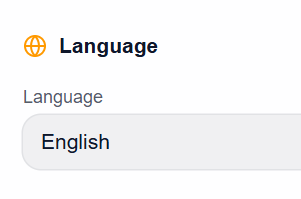
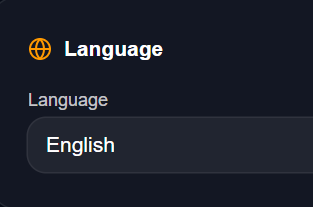
Language
Choose the language you want the app to run in. AMZSeller currently supports 10 languages — English, Deutsch, Español, Français, Italiano, 日本語, 中文, Türkçe, العربية, and Português.
Pick one from the Language dropdown, then click Save changes. The app reloads in your new language and remembers your choice on every future login.
Emails are in English, regardless of your interface language.
Dashboard timezone and currency
The AMZSeller dashboard can be viewed in three ways: the All Marketplaces View, the Regional views (NA / EU / FE), and the Single Marketplace View.
AMZSeller already picks sensible defaults for you, so you can skip this section entirely if you want to — the dashboard will just work. Come back here when you want everything to match your own habits.
Why do you need to pick a timezone?
If the dashboard only ever showed a Single Marketplace View — just the United States, or just Germany — you wouldn't need a timezone preference at all. Each marketplace would simply use its own local time.
The moment you combine sales and costs from two or more countries that live in different timezones into a single view, one question shows up: when does a "day" start and when does it end? Those countries don't experience the same day at the same time. So looking at "today's sales" immediately raises the follow-up — whose "today"?
AMZSeller solves this by letting you decide. For the All Marketplaces View and each Regional view, you pick the timezone the dashboard should use. For example, if you sell across North America and your All Marketplaces View combines US, MX, CA and BR, choose whichever timezone makes those numbers most meaningful to you. Our recommendation: use the timezone of the country you sell the most in.
Currency works the same way
Different marketplaces settle in different currencies (USD, EUR, GBP, JPY, TRY, and so on). When you combine several of them into one view, you also need to decide which currency to display totals in. AMZSeller converts amounts on the fly using recent FX rates. FX rates are refreshed automatically every day, so what you see is always based on up-to-date numbers.
Per Amazon account
These settings are per Amazon account tab, so if you manage multiple sellers you can configure each one independently. Switch tabs at the top of the section before editing.
There are three levels of preferences, from most general to most specific:
All Marketplaces View
These are the timezone and currency used whenever the dashboard combines every marketplace into a single "All Marketplaces" view. Pick one timezone and one currency here — this defines what "today" means and which currency everything converts into.


Regional views — NA / EU / FE
When you filter the dashboard to a whole region (all of North America, all of Europe, all of Far East), these are the timezone and currency used for that consolidated view. Set them once per region you sell in. If a region isn't connected yet, its card is disabled.


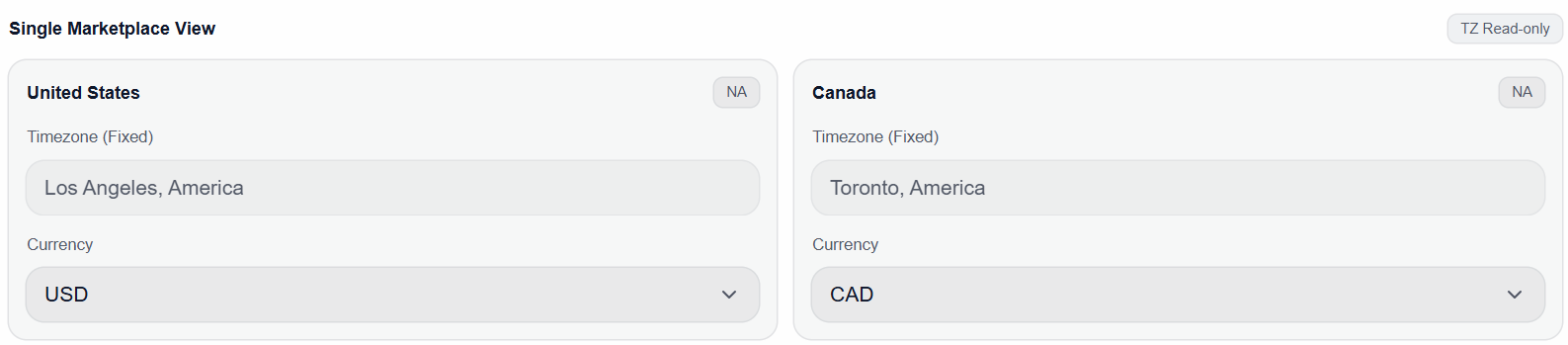
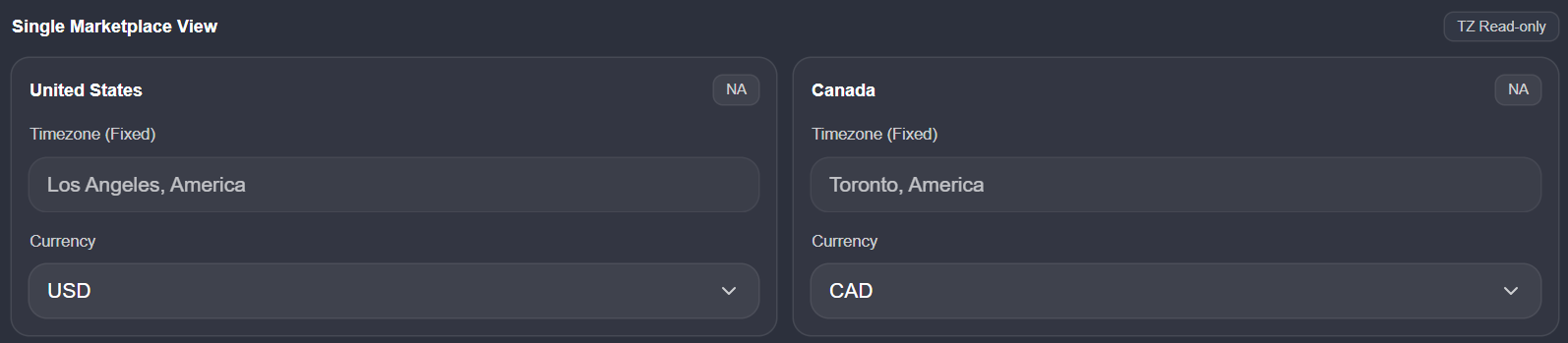
Single Marketplace View
For each individual marketplace, you can override the display currency (useful, for example, to see UK sales in USD instead of GBP).
The timezone at this level is fixed — it comes from Amazon for that marketplace and can't be changed. Everything else on that row respects it.
Tip. If you only sell in one marketplace, just set the All Marketplaces View to match that marketplace's timezone and currency — the rest will follow.
Email notifications
Choose which emails AMZSeller can send you from the Email Notifications section. Toggle the ones you want on or off and click Save changes.


Saving
Language, timezone/currency, and email notification changes are staged until you click Save changes at the bottom — nothing in those sections is applied while you're still editing. If you changed the language, the app reloads in the new language right after saving.
Appearance is the exception: Day / Night applies the moment you pick a tile, with no Save step.