Creating a tracker group
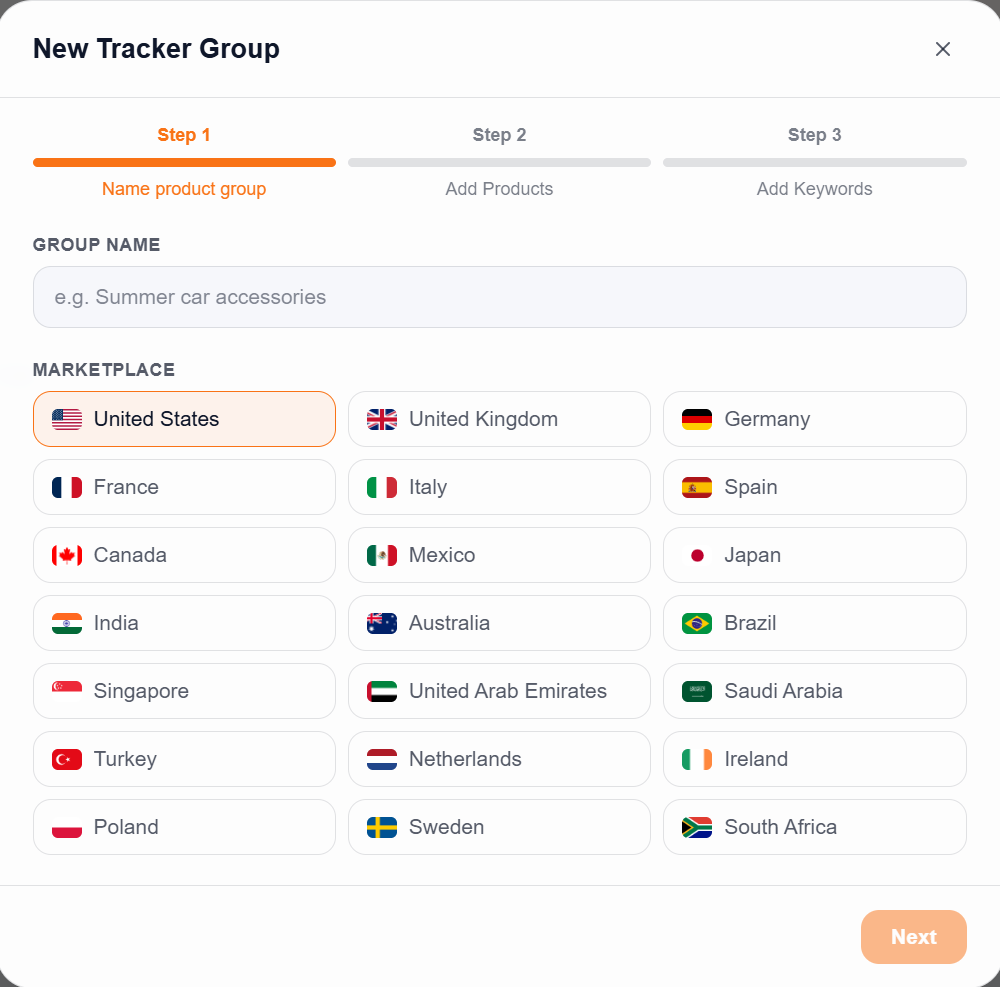
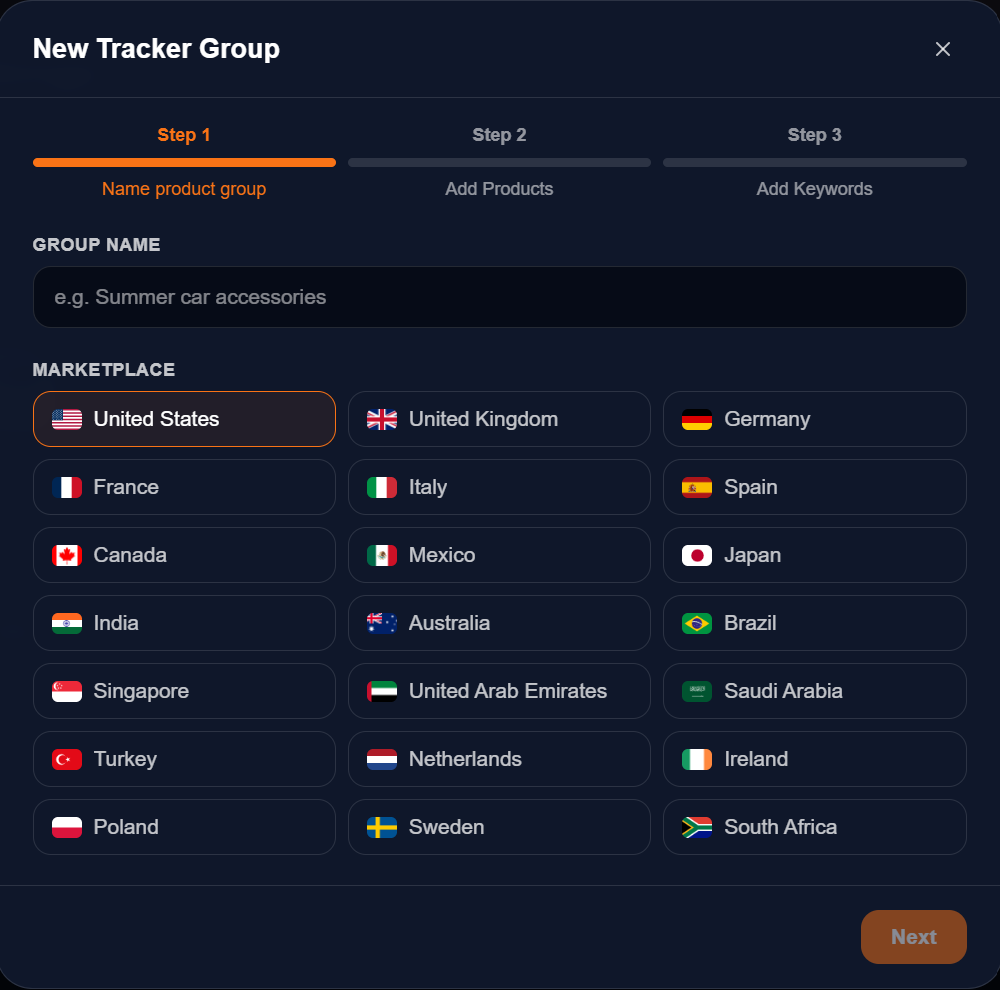
Every workspace inside Rank Tracker is a group. Groups are built through a 3-step modal (New Tracker Group on the list page). Steps advance as you fill them in — you can always jump back.
Step 1 — Name & marketplace
- Group name — a short label like "Summer car accessories" or "US: Kitchen scale launch". Rename anytime later from the Edit modal.
- Marketplace — click one of the 21 supported storefronts (flag + label). This is the country whose ranking is checked and whose "day" defines the daily check window.
The marketplace choice is locked once the group is created. If you later want to track the same product line on a different Amazon storefront, create a second group. This isn't a bug — rank in .de and .com are two different data series and mixing them would break the trend charts.
Switching marketplace at Step 1 clears any product/competitor selections you had picked, since a US catalog choice doesn't carry over to a German group.
Step 2 — Add products
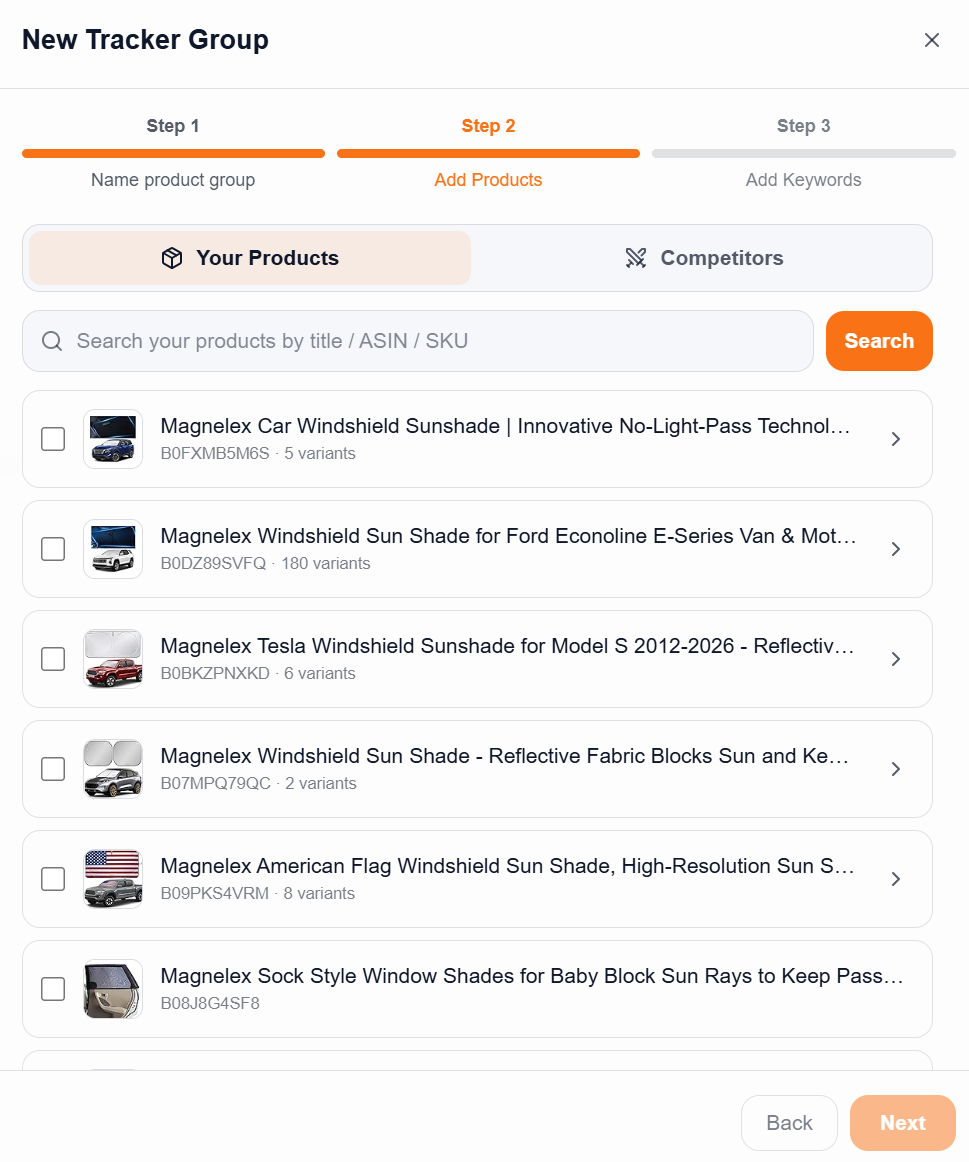
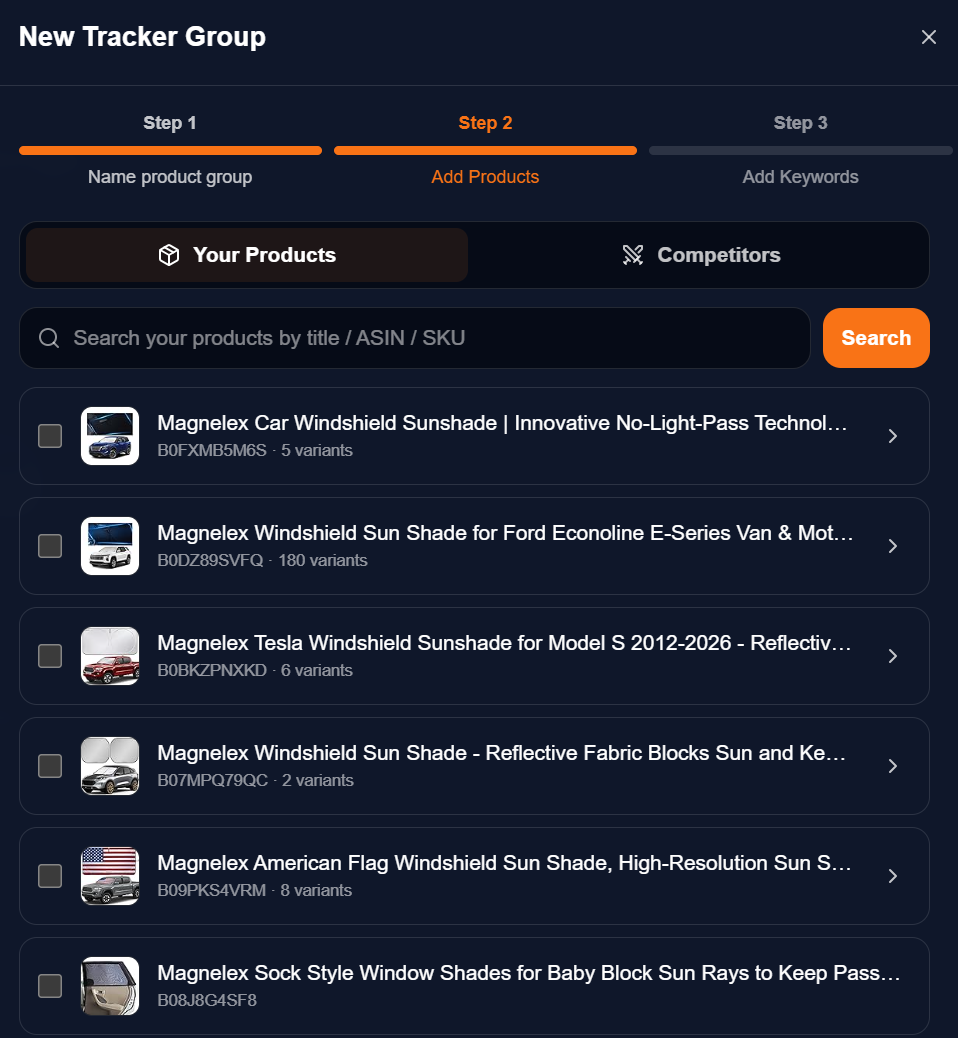
Two tabs decide what shows up in the group's ASIN list.
Your Products
Pulls your synced catalog filtered by the group's marketplace. Search by title, ASIN, or SKU.
- Ticking a parent listing tracks the parent as one row with a "N variants" label; every variant rolls up under it and the row's rank for a keyword is the best (lowest) rank across the family.
- Expand a parent to pick individual children if you only want to track some variants — the untick removes just that child.
- Ticking a standalone SKU (no children) just adds that ASIN.
If your catalog for this marketplace is empty (e.g. Amazon account not connected yet), the tab says "No products found for this marketplace." Set up the marketplace connection first, then come back.
Competitors
Track rivals by pasting their ASINs — comma, space, or newline-separated. Each one is validated against the marketplace's catalog:
- Resolved ASINs show up as a card with the product image and title.
- Anything Amazon can't find is kept in the list but marked Not found so you can decide whether to remove or investigate.
- If you paste one of your own ASINs here, you'll see: "{ASIN} is your own product — add it from the 'Your Products' tab." — the tool distinguishes the two because "your rank" and "rival rank" are separate averages on the group dashboard.
- No Amazon connection for that marketplace? "Connect an Amazon account for this marketplace to resolve competitor ASINs."
The footer shows the running total ("{N} product(s) selected").
Step 3 — Add keywords
Two ways to fill the keyword list:
Smart Keywords
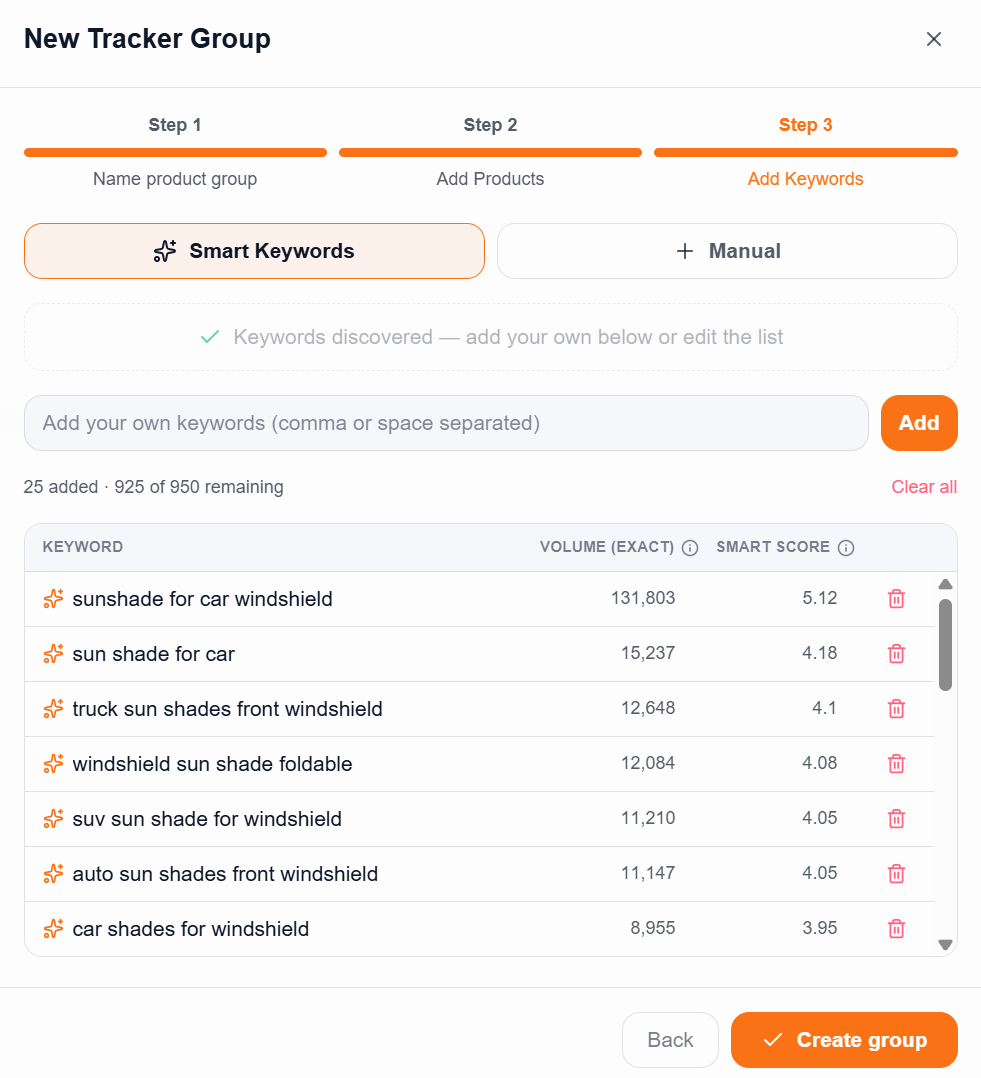
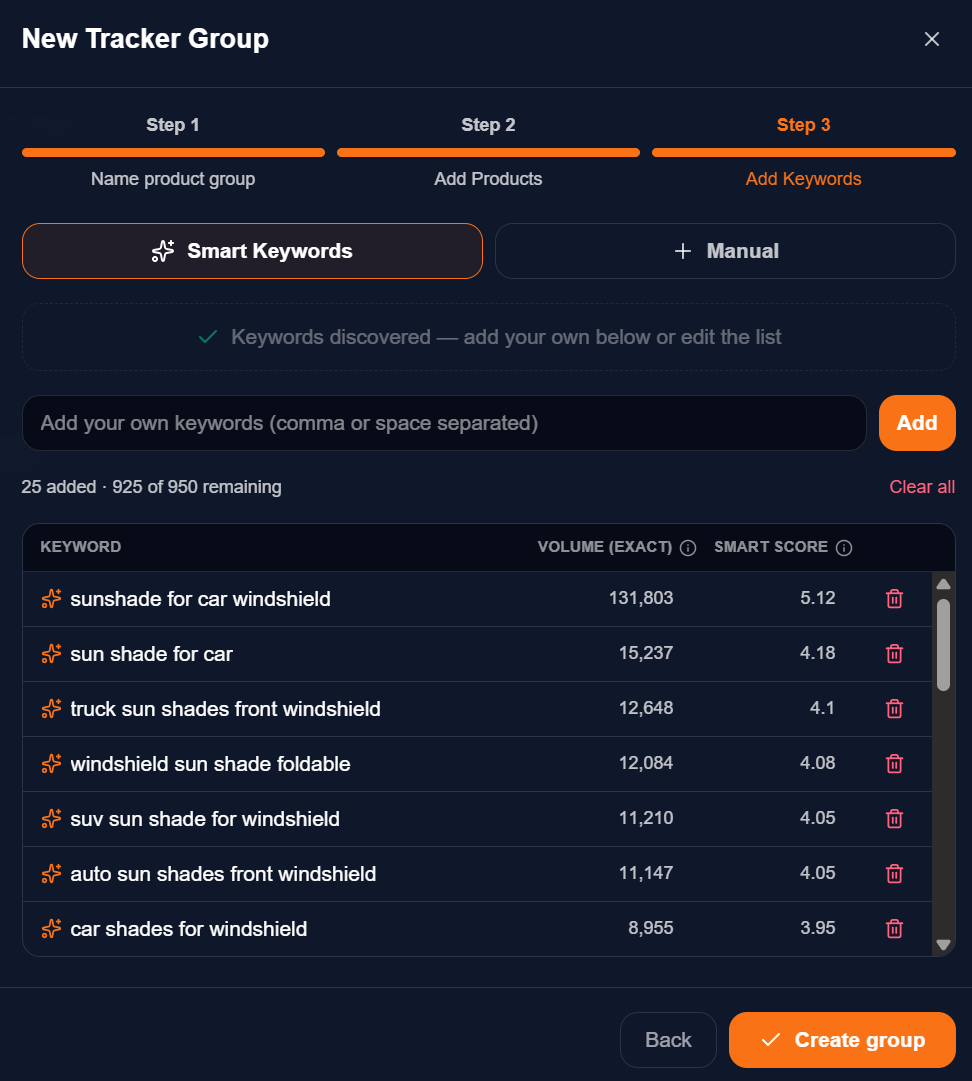
Available in select marketplaces (US, UK, DE, IN, CA, FR, IT, ES, MX, JP). Click Discover keywords from selected products and Rank Tracker mines the products you just added for the most relevant search terms.
Each suggestion arrives with:
- Volume (Exact) — estimated exact-match monthly searches for that keyword in the marketplace.
- Smart Score — a blended relevance × demand score that helps you triage. Higher = more worth tracking.
If Smart Keywords isn't available for the marketplace you picked, the button is disabled and a note explains: "Smart Keywords isn't available for {marketplace} — add keywords manually."
Manual
Paste any list of keywords — one per line or comma separated (multi-word phrases are kept intact). Duplicates and empty strings are dropped automatically.
You can mix the two: discover a set of Smart Keywords, then add a few of your own on top.
Budget line
Below the input you'll see something like:
42 added · 958 of 1,000 remaining
That's your account-wide keyword budget across all Rank Tracker groups. See Editing & limits for the details.
Clear all empties the list if you want to start over.
Creating the group
Click Create group. Rank Tracker immediately:
- Writes the group + products + keywords to your workspace.
- Kicks off a first scan for the whole keyword list in the background.
- Navigates you into the group dashboard.
The very first scan takes a few minutes — you'll see the group's "Updated" label go from "never" to a recent timestamp as pages come in. There's nothing more to do; from here on the group scans itself every marketplace-local day.
Common gotchas at creation time
- Empty keyword list is allowed but pointless — you'll create a group with zero keywords and see an empty dashboard. Add keywords via the Edit modal to get scans going.
- Empty product list is allowed but the average-position card will show "—" until you add at least one ASIN.
- Picking a marketplace where you have no Amazon connection doesn't stop you from creating the group; you just can't add your own products (only competitor ASINs — those resolve through your general Amazon connection if any account is linked).