Inside a group


The group detail page is where the day-to-day work happens: reading the digest, triaging alerts, and comparing your listing to the pack. This page walks through it top-to-bottom.
Header
The top strip shows:
- Group name & marketplace flag.
- Your product tile with title, image and live BSR (main + subcategory).
- Last scan time — how long since the twelve-hour cron last touched this group.
- Refresh — force a fresh data pull for every ASIN in the group. Quota is 3 refreshes per 24 hours per group; the button label counts down (e.g. Refresh (2/3)). Once you've used all three, it's disabled until the earliest one rolls out of the window.
- Edit and Delete — see Creating a Watch Group.
Refreshes are for genuine "something just happened, I want to see it now" moments. Ranks and prices move over hours and days, not minutes — most sellers never touch the button.
Daily Digest panel
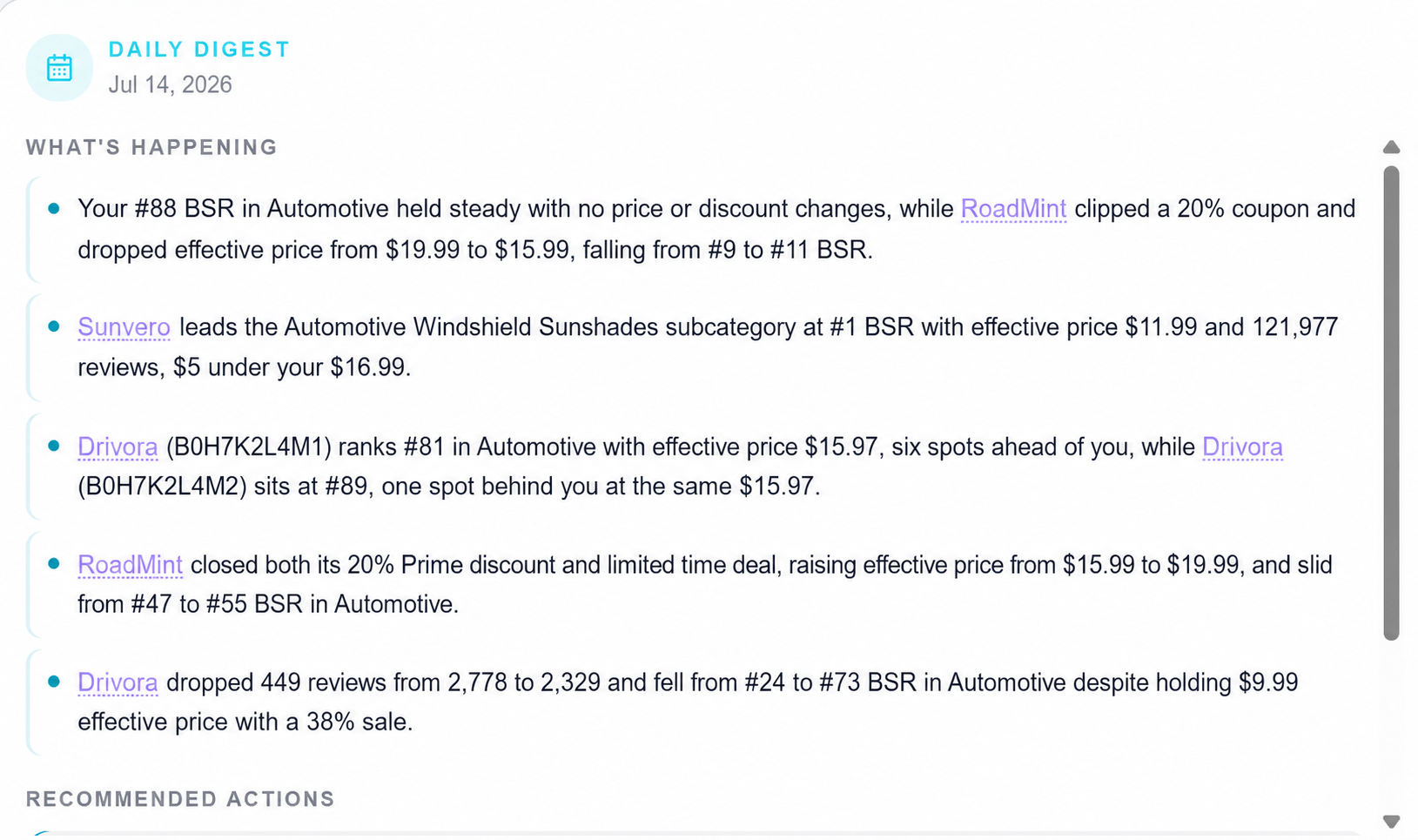
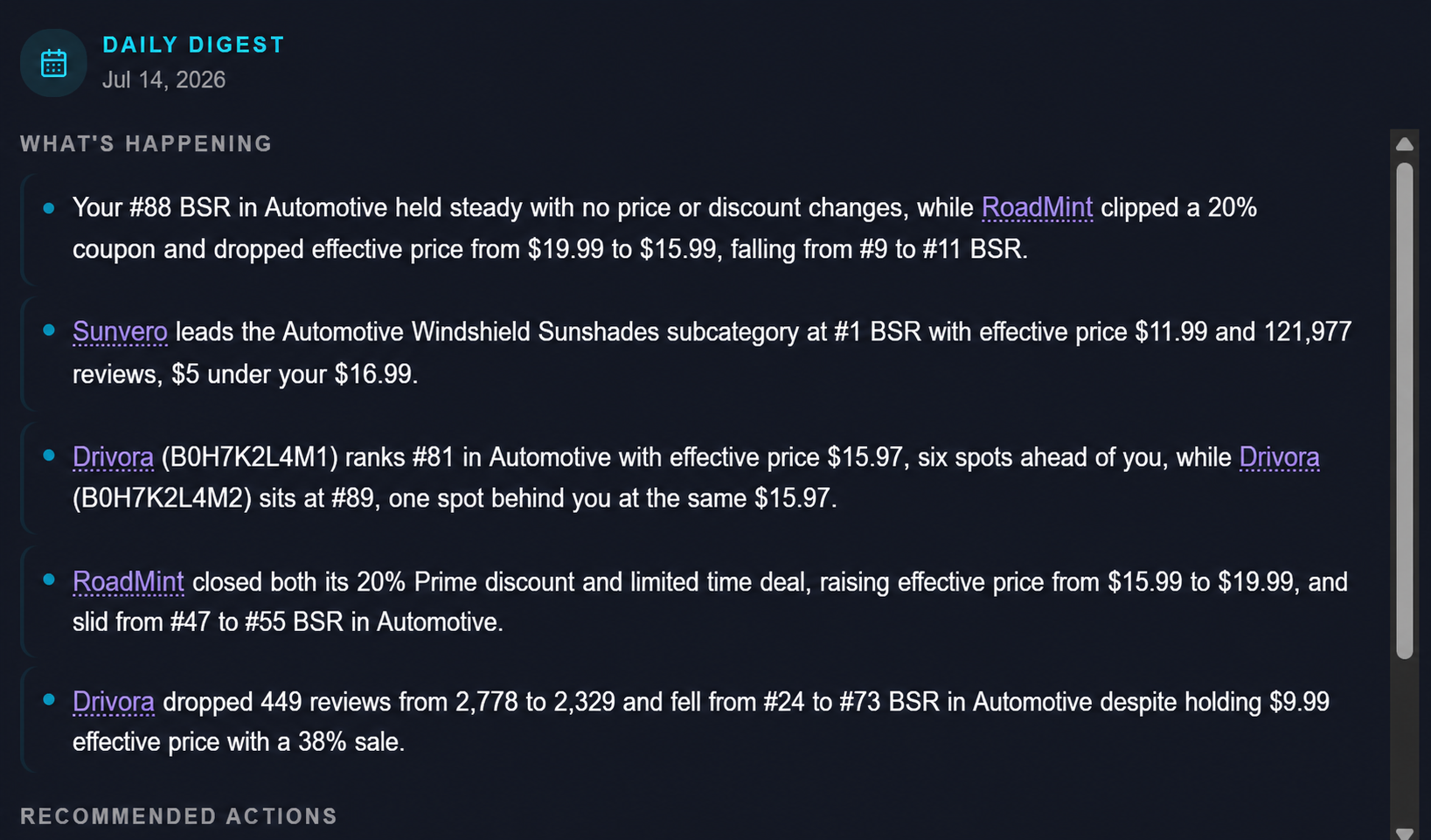
The first section under the header is the AI Daily Digest. It's a short (2–4 paragraph) plain-English summary refreshed every morning. It answers three questions:
- What changed yesterday across the group's rivals and your own listing.
- What's the biggest opportunity right now (someone out of stock, a rival lost a badge, a price gap opened up).
- What's the biggest risk to watch (a rival went aggressive on price, took a badge you had, gained review velocity).
The digest is regenerated once per day; refreshing the group pulls new data but does not re-write the digest until the next morning. The same text is what lands in your morning email — the panel and the email are in lockstep.
Watch Alerts panel
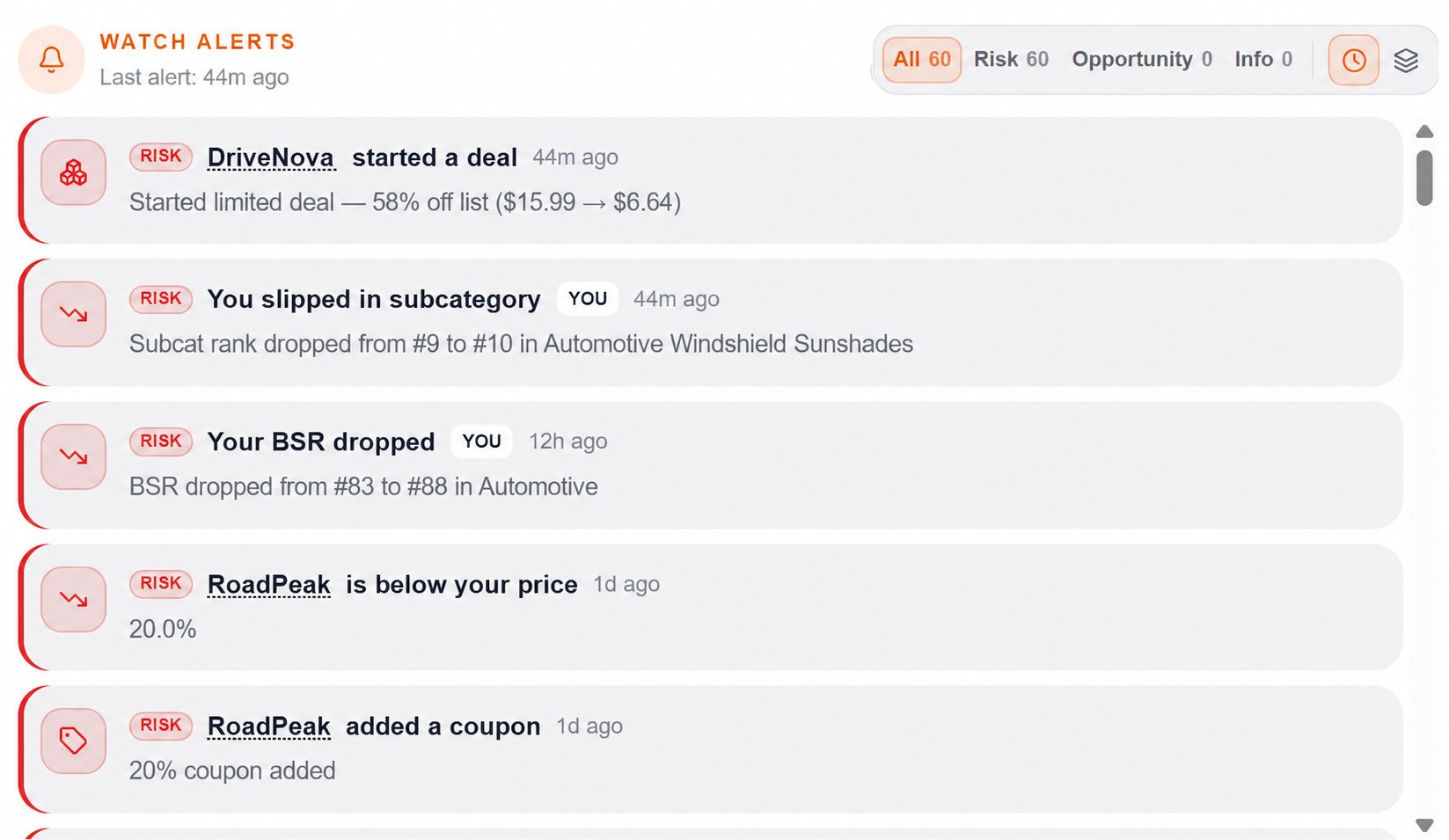
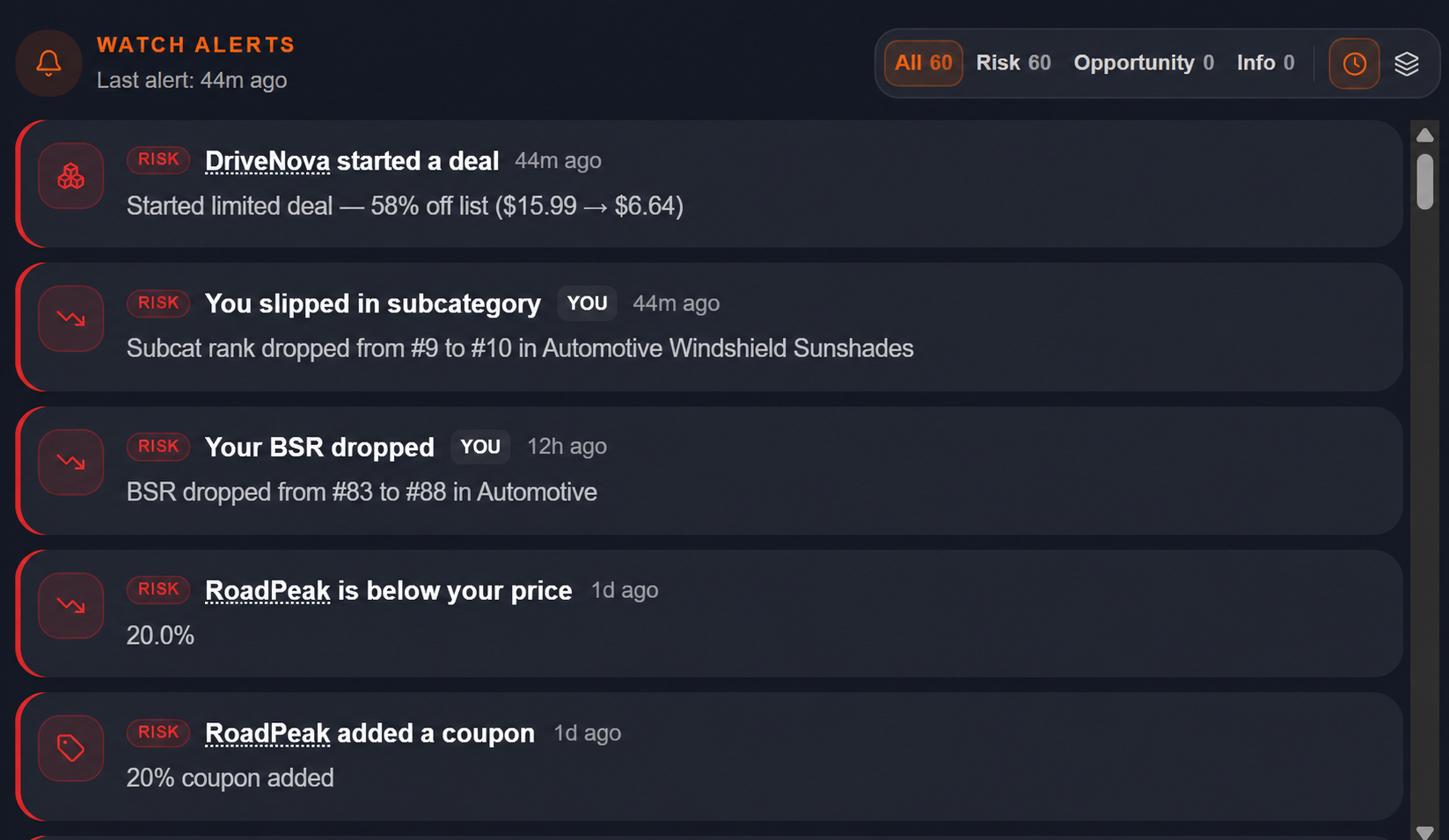
Directly under the digest is the Watch Alerts feed — a running log of everything a rule has fired on. Alerts are grouped into tabs:
- All — everything.
- Risk — things that hurt you (a rival dropped below your price, took a badge you had, your Buy Box got suppressed).
- Opportunity — things you can capitalise on (a rival went out of stock, dropped a badge, cut their coupon).
- Info — informational only (a rival tweaked a title, added a new variation).
Each alert row has:
- Polarity chip — Risk / Opportunity / Info in colour.
- Title — a short summary, e.g. "Rival B0XXXX went out of stock".
- Detail line — the exact change, e.g. "Was: In stock → Now: Out of stock".
- Suggested action — one-liner of what you might do about it. Rival Watch never acts for you; this is text only.
- Timestamp and the rival's ASIN badge (or a YOU badge when the alert is about your own listing).
- Dismiss — hides the alert from the feed. The underlying event stays in the timeline; dismissal is per-user visibility only.
Alerts land in the panel the moment a scan diff matches a rule. Email delivery is separate — it comes once per day in the morning digest.
You vs Rivals table
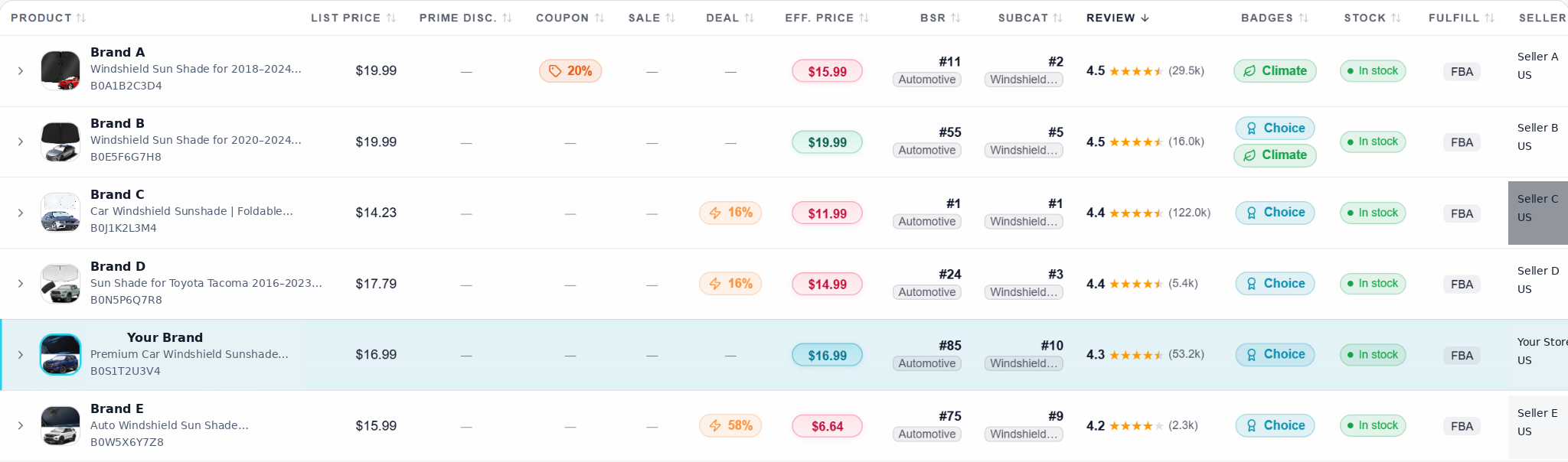
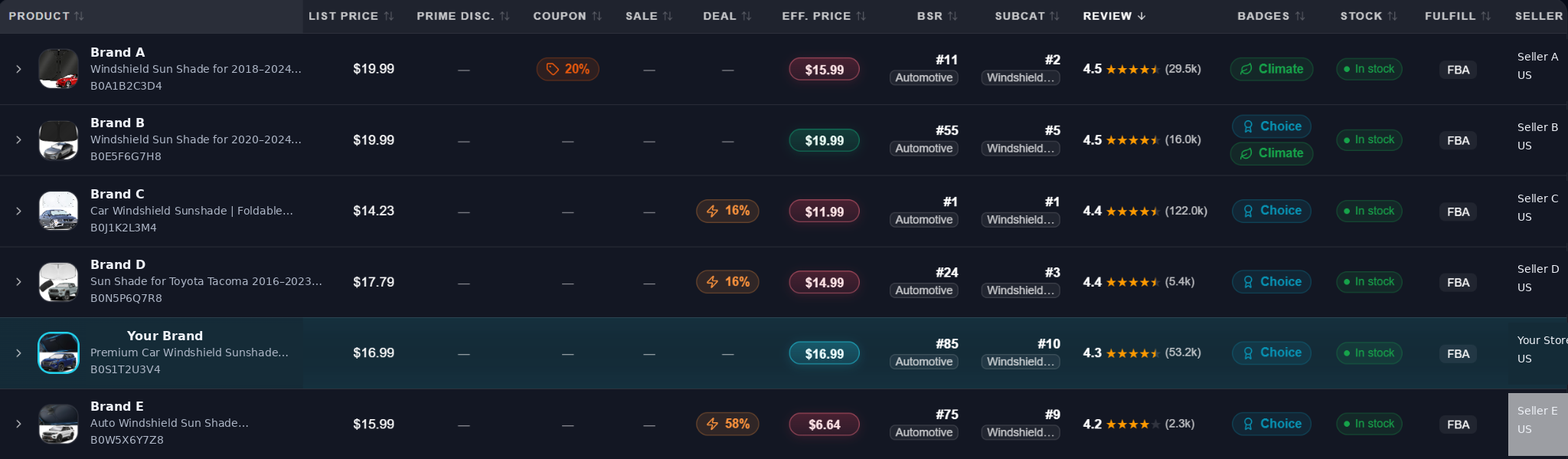
The comparison table is the operational heart of the page. One row per ASIN (yours plus every rival), one column per signal. Sortable on every column.
Columns tracked:
- Product — thumbnail, title, ASIN. Clicking the row expands a per-ASIN drawer (see below).
- Effective price — what a shopper actually pays right now, after coupons, deals, Prime member discounts, and Subscribe & Save. The list price is shown alongside, struck through when the effective price is lower.
- Buy Box — who owns it (seller name), whether it's suppressed, and whether it flipped since the last scan.
- BSR — main-category rank; the subcategory rank shows on hover.
- Badges — icons for Best Seller, Amazon's Choice, Climate Pledge Friendly, Premium Brand, Frequently Returned. Recently gained badges glow; recently lost ones show a faint outline.
- Rating & reviews — average rating, review count, and a small sparkline of review velocity (new reviews per day) over the last 30 days.
- Stock — In stock / Low stock / Out of stock / Delivery delayed.
- Pressure score — a 0–100 composite (badges + deals + review momentum + effective-price gap + BSR ratio versus yours). Higher = more competitive pressure. Your own row shows a dash — you can't put pressure on yourself.
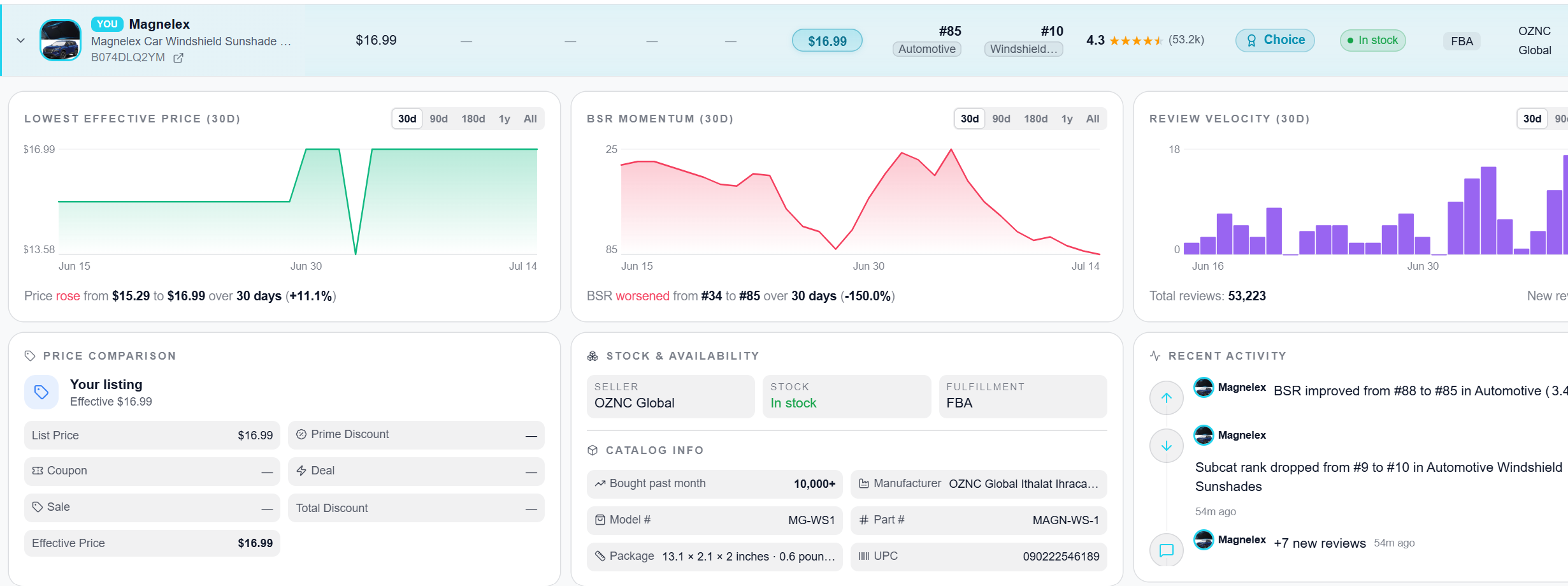
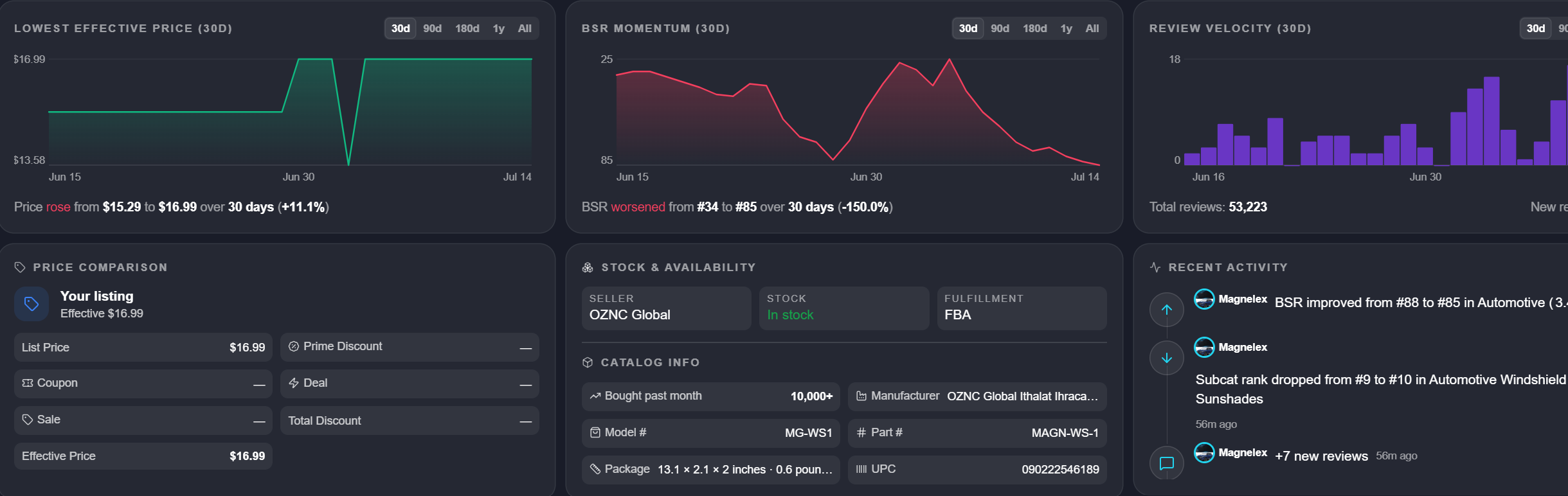
Expanding a rival row reveals per-ASIN charts (price history, BSR history, review count over time), the current Catalog info block (seller, fulfillment, model / part / package details), and any recent listing changes picked up on the last scan (title edits, main image swaps).
Competitor Timeline
Below the table is the Competitor Timeline — a chronological list of every event picked up across every rival, going back as far as history allows. Where the alerts panel is filtered ("things a rule said I should know about"), the timeline is exhaustive ("every observable change").
Filters at the top of the timeline let you narrow by:
- Rival — pick one ASIN or view all.
- Event kind — price change, BSR jump, badge gained / lost, coupon added / removed, stock change, title change, main-image change, Buy Box change, leaderboard entry / exit, review-count jump, rating change.
- Direction — up-only, down-only, both.
The timeline is the source of truth. Alerts are a rule-filtered view of it; the digest is an AI-written summary of it.
Watch Alert Rules panel
The final section on the page is Watch Alert Rules — a per-group table controlling which timeline events become alerts. See Rules & the daily digest for the detail.