Strategies
Strategies are how you turn a good automation setup into a reusable template. Configure once, drop everywhere.
Older UI copy sometimes called these presets — same thing. The product term is strategy.


Starting from scratch
AMZSeller does not ship with any pre-built strategies. The strip is empty on day one — because there is no single "right" automation recipe that works for every seller, every product and every marketplace. You know your business best; you'll build the strategies that fit it.
Until you save your first strategy, the workflow is: drop individual algorithms onto rows one at a time (a "Custom Setup"). Once you settle on a combination you like, promote it into a reusable strategy in one click.
Creating a strategy
Strategies are born from an assignment you like. The path is always the same:
- Drop one or more algorithms onto a campaign, ad group or ad — a Custom Setup.
- Configure them so the assignment behaves the way you want.
- In the assignment's configuration modal, click Save as Strategy.
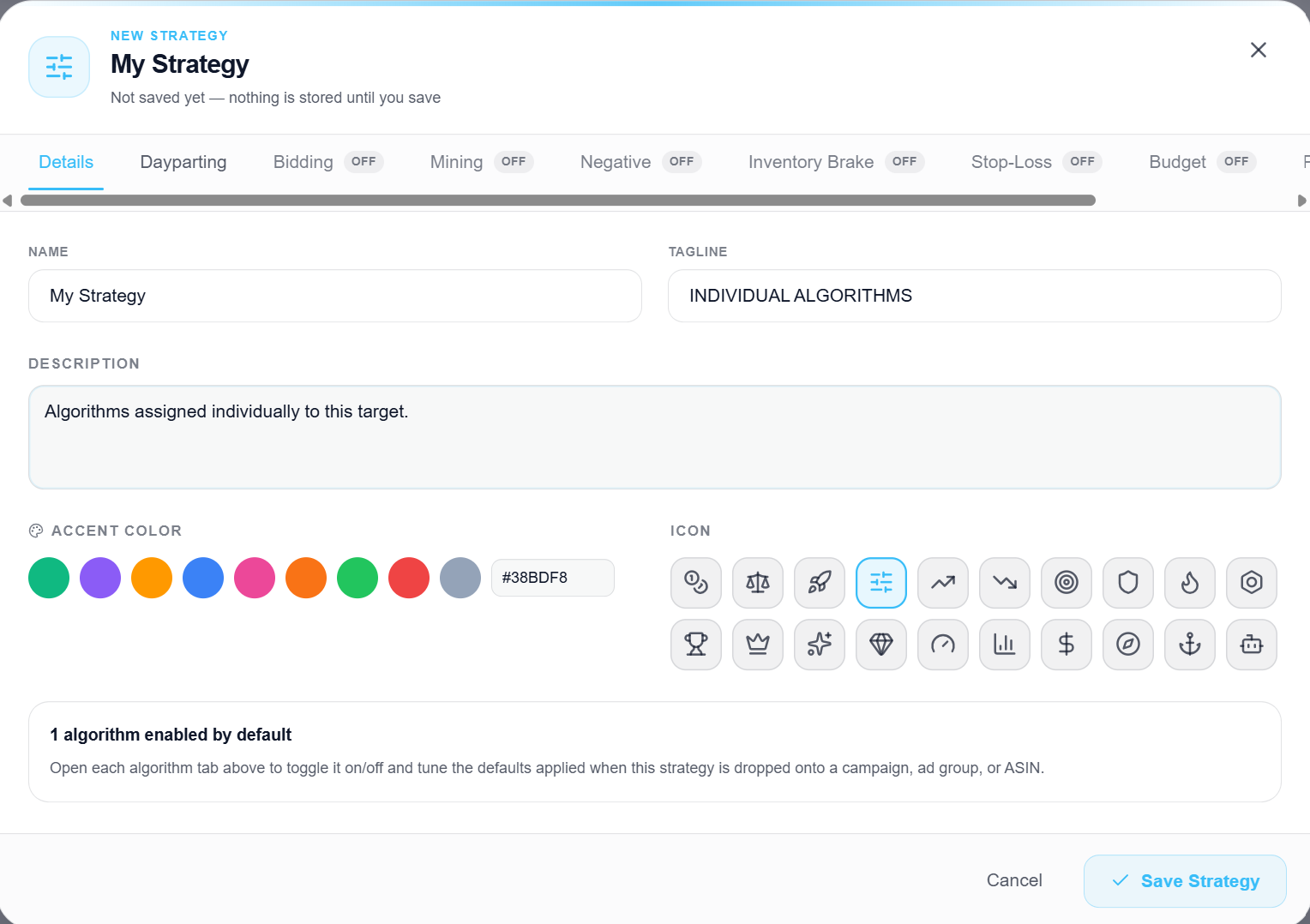
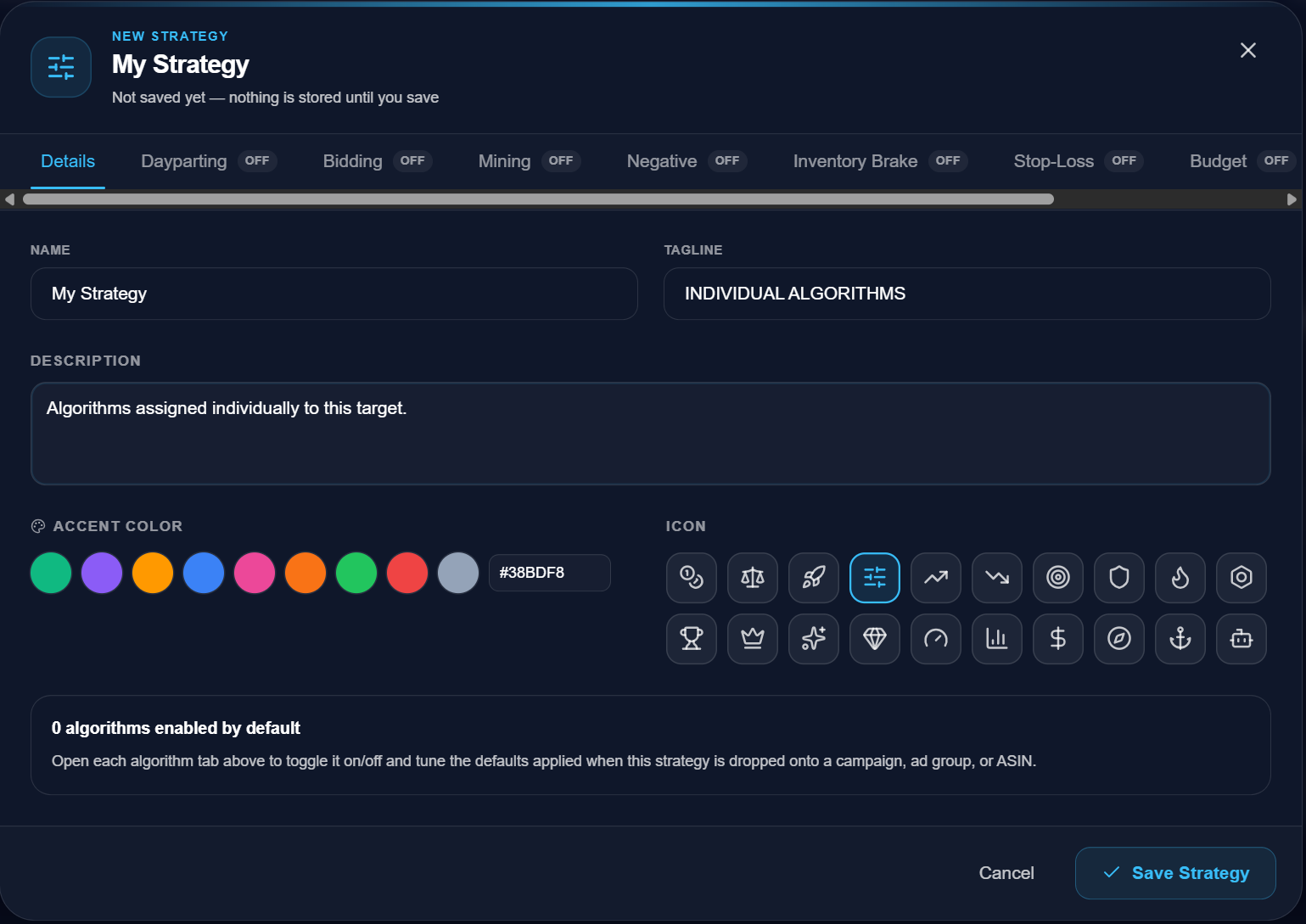
The editor asks for:
- A name (unique in your library).
- A short tagline — the one-line caption that appears under the strategy name on the card (e.g. "MAXIMIZE MARGIN").
- An icon and accent color to make the strategy easy to recognise.
- An optional description to remind future-you what it's for.
The algorithms and their current settings from that assignment are pre-filled — you're really just naming and saving what's already there.
Once saved, the strategy appears in the Strategies strip at the top of the page. From now on, you can drag it onto any row to apply the same recipe with one gesture. Every user has their own library — strategies don't leak between accounts.
Until you save your first strategy, the Strategies strip shows an empty-state hint reminding you how strategies get created — the section itself never disappears.
Linked vs Custom Setup
When you drop a strategy onto a row, the assignment is linked to that strategy in the library. Editing it later gives you a choice:
- Update the strategy — apply the change everywhere this strategy is in use. Great for tuning "every campaign using this strategy should now target 28% ACoS instead of 30%".
- Save as a new strategy — fork into a new library entry, leaving the original alone. Great for "this recipe worked but I need a variant for a different product line".
- Detach & save on this row only — cut the link and keep the setup only on this row (turns it into a Custom Setup).
If you instead drop individual algorithms one at a time, the assignment has no library link — that's a Custom Setup. Edits only affect that row. You can promote a Custom Setup into a real strategy any time from the editor.
Dropping vs configuring
Dropping a strategy onto a row creates the assignment but doesn't launch it. You still have to open it, review the settings for each algorithm, and click Launch to Amazon on that algorithm. This is deliberate — strategies carry sensible defaults but every product has quirks, so we make you look at the numbers before going live.
The badge on a paused (unactivated) assignment appears in a grey, dashed style to remind you it isn't running yet.
When to make a new strategy
The rule of thumb: if the same combination shows up on three or more rows, make it a strategy. You'll thank yourself the next time you want to tweak all of them at once.
Common ideas:
- "New launch" — Bidding with a higher target ACoS, Mining set to auto-execute, Negative with aggressive criteria.
- "Mature product" — Bidding low ACoS, tight Stop-Loss, Inventory Brake at 21 days.
- "Seasonal push" — Bidding with a higher ACoS ceiling + Dayparting biased to peak hours.
Deleting a strategy
You can delete a strategy from the library editor. If any active assignments are linked to it, you'll be warned and offered to either:
- Detach them (they become Custom Setups keeping the current settings), or
- Cancel the deletion.
We never orphan a running assignment.
What strategies don't carry
A strategy carries algorithms + settings. It does not carry:
- Scoping — which campaigns/ad groups you drop it on is always a fresh decision.
- Saved rules that reference specific ad groups — for example, a Mining "Specific ads" source scope with hand-picked ad group IDs won't travel across marketplaces. AMZSeller warns you when a strategy carries scope-specific data.
- The active/paused state — a fresh drop is always paused until you activate.
Strategies are recipes. You still cook.