The keyword table
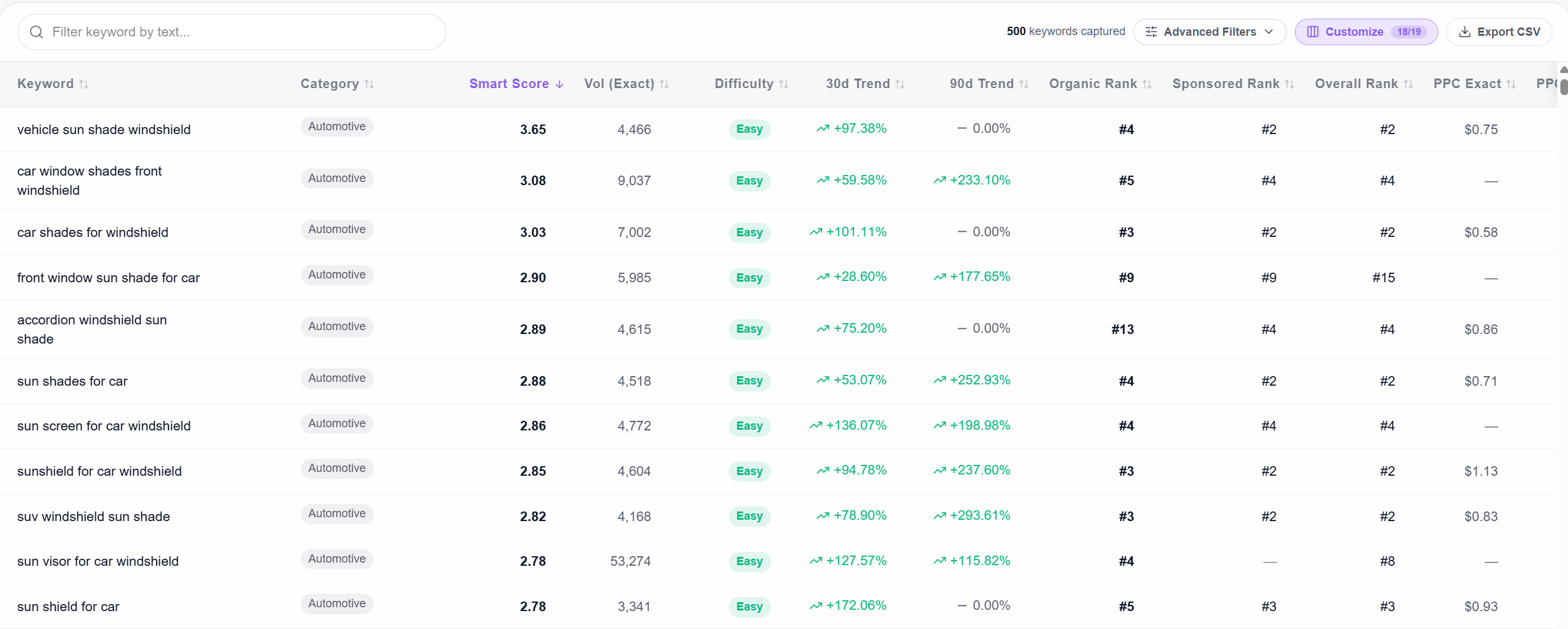
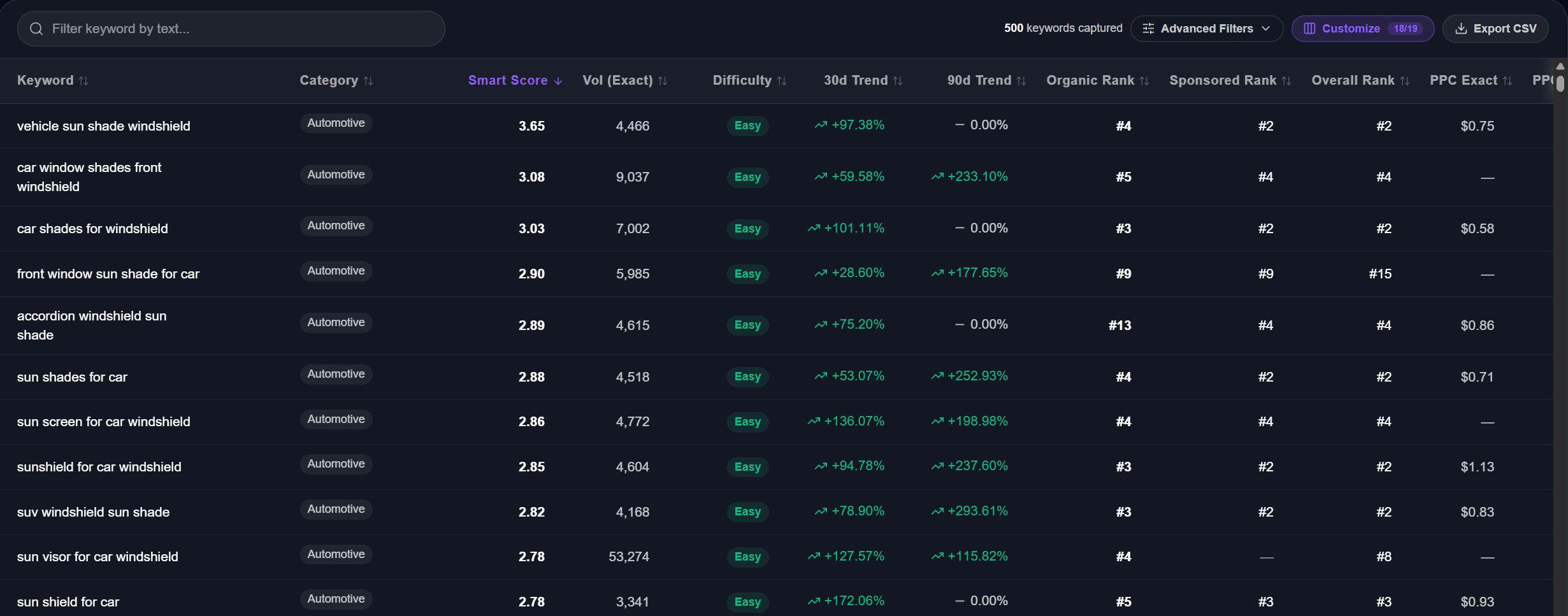
Every hunt ends in the same table — a sortable, filterable list of the keywords Keyword Hunter found for your input. This page walks through every column and how to use them together.
Table controls
Above the table you'll see:
- Inline filter — placeholder "Filter keyword by text…". Instant substring filter on the Keyword column. Type
bagand only rows containing "bag" stay. - Count line — either " keywords captured" (nothing hidden) or " of keywords shown" (a filter is trimming the view).
- Advanced Filters toggle — see Filters & export.
- Customize — pick which columns are visible.
- Export CSV — download the current view.
Every column with a header arrow is sortable — click once to sort descending, click again for ascending. The default sort is Smart Score descending, so the "best keywords for this hunt" are already at the top when the table loads.
The Keyword column


- Keyword text — the actual search phrase, in the marketplace's language.
- Locked position — always the leftmost column; can't be hidden.
- Row hover actions:
- Copy icon — copies the keyword to your clipboard. Confirmation flashes "Copied!".
- Amazon search icon — opens the marketplace-local Amazon results for that keyword in a new tab. Fast way to eyeball who's ranking.
Volume & trends
- Vol (Exact) — estimated monthly Amazon searches for the exact phrase. This is the demand number you want to trust for planning ads and stock.
- Vol (Broad) (hidden by default) — includes plurals, misspellings and close variants. Always higher than Exact. Useful when you're planning a broad-match ad group.
- 30d Trend — percentage change in exact volume over the last 30 days. Green = rising, red = falling.
- 90d Trend — same, over 90 days. Combined with 30d Trend it separates "just had a spike" from "structurally growing".
PPC bids
- PPC Exact — Amazon's suggested Sponsored Products bid for exact match.
- PPC Broad — the same for broad match. Almost always lower.
- SB Bid (ASIN mode only) — suggested Sponsored Brands bid. Higher than SP bids because Sponsored Brands slots are premium real estate.
Treat these as "the going rate right now on this marketplace", not a hard target. Your actual CPC will depend on how aggressive you bid, your listing's conversion, and time of day / week.
Difficulty
- Difficulty — a 0–100 ease-of-ranking score, shown as a pill with a bucket label:
- Very Hard (≤ 20) — dominated by entrenched sellers with heavy review moats.
- Hard (≤ 40) — established competition; expect a long push.
- Challenging (≤ 60) — winnable with a strong listing and steady ads.
- Moderate (≤ 80) — approachable — this is where most opportunities live.
- Easy (> 80) — few strong competitors. Either a genuinely low-competition term or a low-demand one — cross-check volume before celebrating.
Smart Score
- Smart Score — Keyword Hunter's own priority score, blending relevancy and volume. It weighs "is this actually about the seed" against "is there enough demand to matter".
- Higher = more valuable to prioritise. Volume is weighted so a keyword with solid mid-range demand and strong relevancy can beat a super-high-volume outlier that's only tangentially related.
- This is the default sort — start here, work your way down.
Demand vs supply
- D/S Ratio — exact volume ÷ organic product count. Reads as "how much demand per listing competing for it".
- Org. Products — how many organic listings compete on this term.
- Sp. Products — how many Sponsored Products slots are being filled. High counts mean bidding is active.
D/S Ratio is the fastest "gap" spotter — a high D/S with reasonable volume is a keyword where demand is outrunning supply.
Relevancy & category
- Relevancy — how closely the keyword ties back to your seed / ASIN. Relative to the hunt, not absolute.
- Category — the dominant Amazon category among products ranking for this term. Use it to filter out keywords that would drag you into the wrong browse node.
Rank columns (ASIN mode only)
- Organic Rank — where the ASIN currently ranks organically for this keyword.
—= not ranking on the first ~few pages. - Sponsored Rank — the ASIN's Sponsored Products position for this keyword.
- Overall Rank — a blended on-page visibility metric.
Sort by Organic Rank ascending to see "terms I'm already winning"; filter to Ranking Status: Not Ranking (see the Filters page) to see "terms with volume where I'm invisible" — usually the shortlist of ad targets.
Promotions
- Promotions — a rough count of recommended promotional slots Amazon associates with the term. Higher counts often correlate with terms Amazon's own ad system considers "high value".
Sorting & scrolling
The table is virtualised — scroll comfortably even with 500 rows. Column widths adjust to content; sortable headers show an arrow. Sorting is stable, so a Smart Score sort followed by a Vol (Exact) sort acts as a secondary key.
What to do with the shortlist
Once you've sorted and trimmed down to your keepers:
- Copy individual keywords with the row hover icon.
- Grab the Generic Keywords block below the table for your backend search-terms field.
- Export CSV to bring the whole set into a spreadsheet.
- Paste into other tools — Keyword Rank Tracker to monitor them, or Campaign Builder as manual targets. There's no in-app push in the current version; copy/paste is the workflow.