Negative targeting
Below the ad group cards sits the Negative Targeting section — probably the most valuable thing Campaign Builder does that you'd otherwise forget to do yourself.
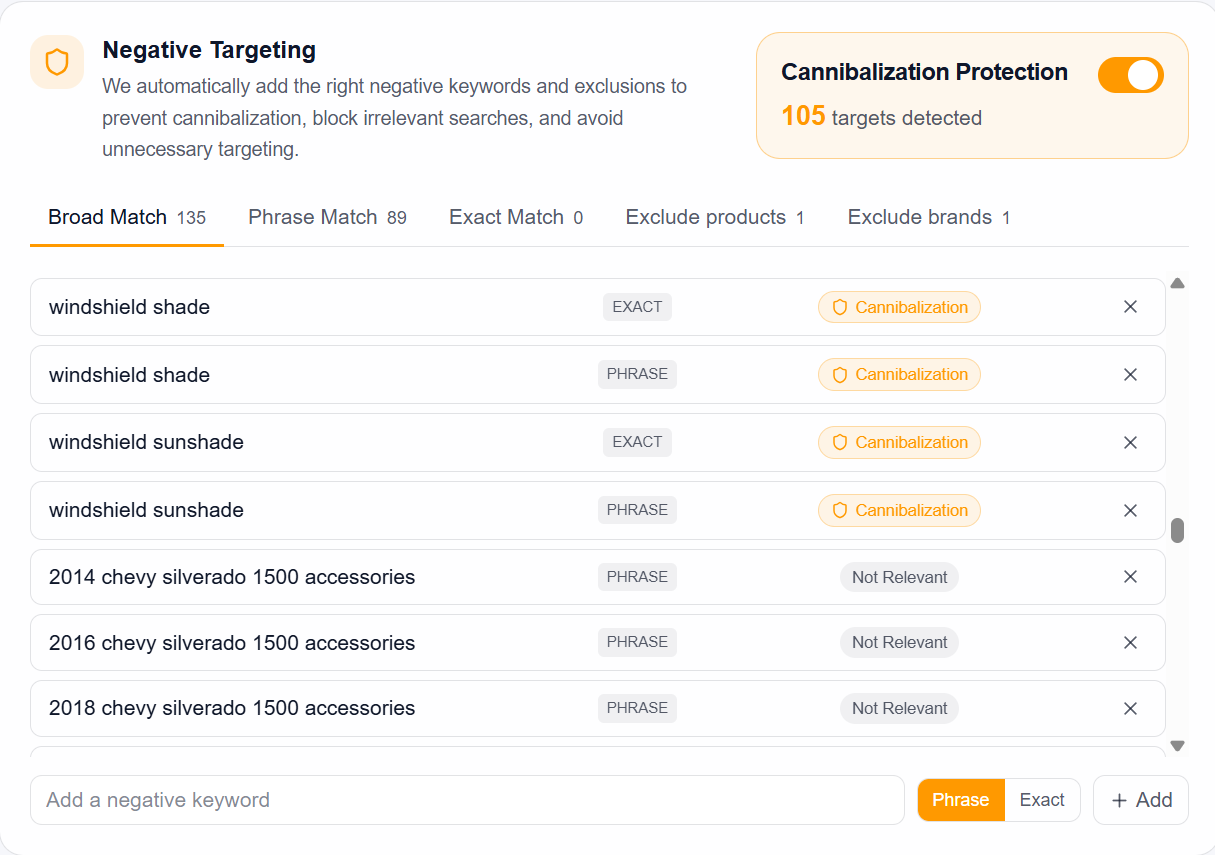
Amazon's Create Campaign wizard leaves negatives empty by default. Neither does most of the "campaign scripts" advice on the internet. As a result, most manual campaigns bleed money on the same searches for months — either paying for terms that were never relevant, or paying twice for the same term through overlapping match types (a phenomenon called cannibalization). Campaign Builder bakes both defences in from the start.
The two kinds of automatic negatives
Cannibalization negatives
When Exact, Phrase, and Broad all target the same keyword (which happens for every "core" term the classifier picks), they end up competing against each other for the same search. Amazon serves whichever ad it thinks matches best — but in practice, this bleeds impressions and messes up performance data.
Campaign Builder solves this by adding cannibalization negatives automatically:
- Terms in Exact are added as negative exact on Phrase and Broad.
- Terms in Phrase are added as negative phrase on Broad.
Net effect: each match type only gets searches it's actually meant to serve. Exact catches the "exactly matching" searches; Phrase picks up nearby variants; Broad handles everything else. Clean funnel, clean data.
Relevance negatives
The classifier that sorts keywords into Exact / Phrase / Broad also flags irrelevant search terms that showed up in the harvested keyword universe but aren't really about your product. Those terms become negative phrase on Phrase and Broad automatically.
Example: for a "kitchen scale" campaign, if the keyword universe includes searches like "bathroom scale" or "weight scale for people", those show up as Not Relevant negatives so you don't accidentally pay for that traffic.
The Negative Targeting panel
The panel has one tab per keyword ad group (Broad / Phrase / Exact) plus two special tabs on the Product Targeting groups: Exclude products and Exclude brands. Click between tabs to see the negatives for each context.
Cannibalization Protection master toggle
If cannibalization negatives were added during the build, you'll see a Cannibalization Protection row at the top of the panel with a summary like "12 targets detected" and a master toggle. Turn it off to disable all cannibalization negatives at launch (relevance negatives stay put). Cannibalization negatives you disable via this toggle stay visible in the panel — struck through — so you can see what they would have blocked.
The negatives table
Each ad group tab has one row per negative keyword:
| Column | What it shows |
|---|---|
| Negative Keyword | The blocked term. |
| Match | Exact or Phrase. |
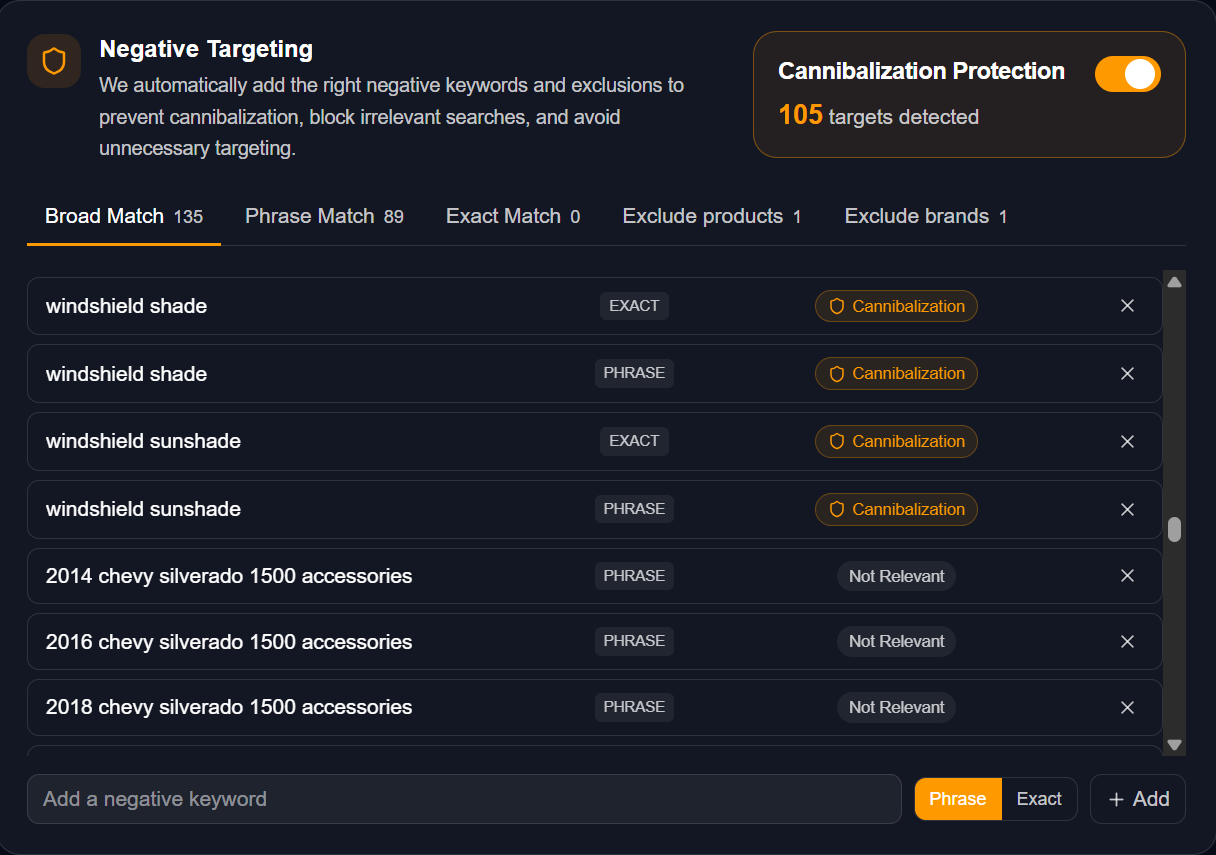
| Reason | A small badge: Cannibalization (with the shield icon) or Not Relevant. This is only shown for auto-added negatives — manually-added ones don't carry a reason. |
| ✕ | Removes the negative. |
Below the table sits an add row:
- Type a negative keyword.
- Pick Exact or Phrase match.
- Hit Add.
Adding the same term twice at the same match type shows "Already added with this match type.".
Copy for Amazon paste (no file upload)
Amazon's campaign wizard does not accept a negative-keyword file upload — you paste a list and pick one match type for the whole batch. Each keyword ad group tab therefore has two copy buttons:
- Copy negative exact — enabled
negativeExactrows in this ad group, newline-separated. - Copy negative phrase — enabled
negativePhraserows in this ad group.
A toast confirms the count (after dedupe) and which Amazon match type to select, e.g. "12 terms copied — paste in Amazon as Negative phrase." If duplicates were removed you'll see that in the toast too. Clipboard failures are never silent — you'll get an error toast if the browser blocks paste access. Lists over the paste size limit ask for confirmation before copying only the first chunk.
Disabled (struck-through) cannibalization rows are not copied.
Exclude products (Competitor ASINs only)
On the Product Targeting — Competitor ASINs ad group, there's an extra tab: Exclude products.
Exclude products — Block specific ASINs — like your own listings and variations — from being targeted, preventing self-competition.
Campaign Builder automatically excludes your own ASINs from every ad group's product targeting on build. You'll see them pre-filled here, and you can add more manually (paste any valid ASIN and hit Add).
The panel also validates: invalid ASINs show "Enter a valid ASIN (e.g. B0XXXXXXXX)."; duplicates show "Already excluded.".
Use Export on this tab to download Amazon's negative-product ASIN bulk template (excluded-products.csv) for upload in Ads Console. Invalid or duplicate ASINs are skipped and counted in the toast.
Exclude brands (Competitor ASINs only)
Also on the Competitor ASINs ad group: Exclude brands.
Stop these ads from showing on your own brand's detail pages so this campaign never advertises against itself.
Your own brand is pre-excluded automatically on the two Product Targeting ad groups (Competitor ASINs and Categories). You can add other brand names manually. Brand IDs are resolved at launch time — if we can't resolve a brand name to a real Amazon brand ID, the exclusion is skipped silently and the launch continues.
There is no Amazon file upload for brand exclusions — use the Copy icon next to each brand name and paste it into Ads Console yourself.
How this interacts with launch
At launch, every enabled negative in the panel is created on Amazon as either:
- A negative keyword on the ad group (for cannibalization + relevance negatives + anything you added manually), or
- A negative product target (for excluded ASINs), or
- A negative brand target (for excluded brands, when the brand ID resolves).
Nothing you disable in the panel — via the Cannibalization Protection toggle or by removing individual rows — makes it to Amazon.
Common questions
Are negatives account-wide or per-campaign?
Per-campaign — specifically per ad group. Campaign Builder does not add campaign-level or account-level negatives. If you want a term blocked across every campaign in your account, use Amazon's brand-safety controls or add it to each campaign individually.
Can I edit an auto-added negative?
Not the text — you can only remove it and re-add it manually with different text or match type. Auto-added negatives are opinionated on purpose (they reflect the classifier's decision).
What if the classifier flagged a keyword as irrelevant that's actually fine?
Just remove that row from the Not Relevant negatives. Nothing else changes — the keyword won't be added as a target unless you add it yourself, but Amazon will no longer be blocked from serving it.
Do negatives update once the campaign is live on Amazon?
No. Everything is set at launch time. If you want to add more negatives after launch, do it in Amazon (or with the Negative algorithm from Automation, which continuously mines new negatives from search-term data).