Product costs
Amazon knows your Sales, your Fees and your Refunds — but it has no idea what each unit cost you. Without that number, Profit and Margin are meaningless. AMZSeller solves this by letting you enter a cost per SKU, per marketplace if needed.
Opening the editor
Click Set Product Costs in the toolbar above the products table — on mobile it's a small calculator icon in the same spot. Until you've opened it at least once, the button has a gentle orange glow — a reminder that Profit isn't complete yet.


Shared vs per-marketplace costs
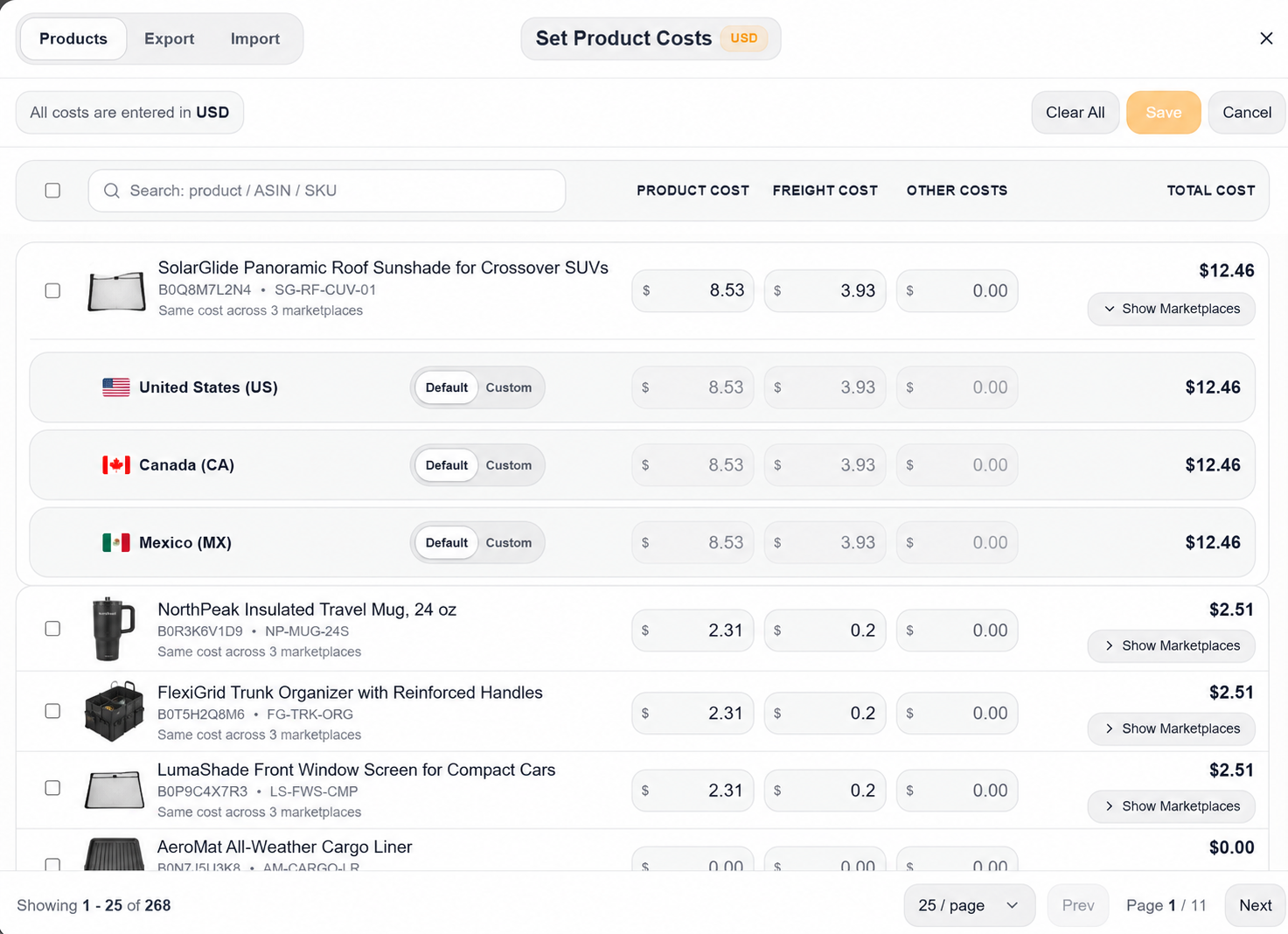
The same product can cost you very different amounts depending on where you're selling it. Even if your supplier price is identical, freight to a US warehouse is not the same as freight to a UK or a Japan warehouse. And plenty of sellers actually use different suppliers for different regions — a factory in China for the US market, a nearer supplier for Europe — with different per-unit prices to begin with.
To handle this without forcing you to duplicate SKUs, every product gives you two levels of cost:
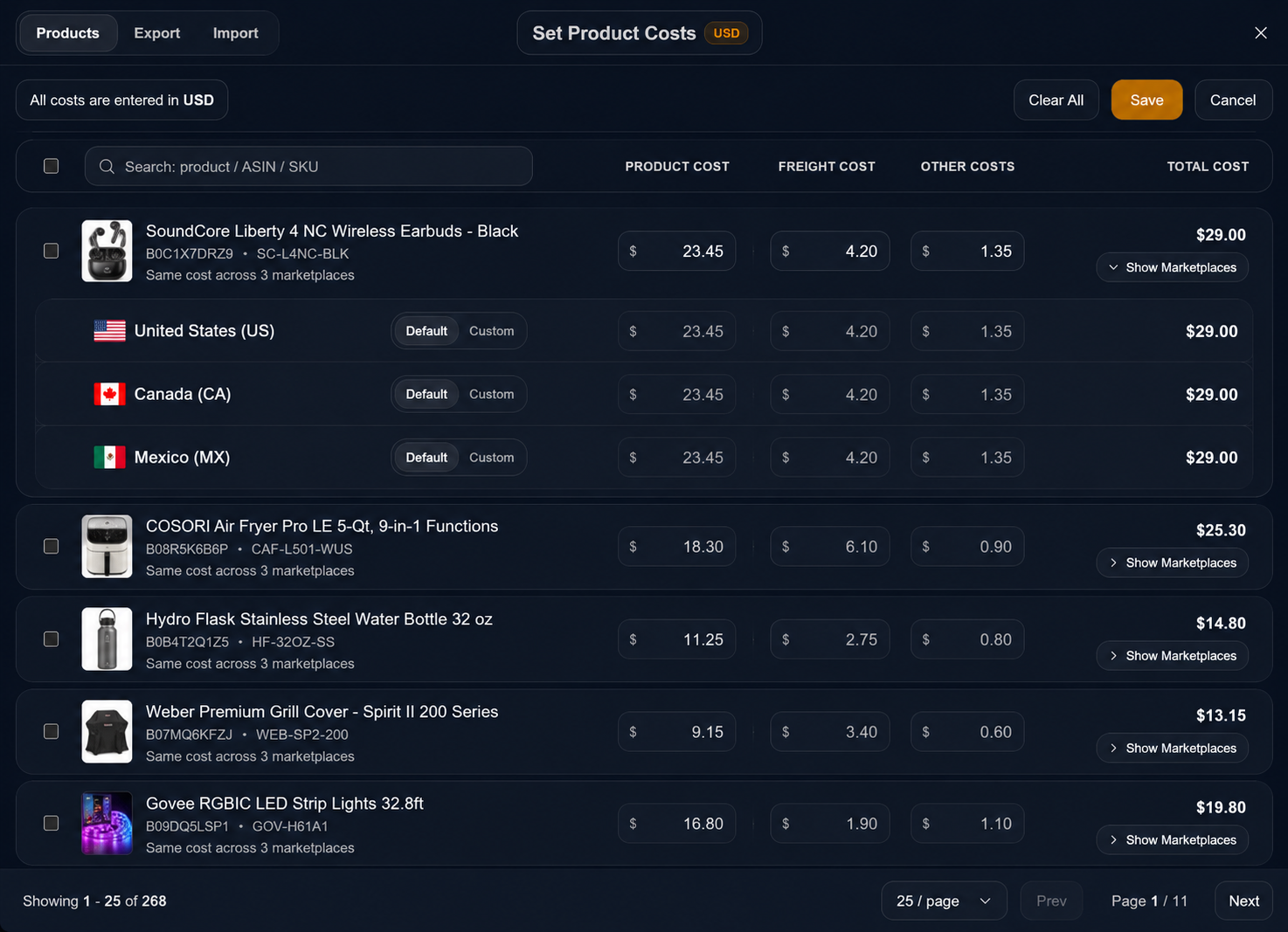
- A Shared cost — one number that applies to every marketplace this SKU sells in. Use this when the true cost really is the same everywhere, or when the differences between marketplaces are so small you'd rather not bother tracking them.
- Optional per-marketplace overrides — a specific number for a specific marketplace. Use these whenever the real cost differs (freight, supplier, tariffs, whatever the reason).
Each marketplace picks its own cost this way: if there's an override for that marketplace, we use it; otherwise we fall back to the Shared cost. If both are empty, the SKU shows a red "missing cost" icon in the table — a signal that Profit for that row can't be trusted yet.
CSV export & import
Inside the modal, an Export tab lets you download your costs — either as a plain snapshot or as an editable CSV you can fill in offline and import back:
- Download Editable CSV → open in Excel or Google Sheets → fill in the missing costs → save.
- Drag the file back onto the modal (or use the file picker) to bulk-import your changes.
This is the fastest way to enter costs for a large catalog.
Do I have to fill in every marketplace row in the CSV?
Each SKU shows up in the CSV as one "All Marketplaces" row followed by one row per marketplace it sells in. If your goal is to use the same cost everywhere (Shared cost), you only need to fill in the "All Marketplaces" row — you can leave the marketplace rows below it blank. The import understands that as "use Shared for every marketplace" and doesn't create any overrides.
Same result if you copy-paste the same numbers into the marketplace rows — matching values are treated as Shared, not as overrides.
Only fill a marketplace row when its cost is actually different from the Shared value. That's when an override is created.