Filters and presets
Ten thousand SKUs are noise. The filters panel is how you turn the Inventory page into "just the things I need to look at right now".
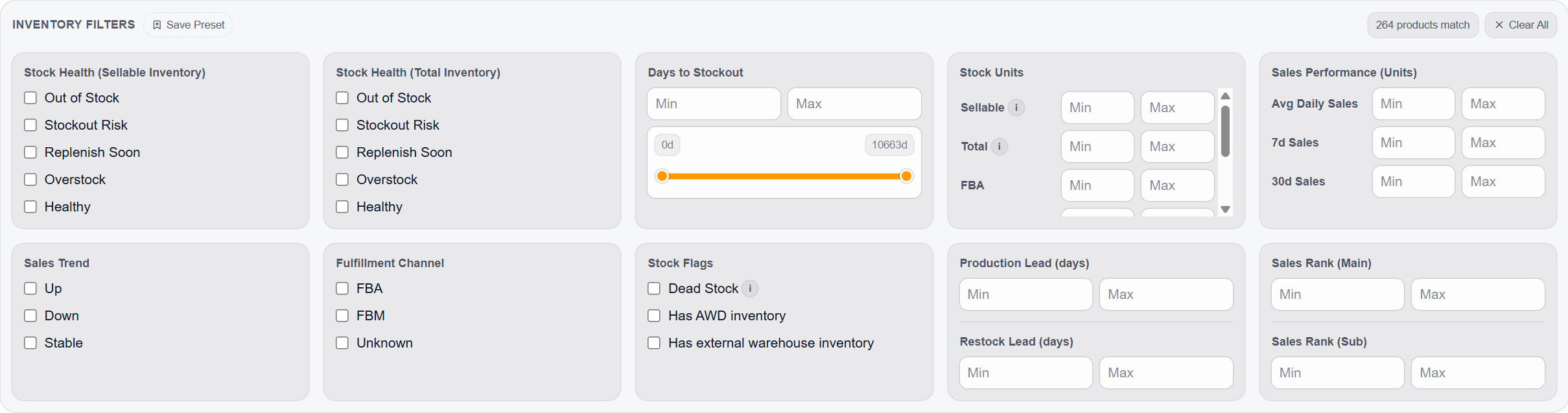
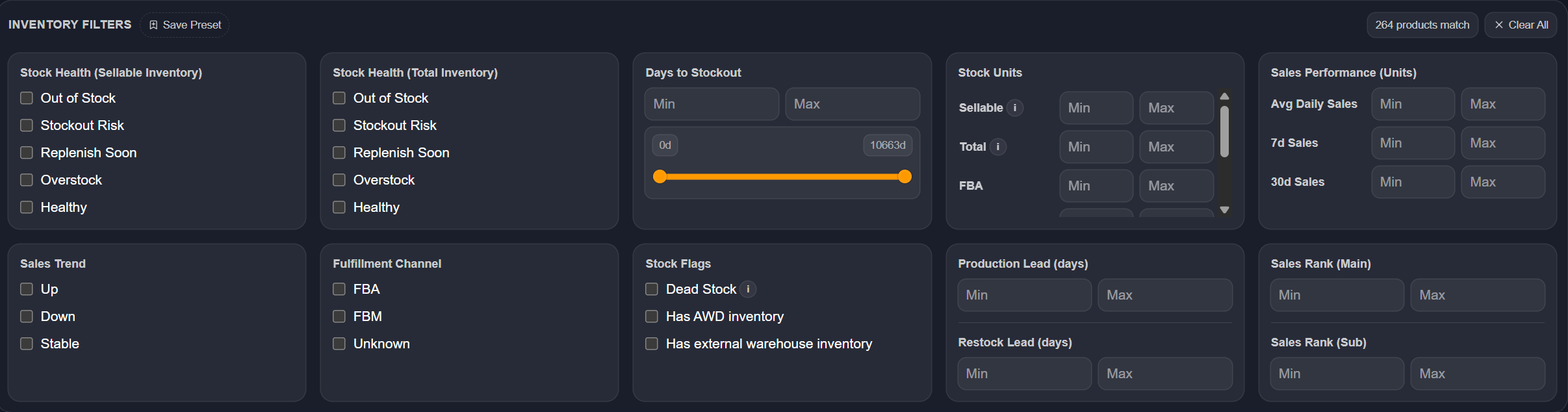
Click Filters in the toolbar above the table to open the panel. At the top you'll see a "N products match" counter that updates live as you adjust filters, and a Clear All button to reset everything in one click.
Anything you don't set is ignored — every filter is optional, and only the ones you actively touch have any effect. Multiple selections within the same section are OR-ed (any match); across sections everything is AND-ed (all sections must match).
Every filter
Stock Health (Sellable Inventory)
Tick one or more Sellable-side status chips. Options: Out of Stock, Stockout Risk, Replenish Soon, Healthy, Overstock.
Stock Health (Total Inventory)
Same idea, but for the Total-side chip. Independent from the Sellable filter — you can filter by both at once (e.g. Sellable = Stockout Risk and Total = Healthy → SKUs where you have plenty of pipeline stock but need to move it into FBA).
Days to Stockout
Range slider. Keep only SKUs whose current Sellable days-of-stock falls between the min and max you set.
Stock Units
Six independent range filters — one per storage location — with a Min and Max for each:
- Sellable units (ready-to-ship)
- Total units (on-hand + inbound)
- FBA
- FBM
- AWD
- External
Set only what you care about; blank means "no limit".
Sales Performance (Units)
Three range filters:
- Avg Daily Sales — the blended velocity used everywhere.
- 7d Sales — units sold in the last 7 days.
- 30d Sales — units sold in the last 30 days.
Sales Trend
Tick any combination of Up, Down, Stable.
Fulfillment Channel
Tick any combination of FBA, FBM, Unknown — filters by the row's primary fulfillment mode.
Stock Flags
Three toggles:
- Dead Stock — SKUs with stock on hand but no sales in the last 30 days.
- Has AWD inventory — only SKUs that currently have AWD stock.
- Has external warehouse inventory — only SKUs that have an External Warehouse quantity entered.
Production Lead (days)
Range filter for the Production Lead time you've entered on each SKU.
Restock Lead (days)
Range filter for the Restock Lead time.
Sales Rank (Main)
Range filter for the main-category BSR.
Sales Rank (Sub)
Range filter for the sub-category BSR.
Combining with the rest of the page
Filters combine with:
- The marketplace selector (zones outside the selected marketplace are hidden regardless).
- The product group tab (only SKUs in the group are considered).
- The search box (ASIN / SKU / title match required as well).
Everything is AND. The result is the set of rows you see, and it's exactly what the KPI cards summarise.
Presets
If you find yourself opening the same filter combinations again and again, save them as presets.


At the bottom of the filters panel:
- Save Preset — type a name and save. If a preset with that name already exists, the button becomes Overwrite.
- Apply — click any preset chip to load its filters.
- Delete — remove one you no longer want (with a confirmation).
You can keep up to 30 presets. Presets are stored on our servers under your account, so they follow you across browsers and devices.
Handy preset ideas:
- "Fires" — Sellable Stock Health = Out of Stock + Stockout Risk.
- "This week's transfers" — Has AWD inventory + Days to Stockout ≤ 14.
- "Dead capital" — Dead Stock + Stock Health (Total) = Overstock.
- "Growth watchlist" — Sales Trend = Up.
- "Low-rank underperformers" — Sales Rank (Main) range covering weak ranks + 30d Sales max low.
Clearing filters
Clear All at the top of the panel removes every filter in one click. Individual sections can be cleared by unticking their boxes or setting their Min/Max back to blank.
Filters you've set persist on this browser — closing the tab or refreshing the page keeps them. Use Clear All or a preset switch when you want to start fresh.