Reading the output
Every generation produces two scored copy blocks (Title and Bullets), two unscored copy blocks (Description and Backend Keywords), plus two creative briefs. This page walks through all four copy blocks; the briefs get their own page: Creative briefs.
The TITLE card
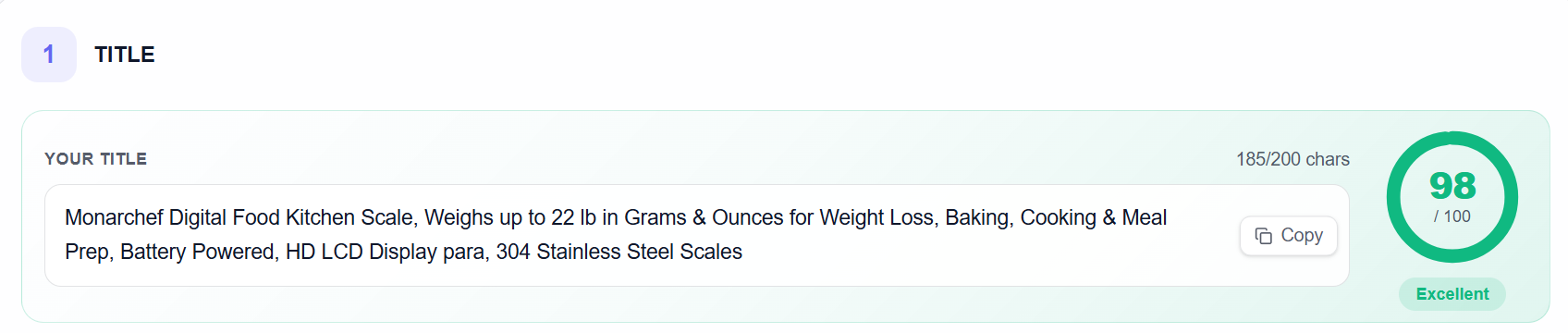
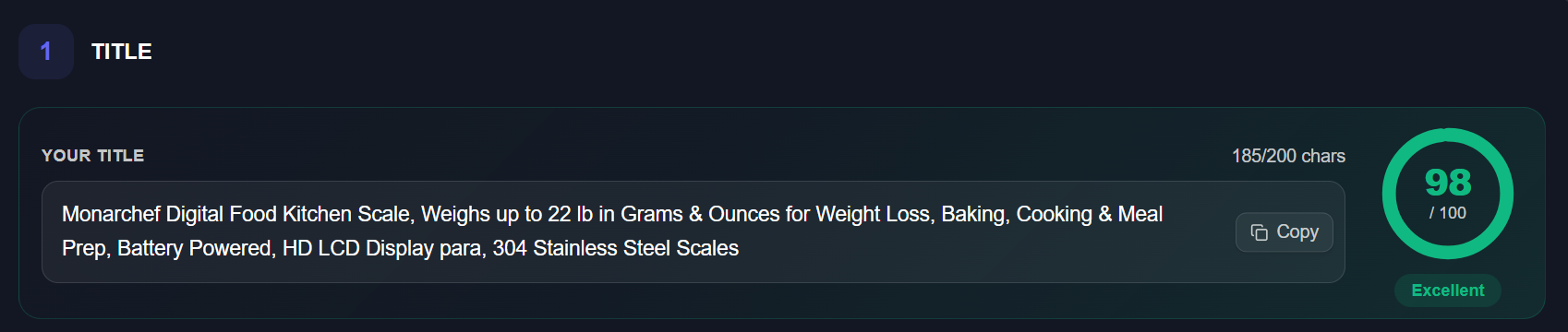
At the top of the output stack.
What's in it
- Score ring — a single number out of 100 with a rating band (Excellent / Good / Average / Weak / Poor).
- YOUR TITLE — the generated title text, with a character count out of 200 and a Copy button.
- Title SEO Score breakdown.
- Title Compliance Score breakdown.
- Keyword table showing which top keywords made it into the title, their importance, and points contributed.
How the score is built
Same rubric as Listing Analyzer:
- Title SEO (80% of the section) — points awarded for including the top-10 highest-value generic words from the market keyword universe, weighted
[20, 18, 15, 12, 10, 8, 7, 5, 3, 2]by rank. A perfect 100 means all ten top keywords are in. - Title Compliance (20% of the section) — a weighted checklist of Amazon best practices and hard rules: no emoji, no special characters, no promotional language, no subjective claims, no repetition, mobile-friendly first ~75 characters, brand-first, keeping length under 150 characters if possible.
What "Excellent" looks like
The generator aims for Excellent (90+) on both axes. If it can't get there in one pass (SEO score falls short of the top-word thresholds), a rewrite pass runs automatically. If your Must-Avoid list is tight or the Must-Include features are long, the tool prioritises compliance and the constraints you gave, even if that leaves some room on the SEO score.
The BULLET POINTS card
Right below the title.
What's in it
- Score ring — 0–100 with a rating band.
- YOUR BULLET POINTS — up to five generated bullets, one per line. Copy button on each bullet.
- Bullet SEO Score breakdown.
- Bullet Compliance Score breakdown.
- Intent coverage table — expandable rows showing which shopper intents each bullet covers, and how much of the market's weighted demand you're now capturing.
How the score is built
Same rubric as Listing Analyzer:
- Bullet SEO (80% of the section) — intent volume coverage. The market keyword universe is clustered into 8–20 buyer intents (e.g. "non-slip yoga mat", "eco-friendly mat"). Each intent has a weighted search volume. The score measures how much combined demand your bullets cover — where a bullet "covers" an intent if it mentions the intent's keywords in any order (loose phrase matching, so variants count).
- Bullet Compliance (20% of the section) — a 15-check policy list: no emoji or special symbols, no ASIN references in copy, no promotional or subjective language, no unverified claims or guarantees, no external links, no excessive repetition, minimum three bullets, 10–255 characters per bullet, capitalisation consistency, no end punctuation, correct number spacing, digits 1–9 spelled out.
Reading the intent table
Each row is one intent — a cluster of related keywords. Columns:
- Intent Group — the intent label (e.g. "non-slip yoga mat").
- Search Volume — the combined monthly search demand across the intent's keywords.
- Points — how much this intent contributes to your SEO score.
- In Bullets — whether the intent is covered.
Expand a row to see the specific keywords that make up the intent. Off-target intents (searches that look related but aren't a fit for your product) are excluded from scoring so bullet real estate isn't spent on the wrong shoppers.
The PRODUCT DESCRIPTION card
Below the bullets. Unlike the two cards above it, this one has no score ring — Amazon publishes no rubric for the description field, so there's nothing to grade against.
What's in it
- The generated description as plain text paragraphs, with a Copy button.
- A character counter against Amazon's 2000-character limit. Amazon rejects the whole field if you go over, so the description is hard-capped at generation time and the counter is there to keep you honest after any edits of your own.
Why it reads differently from the bullets
The description is written last, from the finished title and bullets. It's told which high-demand intents those two couldn't fit and instructed not to restate a bullet verbatim, so it covers new ground: the problem the product solves, how it's used day to day, who it suits, what's in the box. That makes it the last SEO surface in the listing rather than a summary of the copy above it.
If the description didn't generate, the card simply isn't there — the field is optional on Amazon (and commonly left blank when A+ content is live), so a miss doesn't hold up the rest of the build.
The BACKEND KEYWORDS card
The backend search terms field, as a bag of words.
What's in it
- The word chips, plus a Copy button that puts them on your clipboard space-separated — the format the Seller Central field expects.
- A counter against Amazon's 249-byte limit. Bytes, not characters: accented letters cost two and Japanese characters cost three, so on a non-English marketplace a short-looking bag can still be full.
How it's built
Frequency-ranked from the full keyword set this build already pulled — the words appearing across the most keyword phrases come first, with connector words like for, with and and dropped, then packed word by word until the next word wouldn't fit in 249 bytes.
That's the same math as Keyword Hunter's Generic Keywords section, so running both tools on the same ASIN gives you the same bag. It also costs nothing: the keyword data was already paid for by this build, so no Keyword Hunter search is spent and no AI call is made.
What the copy respects
The title, bullets and description all honour the constraints you set:
- Must-Include features — the AI is instructed to weave every one of them into the title and / or bullets.
- Must-Avoid words / claims — none of them will appear in the copy.
- Brand-first — the title always leads with your brand token.
- Marketplace language — the copy is generated in the marketplace's language, not always English. Setting DE gives you German copy that respects German policy rules.
If a Must-Include feature literally can't fit in a 200-character title while still leaving room for the top keywords, it'll appear in the bullets instead. If a Must-Avoid word overlaps with a critical SEO keyword, the tool respects your constraint — you'll take a small SEO hit, not a compliance risk.
The Backend Keywords bag is the exception: it's mechanical, extracted from the keyword data rather than written, so it doesn't run through the Must-Avoid filter. Scan it before you paste if you have trademark-sensitive words on that list.
Copying to Seller Central
- Copy on the title copies the whole line.
- Copy on each bullet copies that bullet, so you can paste them one at a time into the Seller Central bullet fields.
- Copy on the description copies the whole text, paragraph breaks included.
- Copy on the backend keywords copies the words space-separated, ready for the search terms field.
There's no direct push into Seller Central. Copy the text, paste it where you need it. Once live, re-analyse the ASIN in Listing Analyzer to confirm the score matches expectation — note that the Analyzer grades what's visible on the page, so it won't score the description or the backend field.
When to regenerate
Regenerate the whole thing when:
- You want to try different Must-Include or Must-Avoid constraints.
- The score is Good but not Excellent and you want another pass to try to close the gap.
- The generated copy misses a benefit that you care about — add it as a Must-Include and re-run.
If the copy is already Excellent on both axes, re-running rarely changes anything materially — the tool has hit its own quality ceiling.