General settings
The Automation Settings card (first card under the header) opens a three-tab modal covering global rules, product-level rules, and Review Shield. This page covers the General Settings tab; product-level rules are in Product-level controls, and shield rules are in Review Shield.
The master toggle
At the top of the Review Automation page, the header carries a large master toggle:
- On → status badge reads Activated.
- Off → Standby. No requests are sent for any order on any marketplace, regardless of the settings underneath. Existing queued orders stay in "scheduled" state but the sender skips them until you turn the master back on.
A newly connected account starts with the master off. Settings stay fully editable while it's off, so the usual first run is: set your delay, marketplaces and Review Shield rules, then flip the master on.
This is also your kill switch. Use it if you need to pause everything for a few days (e.g. during a listing issue or catalog migration).
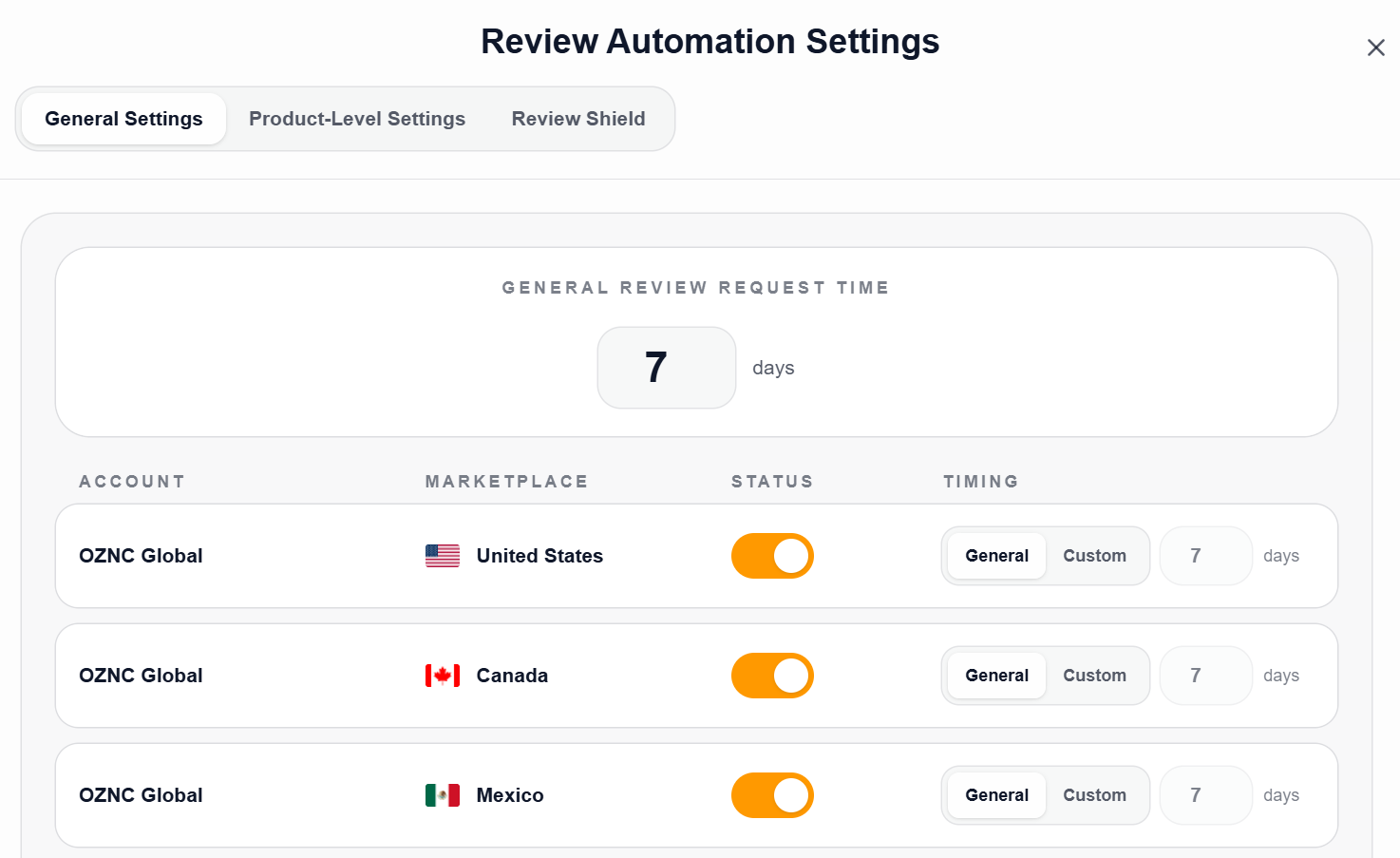
General review request timing
The General review request timing card decides how many days after the product is delivered the review request will fire. It has two modes, Smart and Manual.
Smart
Smart sets the send day separately for each product instead of asking you for one number. The idea: a customer needs time to actually use the product before they can write a fair review — a phone case can be judged in a day, a mattress or a supplement cannot — and the request should also go out after most of the refunds that were going to happen have happened.
How a product's day is found:
-
Each product is looked at on its own. Based on what kind of product it is, we work out how long customers typically need before they can give a fair opinion, drawing on category best practices and market research. That gives the product a starting day between 5 and 30.
-
Your own refund history is then layered on top. If a product shows a notable refund rate — the same refund rate you see for it on the Dashboard, over the last 6 months — its send day is moved later, so fewer requests reach customers who may still return the item. The higher the refund rate, the further the day moves; a product with few refunds keeps its starting day. Products with too few sales to judge use the account's overall rate instead. Refund history never moves a day earlier.
-
Around that day, five levels are spread out:
- Aggressive — earliest. Maximum reach, more requests before any late refunds.
- Assertive
- Balanced — the product's own recommended day. This is the default and, for most accounts, the optimum.
- Cautious
- Conservative — latest. Nearly every refund is already behind you.
The level you pick on the slider is a preference applied to every product that follows the General setting: Aggressive sends sooner, Conservative waits longer — but each product at its own pace. Two products on the same level will usually have different days.
The big number on the slider is the average of your products' days at the selected level, and the line under it says so. Each product's actual day is visible in Product-Level Settings. Move the slider and the average updates live.
The ⓘ button next to the card title opens a short explanation of Smart vs Manual; the Product-Level Settings link inside it jumps straight to that tab.
Available from day one. Smart does not need any refund history to start. A brand-new seller simply gets each product's starting day; the refund-history part begins to matter as refunds accumulate. For an established store that has just been connected, every product's day — including the refund-history adjustment — is already in place by the time the initial import reports completed.
Monthly review. On the 1st of each month the refund history behind each product is refreshed from the newest 6 months and the days are updated where the refund picture has changed. Your level stays where you set it — only the day behind it moves. Requests still waiting in the queue are moved to the new day.
Two different pieces of history are used. The refund rate that moves a product's day comes from your order history — the same figure as on the Dashboard — and needs nothing else. When refunds tend to arrive after delivery is used only to decide how far apart the five levels sit around a product's day; that part needs delivery dates. FBA orders get them from Amazon's shipment reports (a newly connected account is backfilled with 6 months of them right away); FBM orders get them from the delivery promise Amazon attaches to each order, which is collected as orders come in but is not backfilled. On FBM-only accounts the level spacing therefore starts from a standard spread and tightens as live deliveries and refunds accumulate; the refund-rate adjustment itself applies from day one.
Manual
A single number: how many days after delivery to send.
- Allowed range: 5–30 days. Amazon's Request-a-Review window is the same, and this bound is a hard rule you can't work around.
- Default: 7 days.
- Applies to every marketplace unless you override it at the marketplace or product level.
An account that was already running before Smart existed stays in Manual with its configured days until you switch it; nothing moves on its own.
The helper text on the page:
"Review Request Time determines how many days after the product is delivered the review request will be sent."
"The general setting applies to all marketplaces unless a marketplace-specific value is set."
Why the delivery date, not the order date
The clock starts when the buyer actually receives the product, not when they clicked buy. Amazon returns an estimated delivery date on every order — for FBA from the shipment reports, which keep updating as tracking progresses; for FBM from the delivery promise on the order itself. If a package is late, the send date automatically slides.
A new order starts out as Not scheduled yet, whichever channel ships it. Over the first five days Review Automation keeps asking Amazon for the delivery date (even after the order has shipped) and schedules the send the moment one arrives. If none has come through after 5 days (freight, small marketplaces, data lag), a fallback rule kicks in and the send is scheduled for 15 days after the order date — late enough to stay at least 5 days past delivery even on slow shipments, while well inside Amazon's 30-day limit. The order's row in the table will show "delivery_rule: fallback" in that case; a real delivery date arriving later still replaces it.
Per-marketplace controls
Below the general delay, one row per connected marketplace. For each marketplace you can:
- Toggle automation on / off for that marketplace independently. Turning off a marketplace pauses sends there without touching your other marketplaces.
- Switch the timing between General (inherit the global default) and Custom (set a marketplace-specific number of days).
- If Custom, set a value between 5 and 30.
In Smart mode each marketplace row shows the same General / Custom choice. General follows the account level (the row shows the level name and the account-average day). Custom opens a dropdown of the five levels; the day shown next to each is the account average at that level, while every product still uses its own day at that level. Product and product × marketplace levels (see Product-level controls) still take precedence over the marketplace level.
Common uses:
- Slower shipping in a marketplace → set a higher custom delay (e.g. 12 days) so the request isn't sent to buyers who haven't received the item.
- Local returns policy tighter than default → set a lower custom delay (e.g. 6 days) so the request goes out before the return window closes.
- Testing a new marketplace → keep automation off there until you're comfortable with the baseline metrics.
The marketplace list is paged. Rows per page is 25, 50, or 100, with Showing - of , Previous, and Next. The "/ marketplaces enabled" summary and Show marketplaces / Hide marketplaces are on each product row in Product-Level Settings, not on this list.
Saving
Save Settings persists the changes for your account. Nothing is saved until you hit Save — you can experiment freely inside the modal.
Restore Defaults
Restore Defaults resets General and Product-Level Settings to their factory values. A confirmation appears:
"This will reset all settings in General and Product-Level Settings. Continue?" — No / Yes.
Defaults are:
- Timing mode: Smart at Balanced.
- All marketplaces: enabled, using General timing.
- All products: enabled, using General timing.
The master toggle is not part of Restore Defaults — it keeps whatever state it's in. Choosing Yes also resets Review Shield: Return requested, Replacement order and Refund issued on, Exchange order off, High refund rate ASIN (30 Days) off at 10%. The manual delay kept for Manual mode is set to 12 days. Nothing is written until you press Save Settings.
Marketplace filter on the page
The header of the Review Automation page has a marketplace picker (All Marketplaces or a specific marketplace). This is a display filter for the Order Activity table only. The chart and the KPI cards stay on the whole account. It does not change what gets sent; those rules live inside Settings.
What "changes take effect when" looks like
- Master toggle — instant. Turning off pauses the next hourly sender pass; turning on resumes it.
- General delay change / Smart level change — on Save, every still-scheduled order with a real delivery date is moved to the new day. Orders that land in the past-due window as a result fire on the next tick.
- Per-marketplace toggle — on Save. It lives in the settings modal, so it does not take effect until you press Save Settings. After that, the next hourly sender pass skips a marketplace you turned off and resumes one you turned on.
- Per-marketplace timing change — same as general delay change; recalculates future scheduled dates for orders in that marketplace.
- Monthly Smart review — 1st of the month; products whose day changed get the same reschedule as a save.
- New products in Smart — a product that appears in your catalog gets its own day within minutes of the catalog sync; until then its orders use the account average.
The sender runs hourly, so the effect of any change lands on the next tick.
Monthly limit
Monthly Limit Usage shows review requests sent in the current billing month, counted against the allowance on your plan. Each request that actually goes out counts as one. Skipped, postponed, and failed orders do not. You do not set this number in Review Automation settings.
Your plan allowance is used first, then any extra requests you have purchased. The "remaining" figure on the card is the plan allowance only, so the card can show nothing remaining while extra requests are still being sent. When both are exhausted, sending pauses and a banner appears above the page: "You've reached your review requests limit." Orders that are already scheduled keep that status and go out on their own once you Buy more, upgrade, or the next billing month starts. They are not skipped because the allowance ran out. An order that waits past 30 days after delivery is skipped, because Amazon will no longer accept the request.