Placement Modifier
Amazon lets you bid extra on specific placements — Top of Search, Product Pages, and Rest of Search. The Placement Modifier algorithm adjusts those placement multipliers based on how each placement is performing.
If a specific slot is your golden slot, Placement finds it and bids it up. If a slot is a money pit, Placement dials it back.
What it can be applied to
Campaigns only. Amazon's placement modifier lives on the campaign object, so Placement can't be attached to ad groups or products. The UI blocks it with a tooltip if you try.
The setup — a rule list + a wizard
Placement is different from the other rule-based algorithms in one important way: you can save multiple rules on the same assignment, and their order matters. The panel has two parts:
- A Rules list at the top with drag-to-reorder.
- A 4-step wizard below for creating or editing a single rule.
The rules list
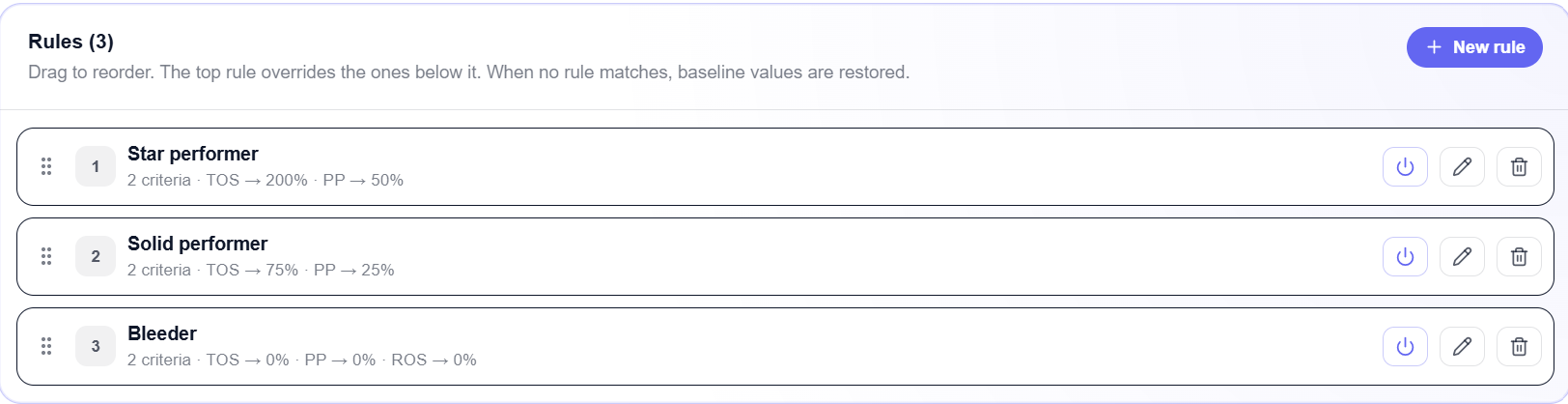
The header shows "Rules (N)" + a New rule button. Each rule below is a row containing:
- A drag handle on the left (grip icon) — drag to reorder.
- A priority number — 1 is the top, evaluated first.
- The rule name (or "Rule #N" if unnamed) + a one-line summary ("3 criteria · TOS → 200%, PP → 150%").
- Power icon — toggle the rule on/off without deleting it.
- Pencil icon — open the rule in the wizard for editing.
- Trash icon — delete the rule.
Rule order = priority. First match wins. Rules evaluate top to bottom; the first one whose criteria match takes effect and subsequent rules are skipped. When no rule matches on a run, Placement walks the modifiers back toward the captured baseline (see below).
Empty state? A dashed placeholder card reminds you that "when no rule matches, the placement modifier reverts toward the captured baseline value".
Baseline preview


Right below the rules list, once Placement has been activated at least once, a Baseline card is always visible showing the placement percentages captured at the first run:
- Top of Search (TOS) — captured %
- Product Pages — captured %
- Rest of Search (ROS) — captured %
If the current live percentage on Amazon differs from the baseline, a small "now X%" note appears next to the number. The card also shows the timestamp of when the baseline was captured.
Reset the baseline by re-activating the assignment — the next first-run snapshots the current Amazon values as the new baseline.
The 4-step rule wizard
Below the list sits the wizard for the rule you're currently editing (or a fresh new one when you clicked New rule). Steps gate sequentially — you can't jump ahead of an incomplete step.
Step 1 — Choose where this rule looks
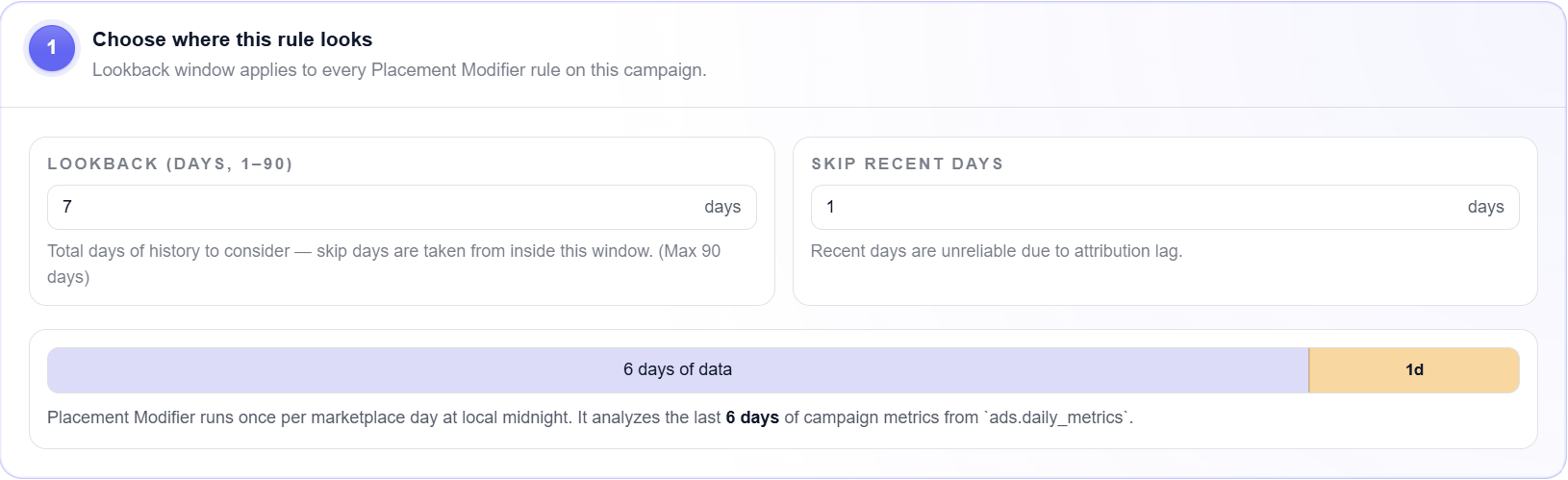
The lookback + skip-recent block, identical to the ones in Mining / Negative / Budget:
- Lookback (days) — range 1–90, default 7.
- Skip recent days — how many of the most-recent days to ignore while attribution settles.
There's also a live timeline preview and the standard validation (Skip < Lookback, warnings for very short lookbacks, etc).
Important: this lookback is global — it applies to every Placement rule on this campaign, not just the one you're editing. Placement runs off the same ads.daily_metrics feed as Budget, filtered by placement.
Step 2 — Create criteria
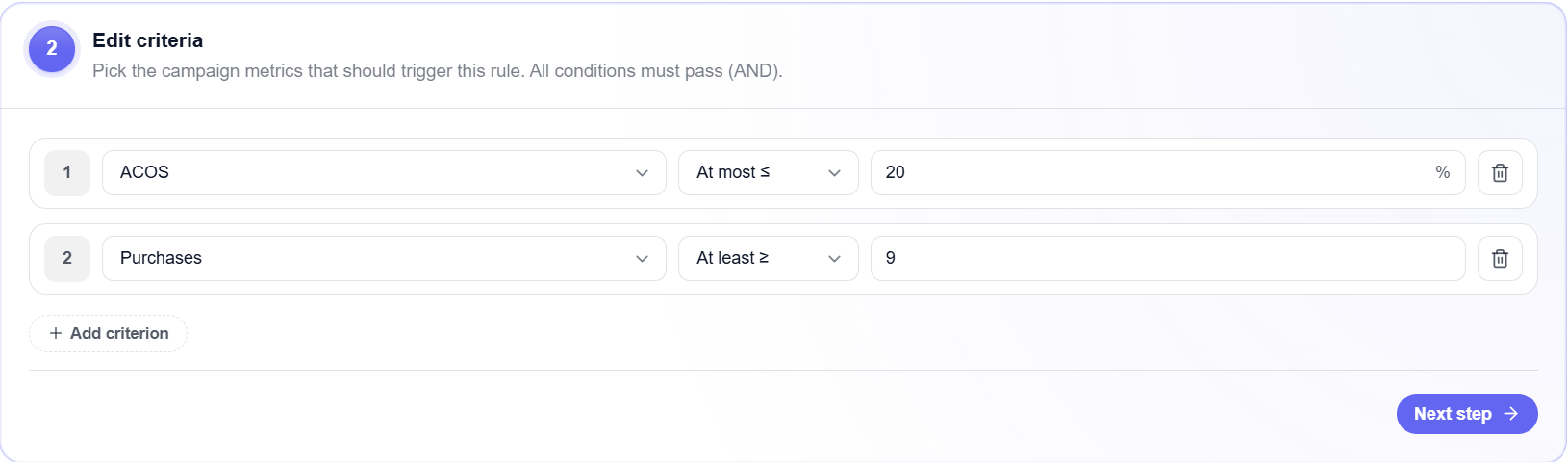
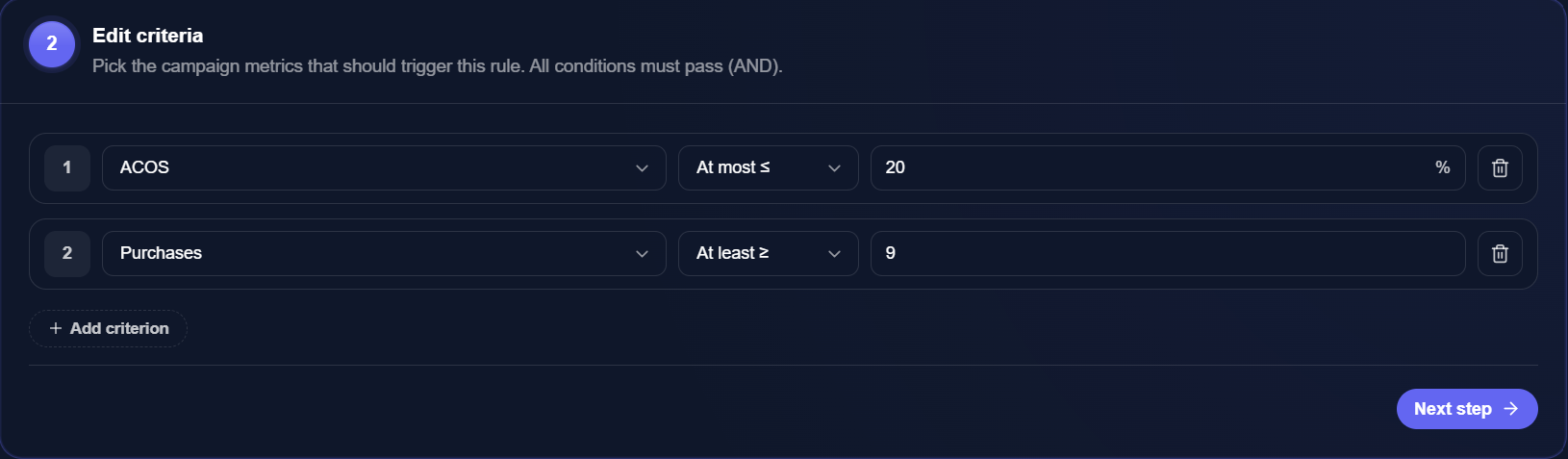
Pick the campaign metrics that should trigger this specific rule. All conditions AND together.
Same 10-metric vocabulary and same row shape as the other algorithms (metric selector + operator + value). Every criterion needs a numeric threshold before Step 3 unlocks.
Step 3 — Choose what this rule changes
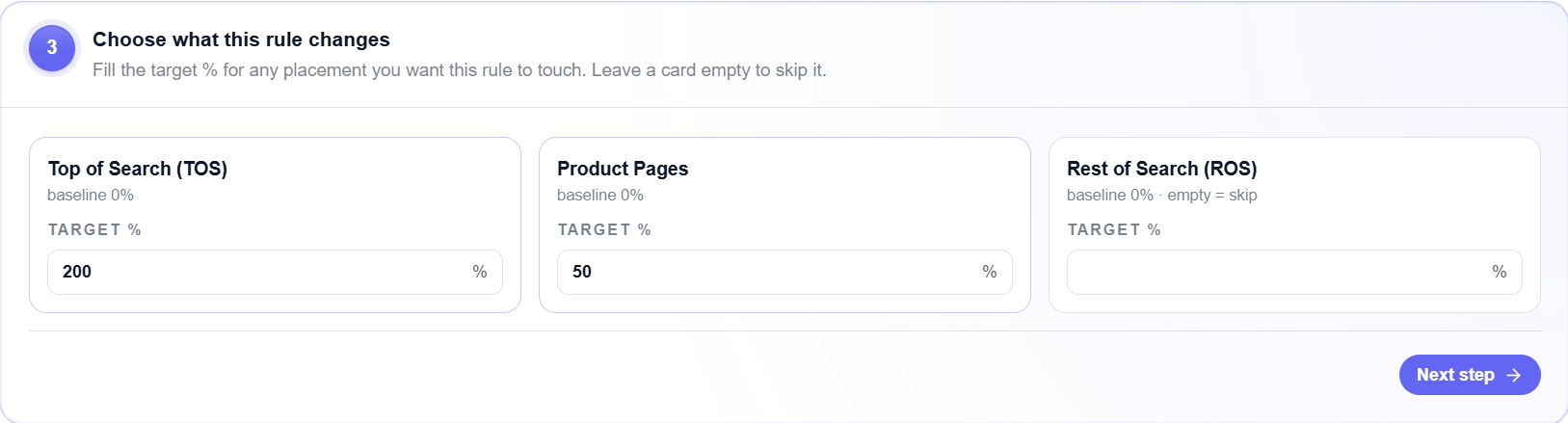
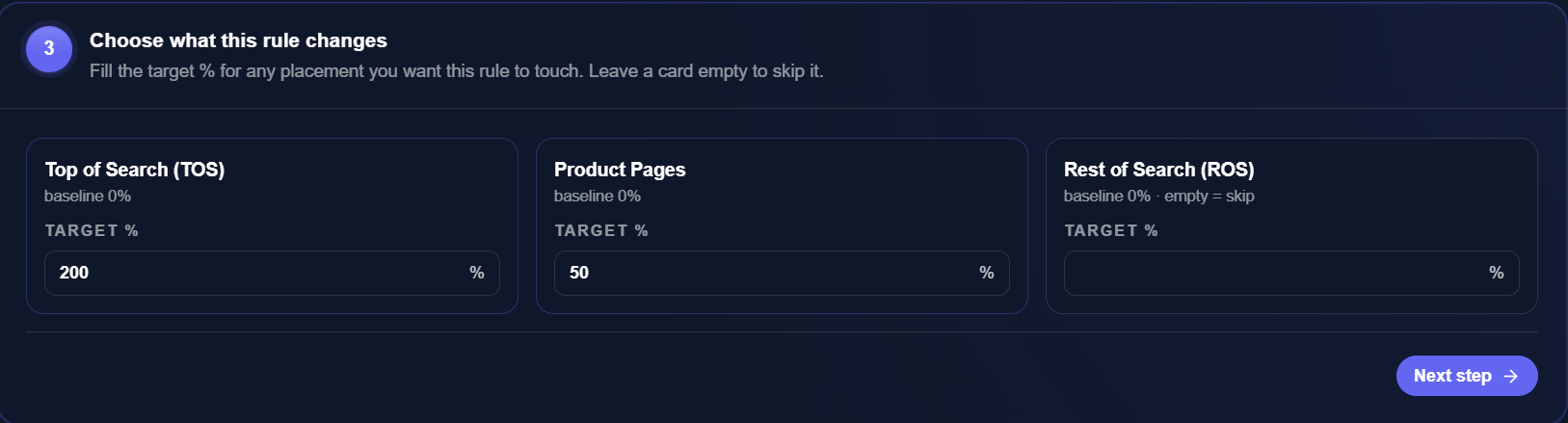
Three side-by-side cards — one per placement:
- Top of Search (TOS)
- Product Pages
- Rest of Search (ROS)
Each card shows the current baseline percentage as a hint, plus a single Target % input. Range 0–900%.
- Empty = skip this placement — the rule won't touch it.
- Any value = when the rule matches, the modifier moves toward this target on Amazon.
At least one card must have a value for Step 4 to unlock. A subtle "empty = skip" hint appears under any card you haven't filled in yet.
There's intentionally no per-target ramp knob. If you want a graduated behaviour — "first move to 30%, then to 50%, then to 100% as performance improves" — express it as multiple ordered rules with different thresholds. The priority engine walks the campaign up or down the ladder one match at a time as performance crosses your bands.
Step 4 — Name & save
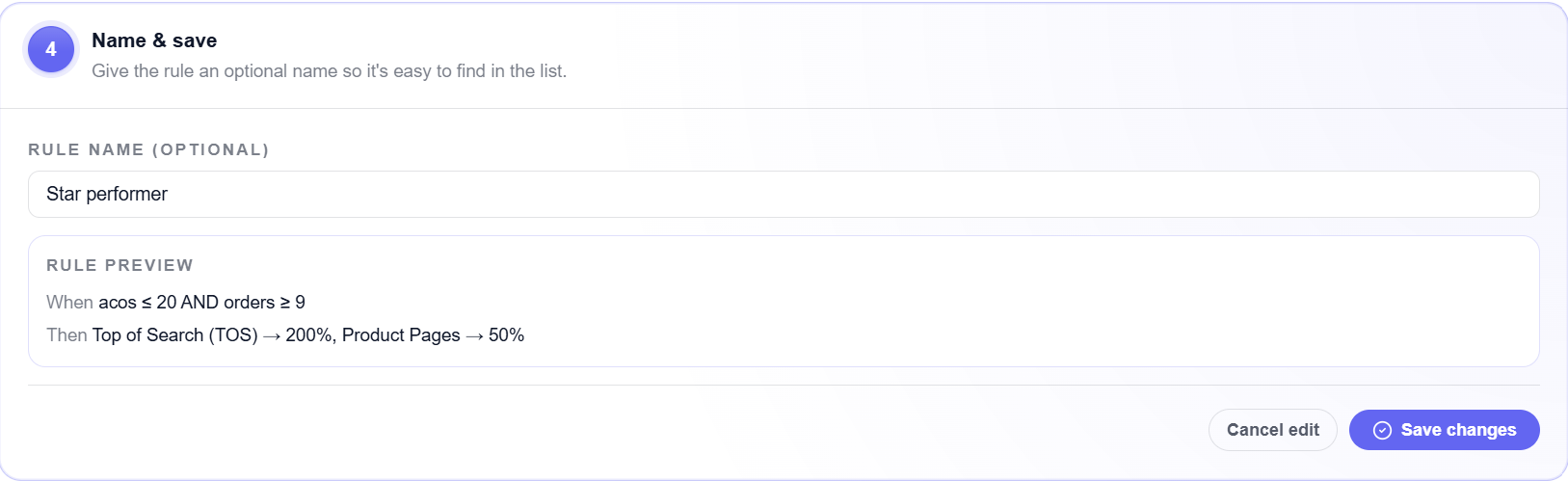
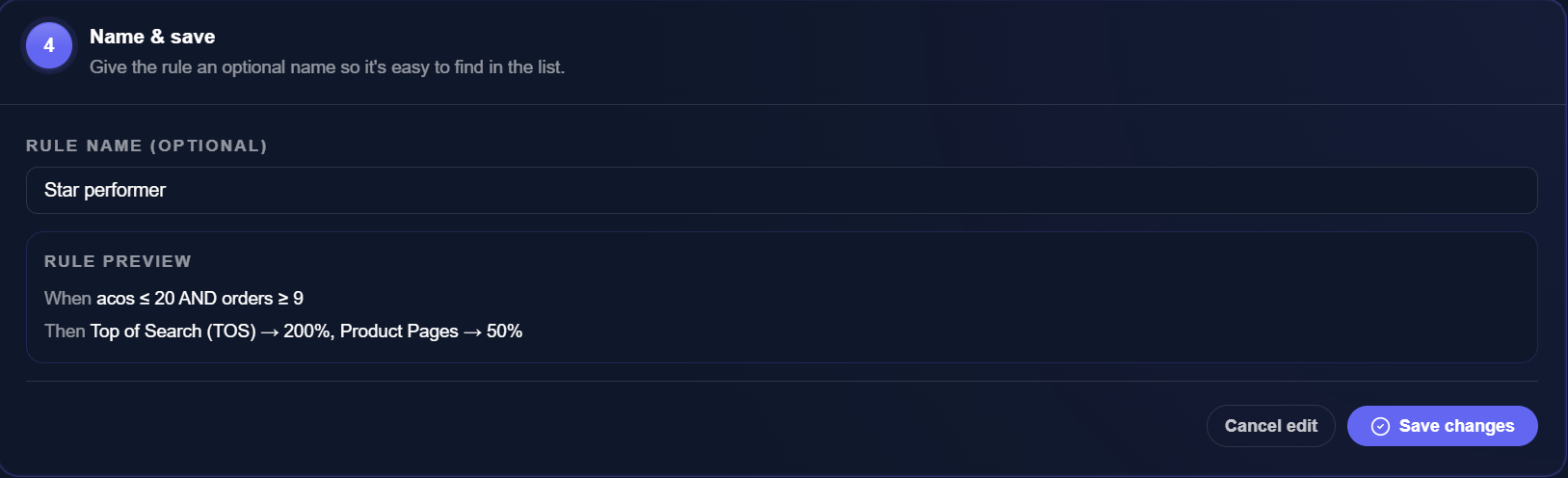
- Rule name (optional) — give it a memorable label (e.g. "Boost TOS on high-converter"). If left blank, the list will show "Rule #N".
- Rule preview — a compact "When … Then …" summary of every criterion AND every placement target you've set, updated live.
- Save rule (green) — appends the new rule to the list, or replaces the one you were editing.
- Cancel edit — only visible when you're editing an existing rule; discards changes.
The freshly-saved rule is scrolled into view in the list above so you can see where it landed.
The one-step move
Each run only moves the placement modifier one step toward the target, not a full jump. If TOS is currently at 0% and the matched rule targets 300%, the first run moves it partway, the next run moves it further, and so on until it lands.
This prevents whiplash from a good day followed by a mediocre day. The algorithm converges without over-shooting.
When it runs
- Hourly cron, self-gated to the marketplace's local 00:00 – 01:00 window. One update per campaign per day.
- Activating the assignment kicks off an immediate first run — which is also when the baseline snapshot is captured (if it hasn't been already).
Interactions with other algorithms
- Rank Guard — the shared writer is the same one Budget uses; Rank Guard overrides can block placement changes for products in a rank-defence window. The decision is logged as blocked.
- Bidding + Placement together — perfectly complementary. Bidding sets the base bid on the keyword; Placement multiplies it by placement. Both can run on the same campaign.
- Dayparting — Placement modifiers don't change when the campaign is paused by Dayparting; they resume alongside the campaign.
Common questions
Why not just bid up my keywords instead of using placement modifiers?
Placement modifiers stack on top of your bid, so they let you be aggressive on a specific slot (say TOS) without inflating spend when the same ad shows in Product Pages or Rest of Search. It's more precise than a blanket bid increase.
Can Rest of Search go above 100%?
Yes — every card accepts up to 900%, same as TOS and PP.
What happens on day one, before Placement has any decisions to work with?
It captures your current modifiers as the baseline and does its first evaluation using the campaign's metrics. Nothing dramatic on day one — the one-step move keeps changes gentle.
How do I "revert to what it was before I activated Placement"?
Turn off (or delete) every rule and let one daily run happen. With no rule matching, Placement walks the modifiers back toward the baseline. To fully hand back control, deactivate the assignment.
What if two rules could match the same day?
Only the first matching rule (top of the list) takes effect. Put your most-specific / highest-priority rules on top and your fall-through rules toward the bottom.