Ad groups & targets
Every Campaign Builder draft has the same five ad groups. Their structure is deliberately fixed — this is the whole reason the tool exists: you get a consistent, well-shaped campaign every time without having to remember which pieces to build.
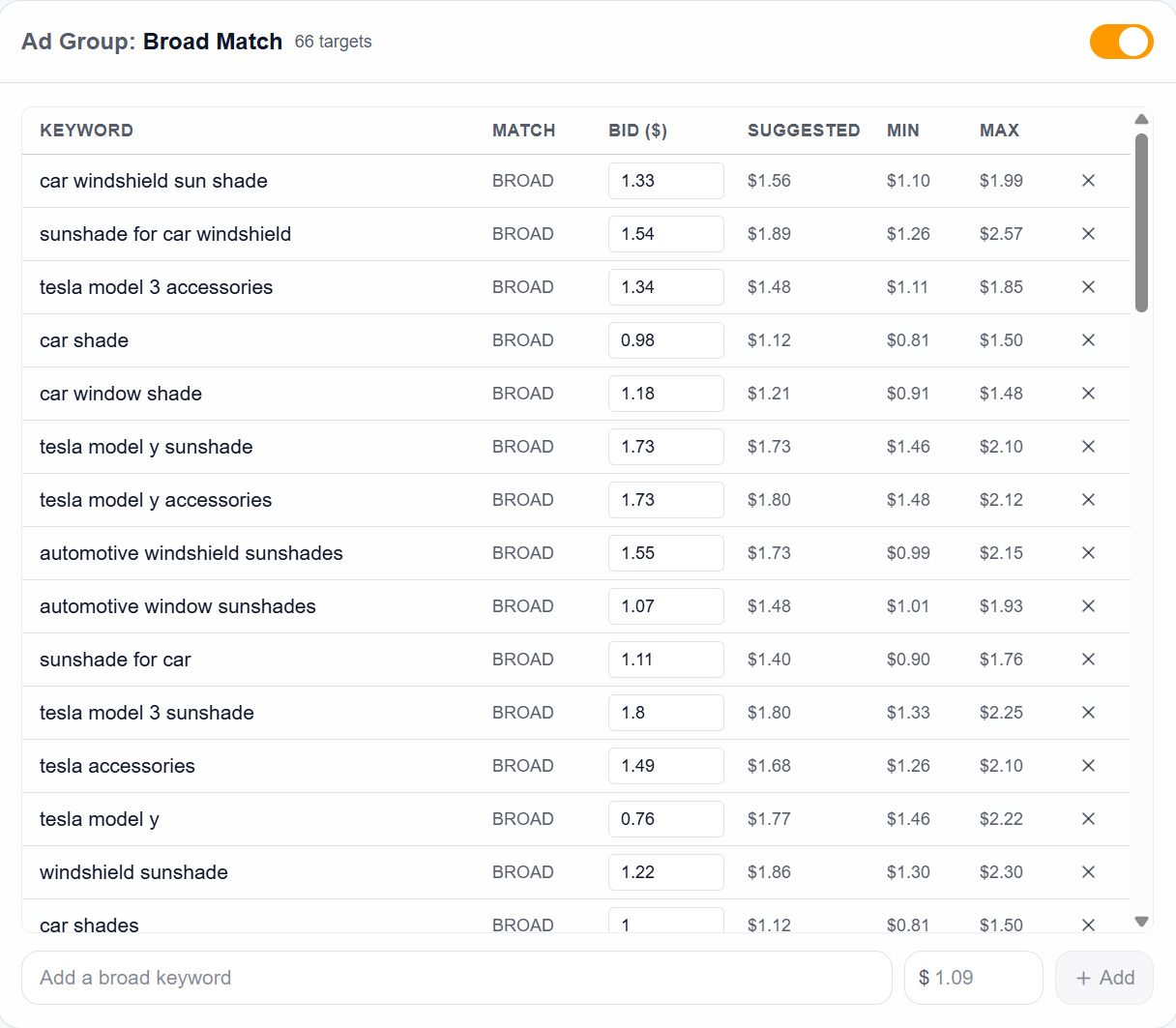
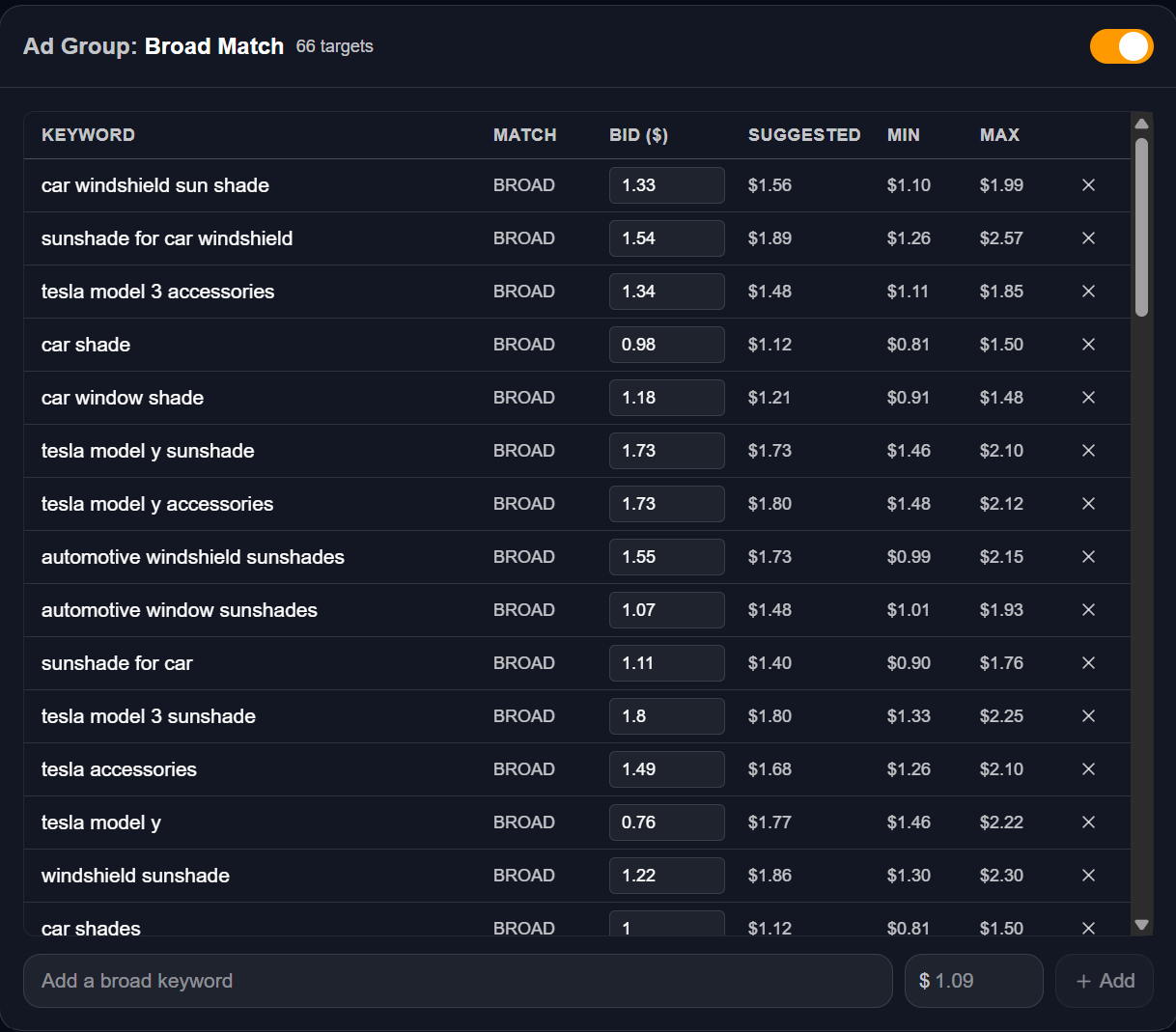
The five ad groups
Displayed in this order on the review page:
- Broad Match — discovery-oriented keywords. Wide net, best-effort relevance.
- Phrase Match — the middle band. Broader phrasing than Exact, tighter than Broad.
- Exact Match — the most-likely-to-convert keywords, matched exactly (or very close to exactly).
- Product Targeting — Competitor ASINs — targets the ad at the product-detail pages of your organic top-ranking competitors (up to ~10 by default).
- Product Targeting — Categories — targets browse categories your product actually competes in, with automatic "more expensive than me" / "lower rated than me" refinements when possible.
How bids are set
For every keyword and product target, Campaign Builder asks Amazon for a bid recommendation and writes that into the target's Bid field. Two adjustments happen on top of Amazon's raw number:
- Match-type ordering. Across the three keyword ad groups, we enforce Exact ≥ Phrase ≥ Broad for the same keyword. If Amazon returns numbers that break that ordering, we clamp them so a Broad target can never end up more expensive than its Phrase or Exact sibling.
- Fallback chain when Amazon can't price a target. In rare cases Amazon doesn't return a recommendation. Campaign Builder then walks a short chain — first the median of the other Amazon-priced bids in the same ad group, then a couple of other internal signals, and finally a hard-coded per-ad-group floor (roughly Exact $0.75, Competitor ASINs $0.65, Phrase $0.60, Broad $0.45, Categories $0.45). In practice most targets never touch this floor.
Net effect: almost every target ships with a bid Amazon actually suggested for your account, adjusted only so the match-type hierarchy stays consistent.
How keywords get sorted into ad groups
Behind the scenes, an AI classifier reads every keyword we harvested and assigns it a "class". You don't see the class code in the UI, but here's what it does:
- Long-tail / core keywords land in Exact.
- Core keywords (the strongest, most relevant terms) also land in Phrase and Broad so they get maximum coverage.
- Generic keywords (relevant but broader in intent) land in Phrase and Broad only — not Exact.
- Irrelevant keywords don't become targets at all; they become relevance negatives on Phrase and Broad instead (see Negative targeting).
That's why the same product might have twenty terms in Broad and eight in Exact — the classifier is picky about what deserves to be paid for on an exact-match basis.
The ad group card
Each ad group renders as its own card. Header row:
- Ad Group: + target count. The name is editable inline — click it, type, and it saves when you click away (Enter saves too, Escape cancels). Whatever you set here is the ad group name created on Amazon at launch.
- If the ad group is empty (e.g. no competitors resolved for the Competitor ASINs group), it gets an "Excluded from launch" badge automatically.
- Include toggle on the right — flip it off to skip the entire ad group at launch without deleting any of its work. Useful when you want to launch with just three of the five ad groups.
- Export (Broad / Phrase / Exact / Competitor ASINs) — downloads an Amazon Ads Console bulk-upload CSV matching Amazon's template for that targeting type (
…-keywords.csvor…-product-targets.csv). Bids follow the draft marketplace currency (e.g. whole yen on JP). Large lists split into multiple files. Categories have no Amazon file upload, so there is no Export there. Export is disabled when the ad group is toggled off or has no enabled targets.
Below the header sits the targets table, one row per keyword or target:
| Column | What it shows |
|---|---|
| Keyword / Target | The keyword text, competitor ASIN, or category name. |
| Match | Exact / Phrase / Broad. Only shown on keyword ad groups. |
| Bid ($) | The bid that will actually be sent to Amazon at launch. Pre-filled with Amazon's recommendation (clamped by the match-type ordering rule above), editable inline — min $0.02, saves on blur. |
| Suggested | Amazon's raw suggested bid for this target — no clamp applied. Handy for seeing whether the value in Bid was adjusted or left as-is. |
| Min / Max | The lower and upper bounds Amazon considers reasonable for this target. |
| ✕ | Removes the target from the ad group. |
If the Min / Max columns are blank for a row, that specific target is one Amazon couldn't price — Campaign Builder used the fallback chain to fill in Bid (and mirrored the same value into Suggested so the column isn't blank). Not an error — just means you're operating without Amazon's guidance for that row, so feel free to override the bid manually.
Adding targets
Every ad group has an add-row at the bottom.
Keyword ad groups (Exact, Phrase, Broad)
- Type a keyword in the input, optionally enter a starting bid (defaults to the ad-group median if you leave it blank), and hit Add.
- The same keyword can appear across multiple ad groups at different match types — that's normal (cannibalization negatives will keep them from competing; see Negative targeting).
- Adding the same keyword twice in the same ad group at the same match type shows "This keyword is already in this ad group.".
Competitor ASINs
- Paste one or more ASINs — comma, space, or newline-separated. All get added at once.
- Bulk-paste is the fast path: copy a list of ASINs from anywhere and drop it in.
Categories
- Click the category search to open the Amazon browse-node tree for the current marketplace. Search by name or drill down.
- Each category you tick gets added as a target with automatic price/rating refinements (see below).
- The category tree is cached per marketplace for 24 hours, so the first browse might take a few seconds while it loads; every browse after that is instant.
Automatic category refinements
When you add a category, Campaign Builder attaches two refinements automatically when it has the data:
- Price refinement — narrows the target to products priced above yours. Shoppers browsing pricier alternatives are exactly the ones most worth stealing.
- Rating refinement — narrows the target to products rated lower than yours. Shoppers looking at worse-reviewed competitors are prime steal candidates.
If your source ASIN's price or rating wasn't detected during the build, the corresponding refinement is simply omitted.
Excluding an ad group from launch
If you don't want to launch one of the ad groups — say you're doing a keyword-only campaign and want to skip both product targeting groups — flip the Include toggle off in the ad group header. The card dims to show it's excluded, and at launch time we simply skip that ad group entirely. All the keywords, bids, and negatives stay in the draft in case you change your mind.
Ad groups with no targets are auto-excluded — Amazon rejects empty ad groups.
Common questions
Why is the same keyword in Exact, Phrase, and Broad?
Because the classifier decided it was strong enough to compete at all three match types. Cannibalization negatives keep the three from stealing traffic from each other — Amazon serves the most-specific match first, so Exact fires when it can, then Phrase, then Broad.
How is the "Suggested" bid different from the "Bid" I can set?
Suggested is Amazon's raw recommendation for that specific target on your account today. Bid is what will actually get sent to Amazon — it starts as Suggested and then gets nudged by our Exact ≥ Phrase ≥ Broad ordering rule so the three match types don't compete unfairly against each other. Most of the time they're identical; when they differ, the ordering clamp fired. You can always override Bid — Amazon will still serve the ad; you just influence how competitive you are.
Can I change an ad group's name?
Yes — click the name in the ad group's header and type. It saves when you click away (or press Enter); Escape cancels the edit. The name you set is exactly what gets created on Amazon at launch. Renaming doesn't change what the ad group does — the match type and targeting behaviour are fixed by its structure.
What if a keyword I want isn't in any ad group?
Add it manually in whichever ad group you think fits — Broad for exploration, Phrase for medium confidence, Exact for keywords you're sure convert. If in doubt, add it to Broad first and let Amazon's data tell you whether to promote it later.