Reading the results
Once a hunt completes, the page fills in top-to-bottom. The header context depends on the mode — ASIN or keyword — and the keyword table underneath is identical in both. This page covers the header. The table has its own page: The keyword table.
ASIN mode — the product panel


When you hunted an ASIN, the top of the page shows a Product info panel with everything Keyword Hunter could learn about that listing:
- Image and title with a View on Amazon link that opens the marketplace-local PDP.
- Product Details tiles:
- Seller — who's on the Buy Box.
- Category — the leaf category name.
- BSR — current Best Seller Rank in the main category (subcategory rank on hover).
- Price — the current effective price.
- Reviews — total review count.
- Rating — average star rating out of 5.
- Available Since — first-listed date. Useful for gauging whether the product has had time to accrue rank / reviews.
- Sales Performance tiles:
- Monthly Sales — estimated units sold in the last 30 days.
- Daily Sales — that number divided into an average daily figure.
- Revenue (Monthly) and Revenue (Daily) — the same, in dollars.
About the "Parent Level" badge
Sales estimates come from BSR — and Amazon only reports BSR at the parent-ASIN level for variation families. If the ASIN you hunted is part of a family, the panel shows a "Parent Level" badge:
These estimates are based on the parent ASIN. Child-level sales may differ because Amazon does not provide separate BSR data for each variation.
Read it as "total sales for this whole product family", not "sales for this specific size / colour".
ASIN mode — extra table columns
In ASIN mode the keyword table also gains three rank columns (invisible in keyword mode):
- Organic Rank — the ASIN's current organic position for that keyword.
—means not currently ranking. - Sponsored Rank — the ASIN's Sponsored Products position.
- Overall Rank — a blended visibility metric across both.
These let you jump to "where am I already winning?" and "where am I invisible?" in the same view.
Keyword mode — Live Top 10 on Amazon
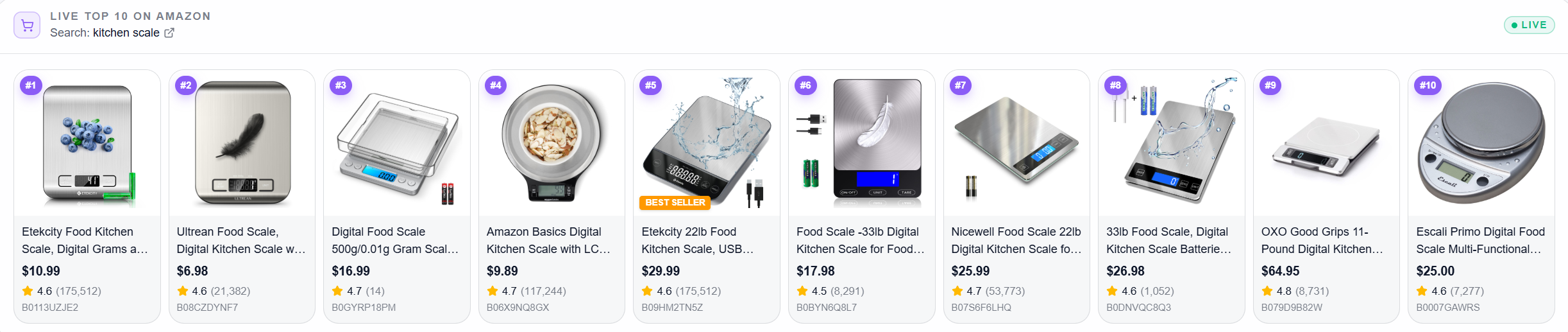
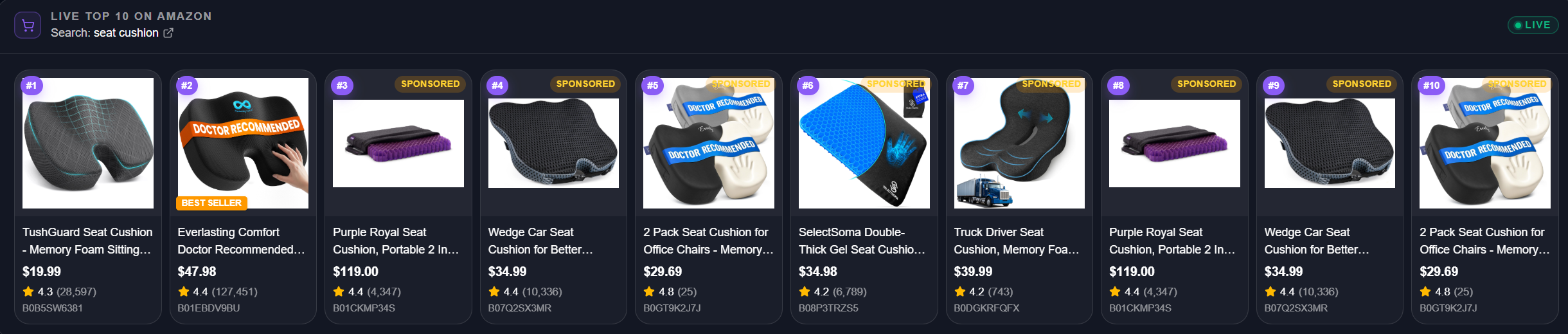
When you hunted a keyword, the panel shows a Live Top 10 on Amazon strip instead of a product profile. It's a fresh look at the current top 10 for that keyword on the selected marketplace — the 10 listings actual shoppers see when they search that term right now.
Each card shows:
- Position badge (1–10).
- Thumbnail, title, ASIN.
- Current price and rating / review count.
- Amazon result-type badges: Sponsored (paid slot), Overall Pick (Amazon's Choice-style highlight), Best Seller (category badge).
- A click-through to the listing on Amazon.
A Live pill in the corner marks the data as fresh — the SERP was captured at hunt time, not read from a stale cache. If the capture fails, you'll see "Top products unavailable: " — the keyword table itself is unaffected.
Why Live Top 10 matters
Volume, PPC bid and Difficulty tell you what a keyword is worth. The Live Top 10 tells you who you're up against. Skim it before committing budget:
- If the top 10 is dominated by brands with 10k+ reviews, ranking organically for that term is a multi-quarter project.
- If half the slots are Sponsored, competition is bidding hard — expect elevated CPC.
- If several look like your product (same form factor, same use case), the keyword is on-target. If none do, the seed is drifting into an adjacent category.
Cross-check: header + table = decision
The header is context; the table is content. In practice you'll bounce between them:
- ASIN mode: use the product panel to sanity-check "is this the right ASIN, and is it a serious competitor worth reverse-engineering?" — then work the keyword table.
- Keyword mode: use the Live Top 10 to sanity-check "is my seed on-topic?" — then work the keyword table.
The next page covers the table itself in depth.