The payout formula
The core of the page is a five-card vertical formula. Each card is a real number from Amazon's Finance data, and the whole thing reads:
Money In − Money Out = Released
Released + Expected Release = Estimated Payout
This page walks through each card in order.
Money In
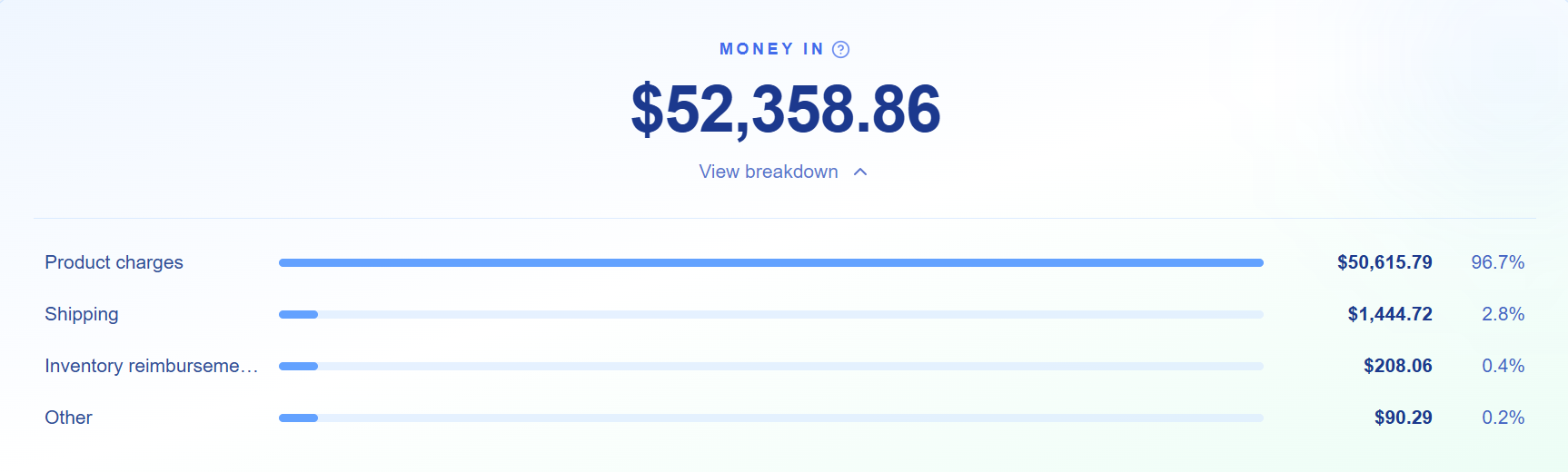
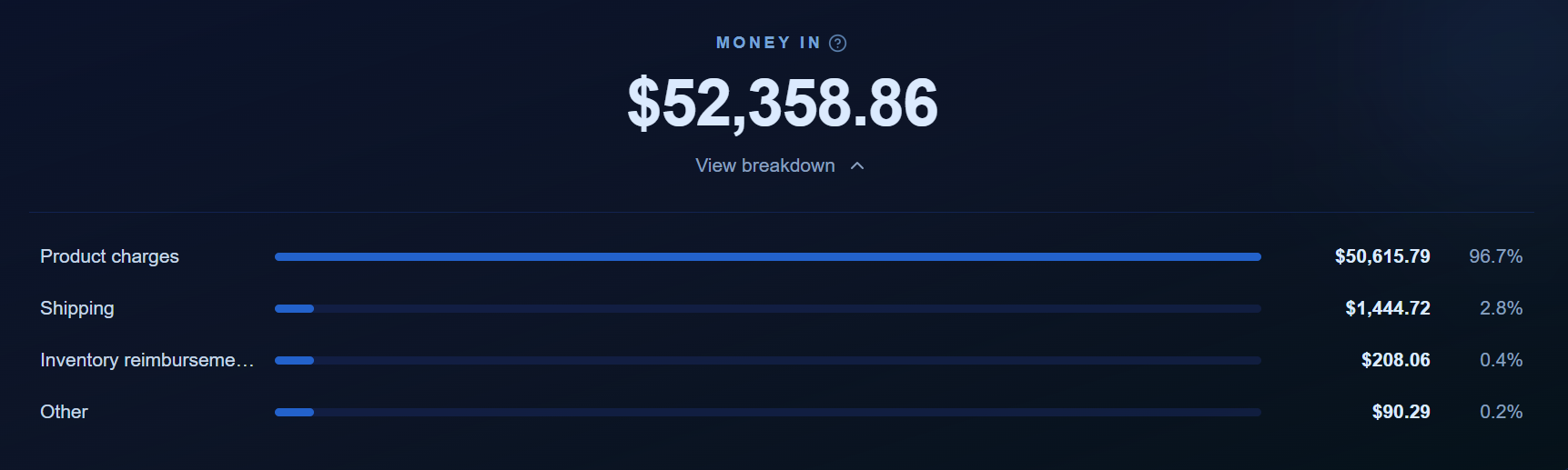
The Money In card at the top is the sum of everything Amazon released into this settlement period as sales revenue. Card tooltip:
"Sales released into this settlement period — matches Amazon's 'Sales' line on the Statement view."
Expand the card to see the breakdown by category — usually Product charges dominates, with Shipping charges and Gift-wrap as smaller lines. Each category shows its dollar amount and its percentage share of Money In.
Money In is a cleared figure: it only counts sales Amazon has already released from any deferred state. Sales sitting in reserve haven't hit Money In yet — they'll appear in Expected Release below.

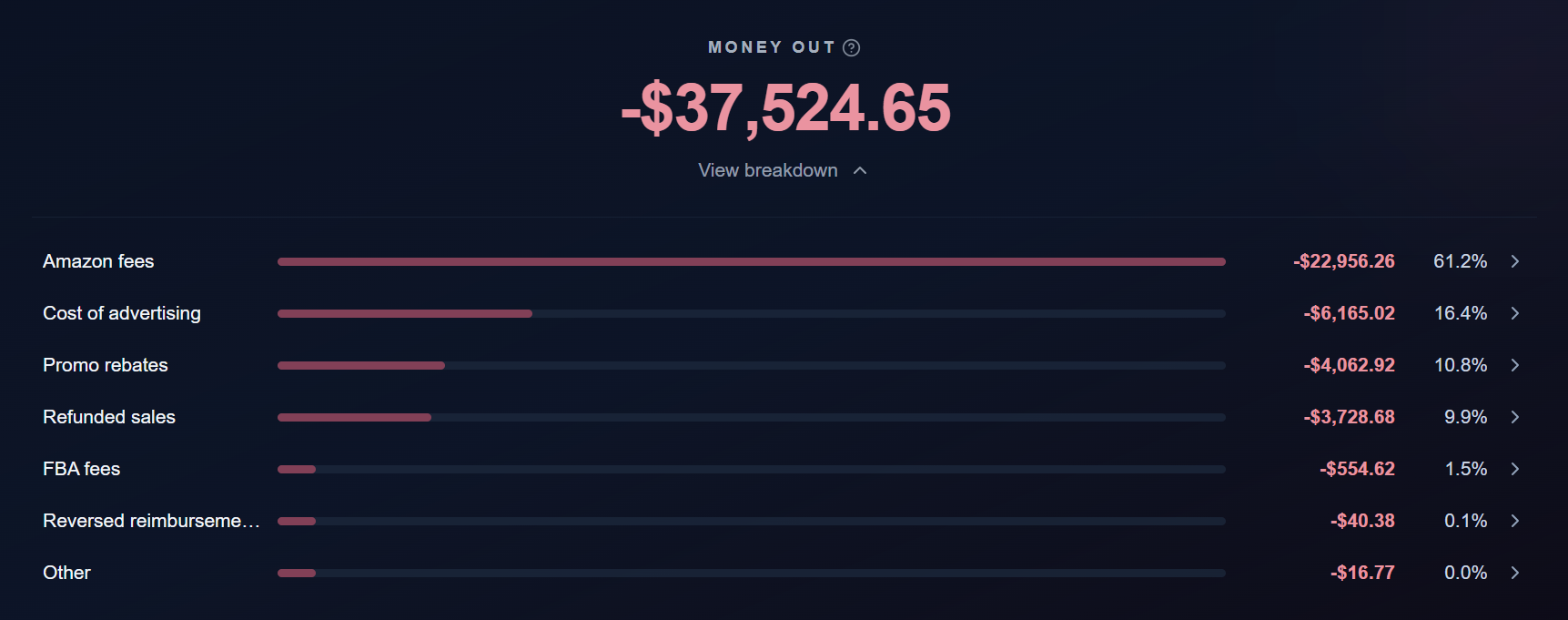
− Money Out
Every deduction Amazon books in this period. Card tooltip:
"All charges and deductions booked in this settlement period (fees, refunds, ads, promotions, and similar)."
Expand to see the category breakdown — typical lines include:
- Refunded sales — order refunds. This is a net line: refunds subtract from Money Out (they're negatives on your Money Out side because a refund reverses the sale).
- FBA fees — pick, pack, and ship fees on FBA orders.
- Cost of advertising — Sponsored Products, Sponsored Brands, Sponsored Display charges booked in this period.
- Product charges — commission (Amazon's referral fee) on sales.
- Account reserve — occasionally, deductions Amazon uses to fund the reserve balance for the next period.
- Chargebacks, service fees, adjustments — the less common categories.
Each row is expandable further into a drilldown table — click a category to open a paginated, sortable list of the individual transactions inside it. Columns: Posted, Type, Order, SKU, Product Details, Amount. Fifty rows per page. Sortable except for Product Details.
The drilldown is where you go when a category looks unusually high and you want to know which orders or campaigns drove it.
= Released


Released = Money In − Money Out. Card summary:
"Cleared balance before deferred funds and reserves."
This is the amount that would be paid out today if Amazon shut the period right now. But most settlement periods have some funds still in the deferred pipeline (see next card), so the actual payout is usually higher than Released alone.
Released can be negative in edge cases — a slow week with heavy refunds or a big ad spend can produce a settlement where deductions outpaced sales. Amazon carries the balance into the next period rather than issuing a negative payout.
+ Expected Release
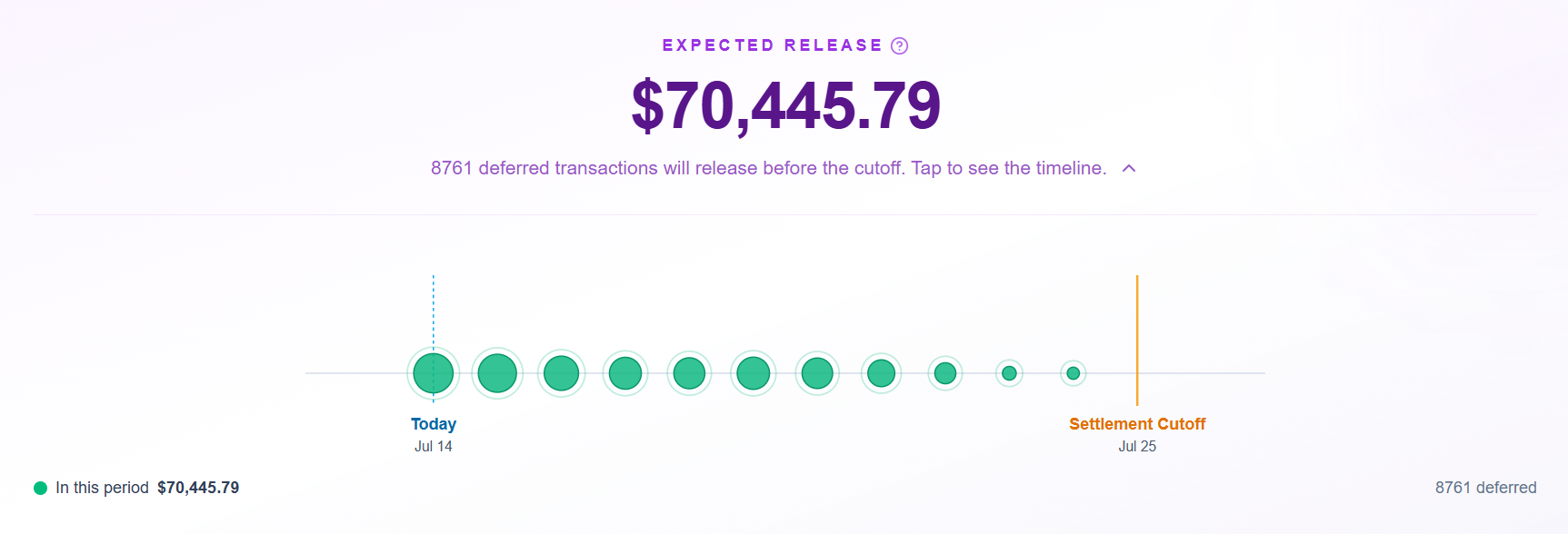
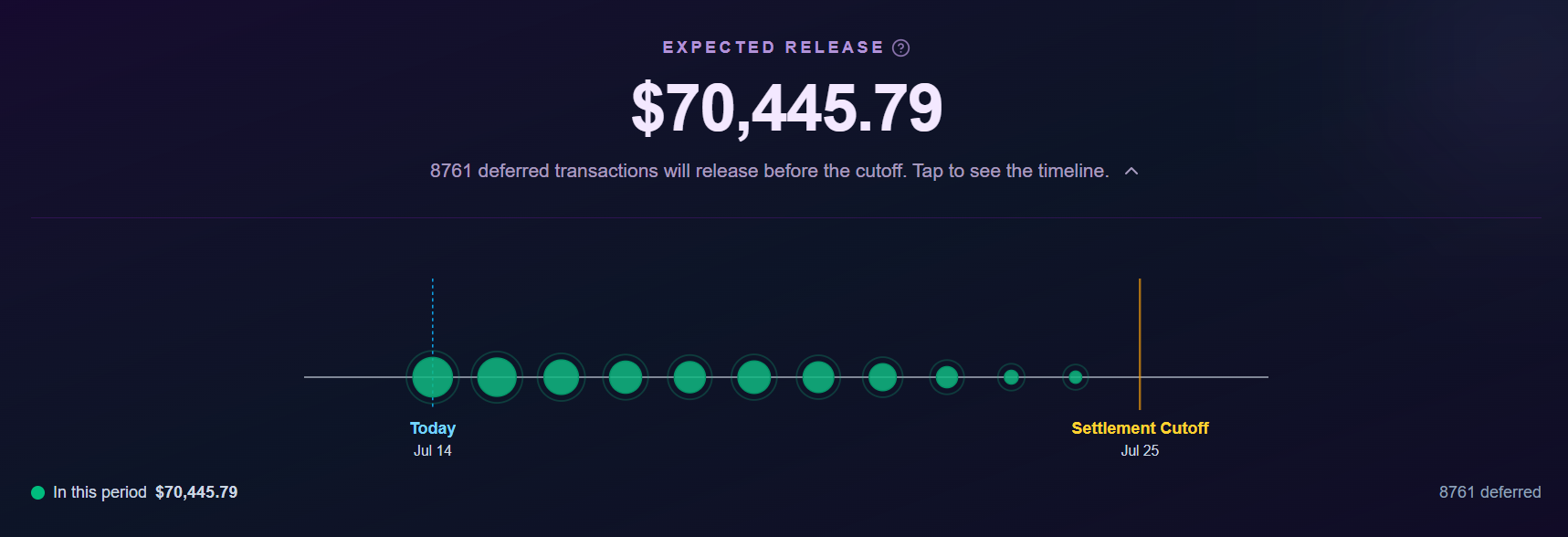
Expected Release is the sum of funds currently held in Amazon's deferred pipeline that will release before this settlement period's cutoff date. Card tooltip:
" deferred transactions will release before the cutoff. Tap to see the timeline."
Expand it to open the Deferred Timeline — a horizontal visualisation of each pending release. See Deferred releases for the full walk-through.
Two things to notice on this card:
- The number here is only the deferred funds releasing before the cutoff. Funds scheduled to release after the cutoff belong to the next settlement period, not this one.
- If nothing is deferred you'll see "No deferred transactions are currently waiting to be released." — common in FBM-heavy accounts or at the start of a settlement period.


= Estimated Payout
Estimated Payout is the headline number: Released + Expected Release. It's the amount you'll receive when this settlement period closes, subject to a small final reconciliation from Amazon.
Card fields:
- Amount — animated count-up when it changes. This is the number that matters for cash-flow planning.
- Arriving on — the estimated bank arrival date, based on Amazon's typical 3–5 business-day transfer window after the settlement cutoff. Shows "Arriving " when scheduled, "Arrival date not yet scheduled" early in the cycle before Amazon commits a cutoff date.
If you want to know when to expect a specific amount of cash in your bank, this is the number to watch — and it's the number that anomaly banners will call out if something unusual is happening upstream.
What about the reserve?
You may see anomaly banners referring to a reserve ("Amazon is holding more reserve"), but there's no standalone reserve card on the page. That's because reserve movements land inside the Money Out category (as Account reserve) and inside the Deferred Timeline (as scheduled releases into the next period). The formula above already accounts for reserve — nothing hidden.
If Amazon is holding an unusually high reserve, expect to see:
- A larger Account reserve line inside Money Out.
- A "To next period" total in the Deferred Timeline that's higher than usual (funds pushed past the cutoff into the next settlement).
- Possibly an anomaly banner about it.
When numbers change
Numbers update:
- Automatically — once per day around 05:00 UTC, when the daily sync pulls fresh transactions from Amazon.
- Manually — click Sync now next to the "Last synced" timestamp in the settlement header. The button spins and shows "Refreshing…" while the sync runs; the whole page re-fetches when it completes (typically 15–60 seconds). You get 3 manual syncs per day per marketplace — the counter on the button (e.g. 1/3) shows how many you've used, and once it's exhausted the button stays disabled until the quota resets.
Manual sync is worth using:
- Right after you close a big sale burst and want to see it land in Money In.
- After a promotional event to verify all the promo deductions posted correctly.
- Before month-end when you're reconciling with your accounting.
Between refreshes, the numbers are a snapshot from the last sync. The "Last synced: …" line under the header shows how fresh the data is.