Creating a Watch Group
A Watch Group is the container for everything Rival Watch does — one of your ASINs, up to ten rivals, all on one marketplace. This page walks through creating and editing one.
The Rival Watch home page
Open Tracking → Rival Watch from the sidebar. The landing page lists every group you've already created, one card per group. Each card shows:
- Group name and marketplace flag.
- Your product tile with title, image and current BSR.
- A strip of rival tiles (up to 10, or Top 5 / Top 10 if the group is auto).
- Group-level counters: number of open alerts, last scan time, pressure signal.
If you don't have any groups yet, the page shows an empty state with a single primary call-to-action: New Watch Group. The same button lives in the header so you can add more groups later.
The New Watch Group modal
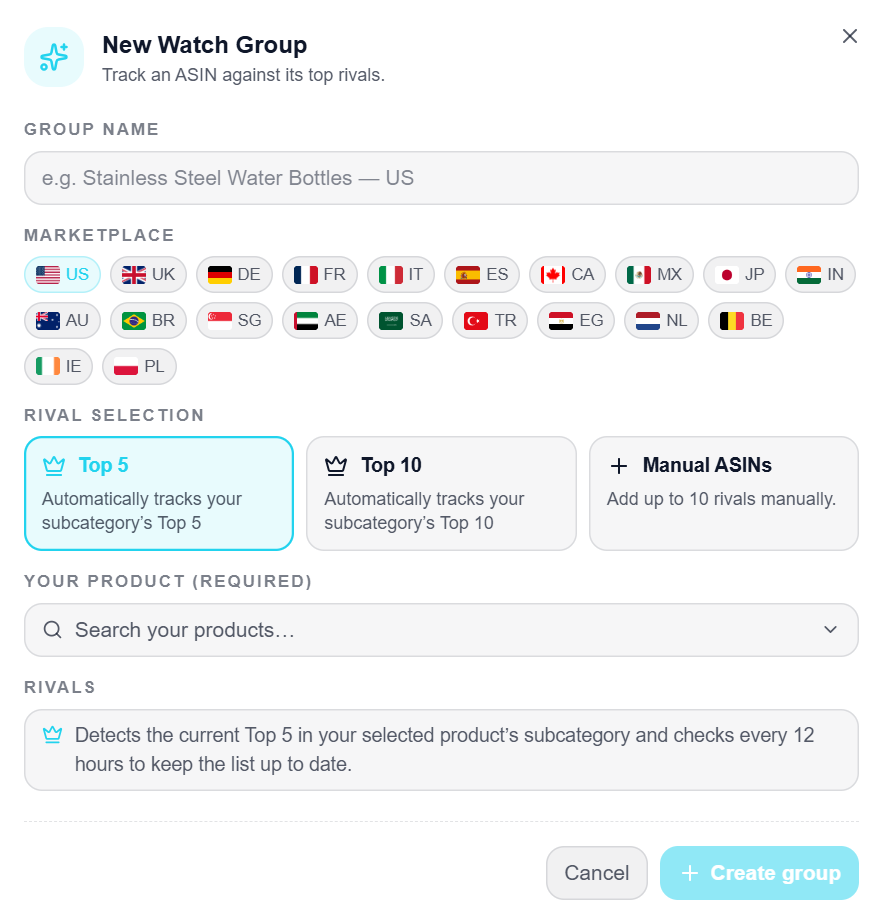
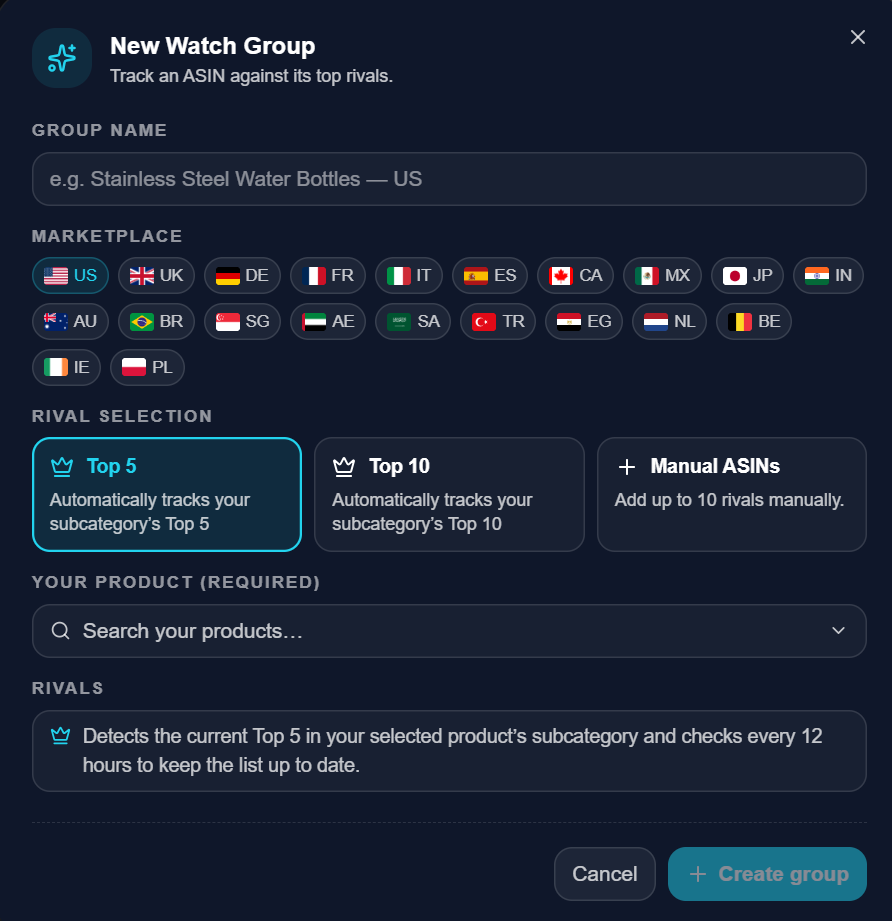
Click New Watch Group and the setup modal opens. It's a single-page form — no multi-step wizard.
1. Name your group
Free text, up to ~60 characters. Pick something you'll recognise in the sidebar: the SKU, the product family, or the campaign it maps to. The name is the only field that's freely editable later.
2. Choose the marketplace
Pick the Amazon marketplace this group belongs to (US, DE, UK, IT, ES, FR, JP, CA, MX…). The marketplace determines:
- Which of your ASINs are eligible as the "own product".
- Which subcategory leaderboards are available for auto-populated groups.
- Which currency and language show up in scans and the digest.
- Which timezone the daily digest email uses (marketplace-local, not your browser).
Locked after creation. Once the group is saved you cannot change the marketplace. If you picked the wrong one, delete the group and start over.
3. Pick your own product
The Your product dropdown lists ASINs from your Amazon catalog that live in the selected marketplace. Pick one. In auto mode (see below) you can leave this blank and let the tool infer it from a subcategory leaderboard, but manually setting it is the common path.
4. Choose how to add rivals


Three ways to fill the ten rival slots:
- Top 5 (auto) — Rival Watch reads the subcategory Best Seller list your own product sits in and pins the current Top 5 as rivals. Re-checked on every scan; if a new listing enters the top 5, it replaces the exiting one automatically.
- Top 10 (auto) — Same, but with ten slots. Good for wider-view competitive intelligence.
- Manual ASINs — You paste up to 10 ASINs. No auto-refresh; the rival roster only changes when you edit the group.
For auto groups the subcategory is inferred from your own product's browse-node path. For manual groups you don't need to think about subcategories at all.
5. Save
Hit Create group and Rival Watch:
- Persists the group.
- Queues an initial data pull for every ASIN in it.
- Attempts to backfill up to ~6 months of BSR and price history from historical data providers so charts aren't empty on day one.
You'll be redirected to the new group's detail page. The first scan usually completes within a couple of minutes; the daily digest for this group starts landing in your inbox the morning after.
Editing a group
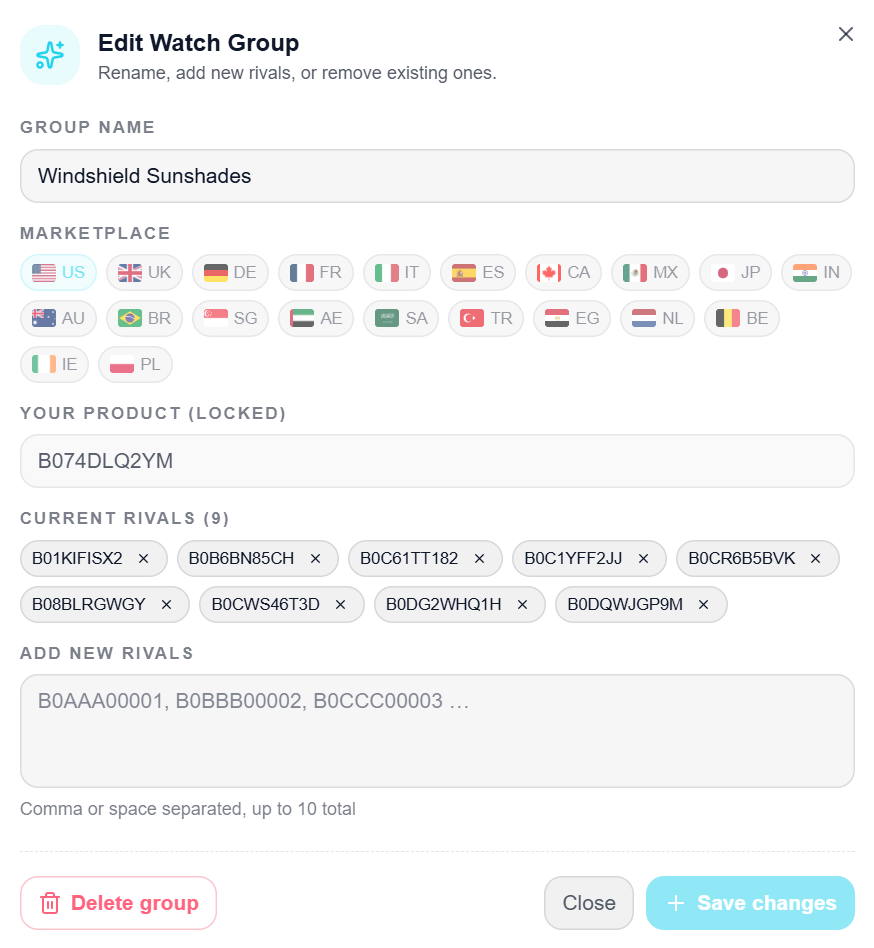
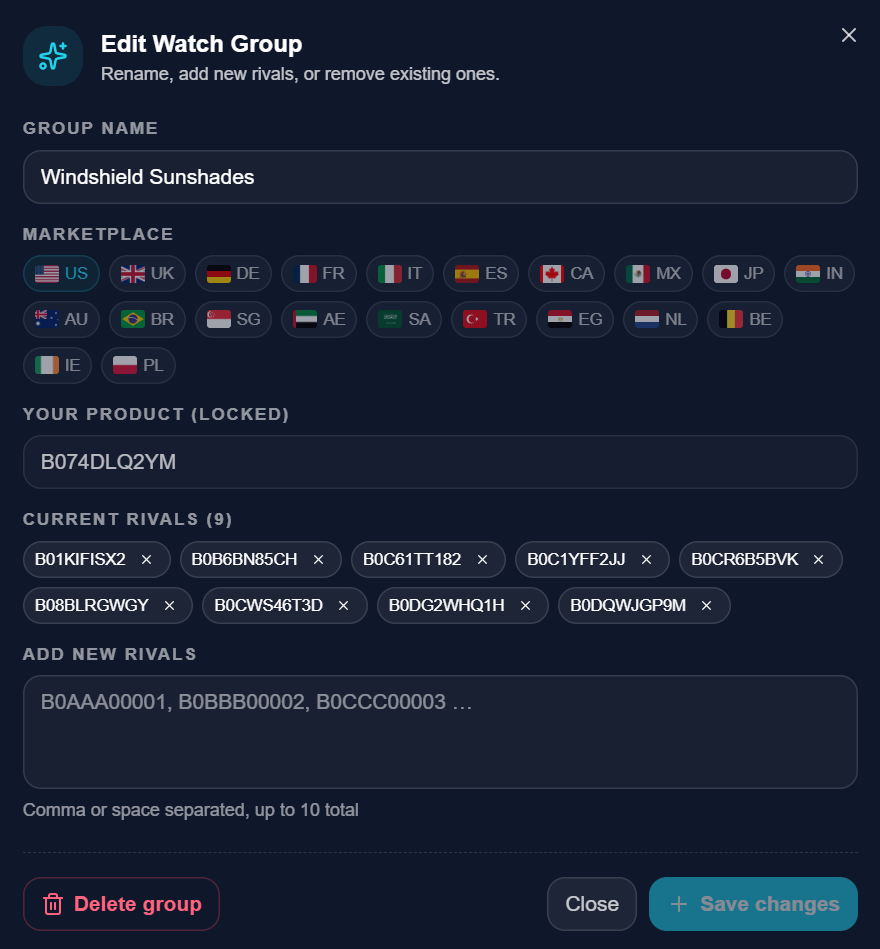
On any group's detail page, the header has an Edit action. The edit modal lets you change:
- Name — freely editable.
- Rivals list — add or remove ASINs (up to 10 total). Removed rivals stop being scanned; their historical data is retained but they no longer appear in the You vs Rivals table or new alerts.
- Auto mode ↔ manual — you can convert an auto group to manual (freezing the current rivals) or a manual group to auto (using your own product's subcategory).
What you cannot change:
- The marketplace.
- The own product (delete and re-create if you need to swap it).
Deleting a group
Also in the header, Delete group removes the group, its rivals, its snapshots, its timeline events and its alerts. It's irreversible — Rival Watch does not keep a soft-delete window. If you just want a break, leave the group in place and turn off the digest email instead (Profile → Email Notifications → Daily Rival Watch digest).
Limits
- Up to 10 rivals per group.
- No hard cap on groups per account, but each group consumes a data budget — keep the roster to products you actually check.
- Manual refresh: 3 per 24 hours per group. Beyond that, wait for the next scheduled tick.