Connect your Amazon Seller account
Connecting your Amazon Seller account is what makes AMZSeller come alive. Once connected, we pull your orders, products, inventory, and advertising data from Amazon and turn it into the metrics, alerts, and automation you'll use every day.
You'll do this on the Amazon Connection tab of Profile & Settings — which is where we take you after signup once you have a live plan or trial (either from the pricing-page → Checkout path, or after picking on Choose a plan — see Choosing a plan).
Before you begin
To authorize AMZSeller, you need admin access to your Amazon Seller Central account. If someone else on your team owns the Seller Central login, they'll need to run this step (or grant you admin permissions first).
Everything below happens through Amazon's own consent screens — AMZSeller never sees your Seller Central password.
What is an "account tab"?
Inside AMZSeller, an account tab represents one Amazon seller — that is, one Amazon Seller Central identity, using the same name your business goes by on Amazon. Everything that seller sells — in every region and every marketplace — lives under the same tab.
Most people only need one tab. You only need a second tab if you own another, separate Amazon seller with its own Seller Central login (for example, a different company). In that case each seller gets its own tab, and you switch between them from the account bar.
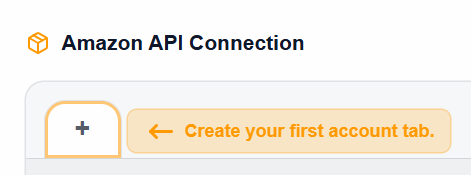
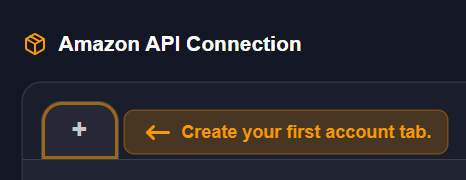
Step 1: Create your first account tab
- On the Amazon Connection tab, click the
+button in the account bar. - Use your Amazon seller name.
- Click Create.
Step 2: Authorize Data Access (SP-API)
This connects AMZSeller to Amazon's Selling Partner API — the source for your orders, products, inventory, financials, and everything else that isn't advertising.
Under the 1. Authorize Data Access section you'll see three region buttons:
- North America (NA) — US, Canada, Mexico, Brazil
- Europe (EU) — UK, Germany, France, Italy, Spain, Turkey, UAE, India, and more
- Far East (FE) — Japan, Australia, Singapore


Click the region you sell in. Amazon opens its own Seller Central consent screen — review the permissions and click Confirm. You're brought back to AMZSeller, and a checkmark appears on that region's button.
Far East: the FE button opens a small menu so you can pick Japan, Australia, or Singapore — because each has its own Seller Central login domain.
Sell in more than one region? Repeat the process for each — for example, click NA, finish that consent, then click EU. Each region is a separate authorization on Amazon's side.
Step 3: Authorize Advertising Access (Ads API)
Once Data Access is connected, a Step 2 dialog appears asking you to enable Advertising Access as well:
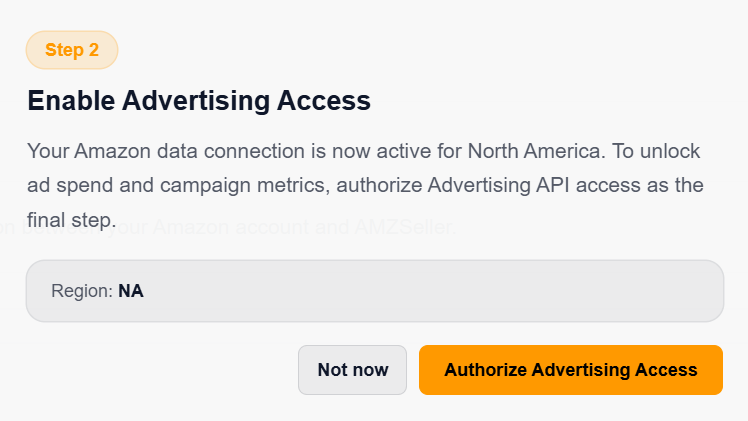
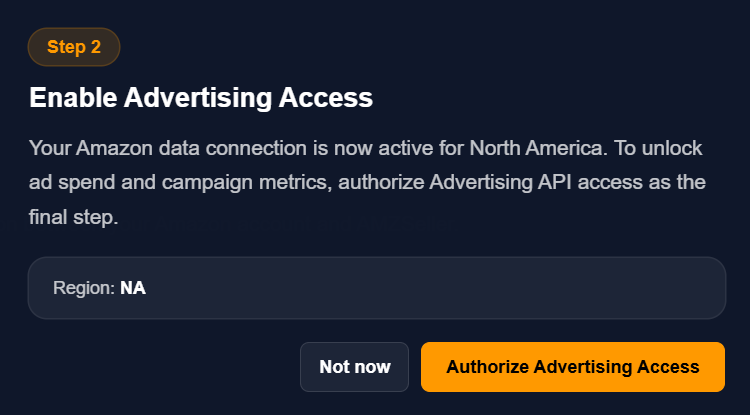
You can either click Authorize Advertising Access right away or Not now and come back to the 2. Authorize Advertising Access section later.
Advertising is optional but strongly recommended — without it, we can't show your ad spend, ACOS, TACOS, or campaign performance, and features like ad automation won't work.
Advertising authorization is per region, and each region requires Data Access first. If a region's button is greyed out, connect SP-API for that region first.
Click your region's button and complete Amazon's Advertising API consent screen. When you return, the button gets its checkmark too.
Onboarding — the initial sync
As soon as your first region is connected, AMZSeller starts pulling your history from Amazon in the background. In the marketplace grid you'll see the Onboarding Status column update in real time:
- In Progress — sync just started
- % — historical data being backfilled
- Completed — this marketplace is fully synced
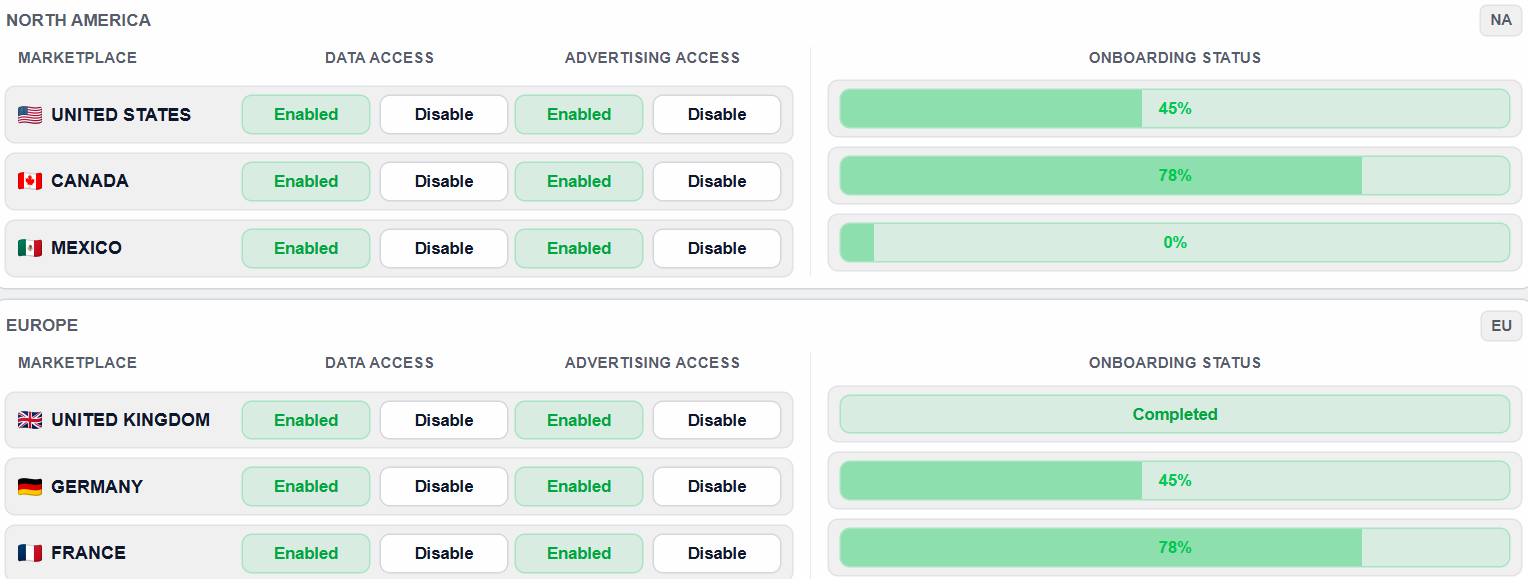
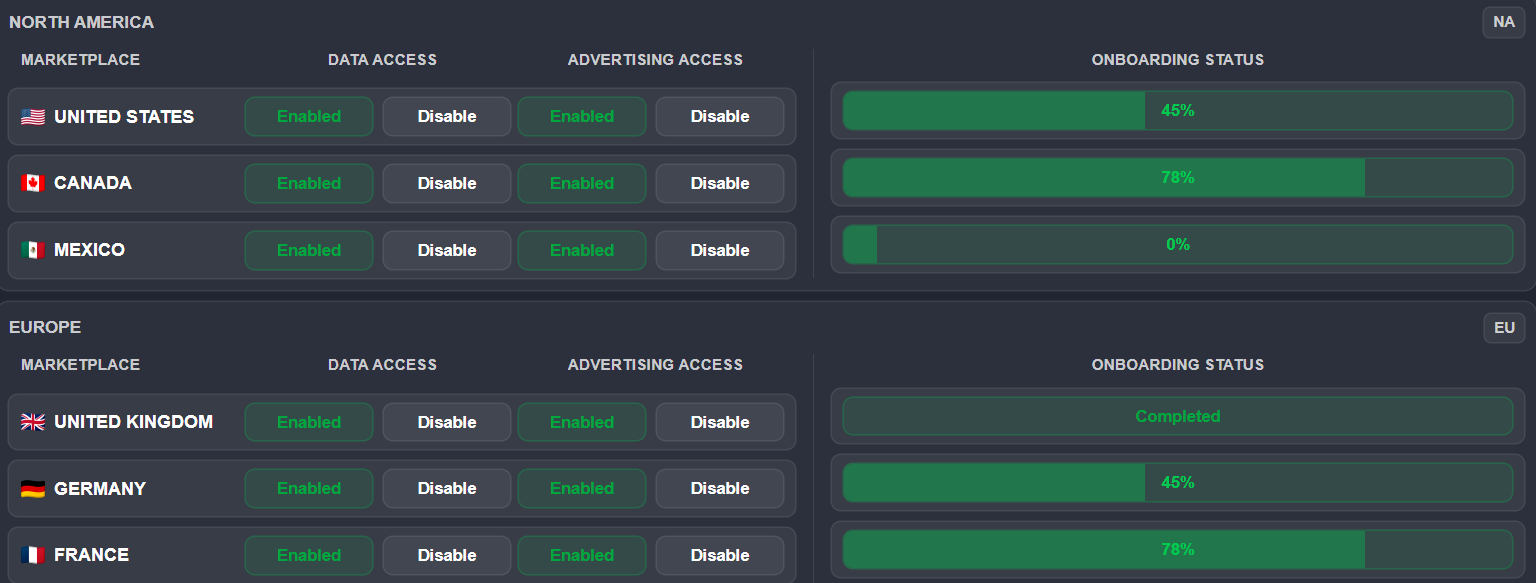
While onboarding runs, other sections of AMZSeller stay locked — this is intentional. Working with a half-loaded dataset would give misleading numbers. As soon as every enabled marketplace is done, the dashboard and the rest of the app unlock automatically.
This first sync can take from a few minutes to a couple of hours depending on how much order history you have. You can safely close the tab and come back — the sync keeps running in the background.
Managing marketplaces after connecting
Under each region you'll see a table of the marketplaces we found, with three toggles per row:
- Data Access — turn SP-API data on or off for that marketplace
- Advertising Access — turn Ads data on or off for that marketplace
- Onboarding Status — current state of the initial sync
Disabling a marketplace hides it from reports and stops any related jobs. You can re-enable it any time.
Managing multiple Amazon sellers
If you own more than one Amazon seller (each with its own Seller Central login), click + to add another tab, name it after that seller, and repeat Steps 2 and 3 inside the new tab. Each tab keeps its own connections, marketplaces, and onboarding state. Switch between them from the account bar at any time.
One Amazon seller = one tab. If you try to connect the same Amazon seller under a second tab, we won't duplicate it — the existing connection is re-authorized instead and you'll see a notice pointing to the tab that already owns it.
Troubleshooting
- "Connect Amazon SP-API first…" on an Ads button — Data Access isn't connected for that region yet. Finish Step 2 for that region, then retry.
- The region button doesn't get a checkmark — you may have cancelled the Amazon consent screen. Click the button again and complete the flow to the end.
- Wrong Amazon account authorized — sign out of Seller Central in your browser first, then click the region button again so Amazon prompts you to pick the right account.
- Onboarding stuck at the same percentage for a long time — the sync retries automatically. If it doesn't progress after a few hours, open a support ticket.