Your top bar
The top bar is the strip that stays at the top of every page in AMZSeller. It's your permanent home base — from here you jump between features and pick which Amazon account and marketplace you're looking at.


From left to right, the top bar has three zones:
- Left — the menu button (with the current page name next to it on desktop).
- Center — the AMZSeller logo. Click it any time to jump back to the dashboard.
- Right — the Wingman button (your AI assistant — click it to open Wingman from anywhere), the account selector, and the marketplace selector.
On mobile, the account selector and marketplace selector move inside the menu to save space. To refresh a page on mobile, use your browser's own pull-down gesture — just like refreshing any other website.
Looking for Day / Night mode? Appearance lives under Preferences (Profile & Settings → Preferences), not in the top bar.
The menu
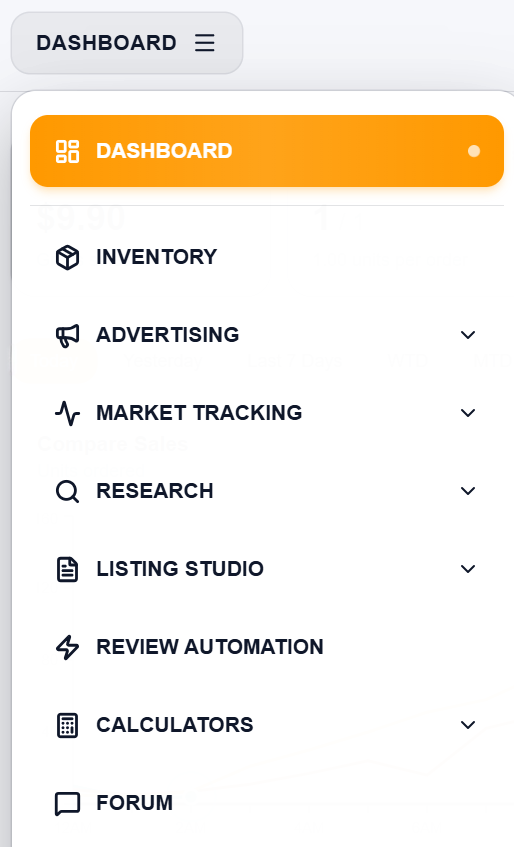
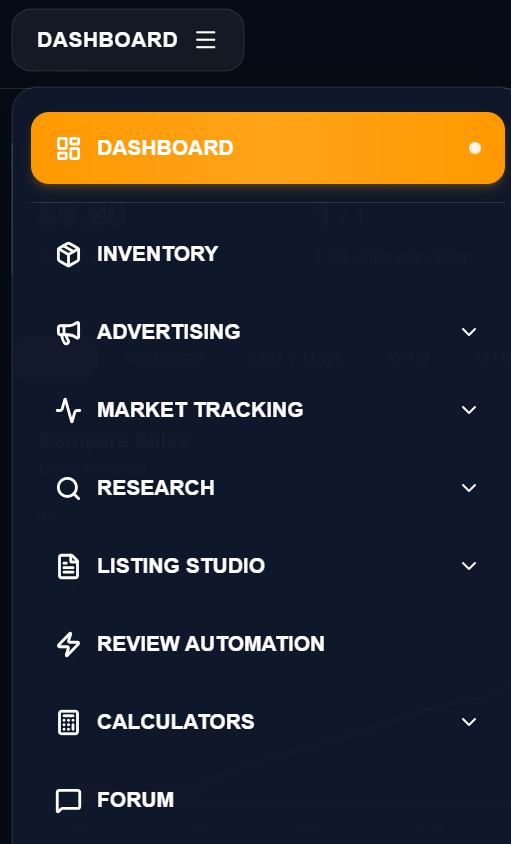
Click the menu button (or the current page name on desktop) to open the navigation panel. This is your main way of getting around AMZSeller.
Some sections are direct links (Dashboard, Inventory, Forum, Help Center, Profile & Settings), and some are collapsible groups (Advertising, Tracking, Research, Listing Studio, Review Automation, Calculators) — click the group header to expand or collapse it. Your last expanded group is remembered.
While onboarding is in progress, every menu item except Profile & Settings is locked with a small lock icon. This is intentional — the app waits for your initial Amazon data sync to finish before showing dashboards that would otherwise be empty. Once onboarding completes, everything unlocks automatically.
Account selector
The account selector decides which Amazon seller's data the app is showing you. If you only have one Amazon account tab, you'll only see one option — nothing to think about. If you manage multiple sellers, switch between them here.
Your choice is remembered per browser, so the next time you open AMZSeller it starts on the same account. When you switch, the marketplace selector and every page below adjust automatically to that account's data.
Marketplace selector
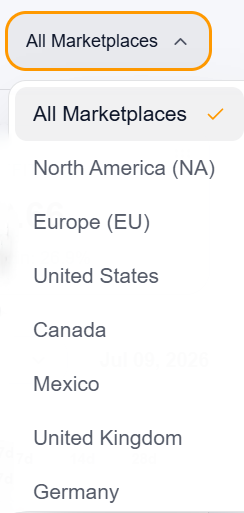
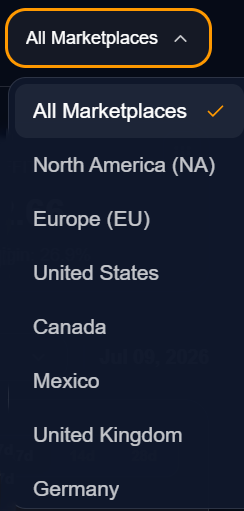
Once an account is picked, the marketplace selector narrows the view down further:
- All Marketplaces — everything the account sells, combined into one view (uses the All Marketplaces View timezone and currency you set in Preferences).
- North America (NA) / Europe (EU) / Far East (FE) — a region-wide view (uses the matching Regional view preferences). Only regions with connected marketplaces show up here.
- Individual marketplaces — pick one country (US, DE, JP, etc.) to see just that marketplace, in its own timezone and currency.
The selector only shows what the current account is actually connected to, so you'll never accidentally pick a marketplace you haven't authorized.
A few pages require an individual marketplace and won't work on All Marketplaces. In that case the page will tell you: "Pick a marketplace".
Refreshing data
There is no global Refresh button in the top bar — pages keep themselves up to date on their own. Where a manual refresh is genuinely useful, the page has its own refresh control:
- Inventory — the Refresh button above the table pulls a fresh snapshot from Amazon. See Refreshing your inventory.
- Rival Watch — the Refresh button in the group header forces a fresh scan (3 per 24 hours per group).
- Money Flow — the Sync now button next to "Last synced" triggers a fresh sync from Amazon (3 per day).
On mobile, you can also use your browser's built-in pull-down gesture at the top of the page — the same one you use to refresh any other website — and the page reloads its data.