Running an analysis
Every report starts with one input — an ASIN — plus a marketplace. This page walks through the input screen, the loading flow, and what to expect while the analysis runs.
Landing state
Open Listing Studio → Listing Analyzer from the sidebar. Before you've analysed anything, the results area shows:
Analyze a listing
SEO analysis, optimization opportunities, and actionable recommendations.
The input row above it has two tabs, a marketplace picker, an ASIN field, and the Analyze button.
Once you've analysed something, that empty card gives way to your Recent analyses list (see below).
Two input modes
ASIN
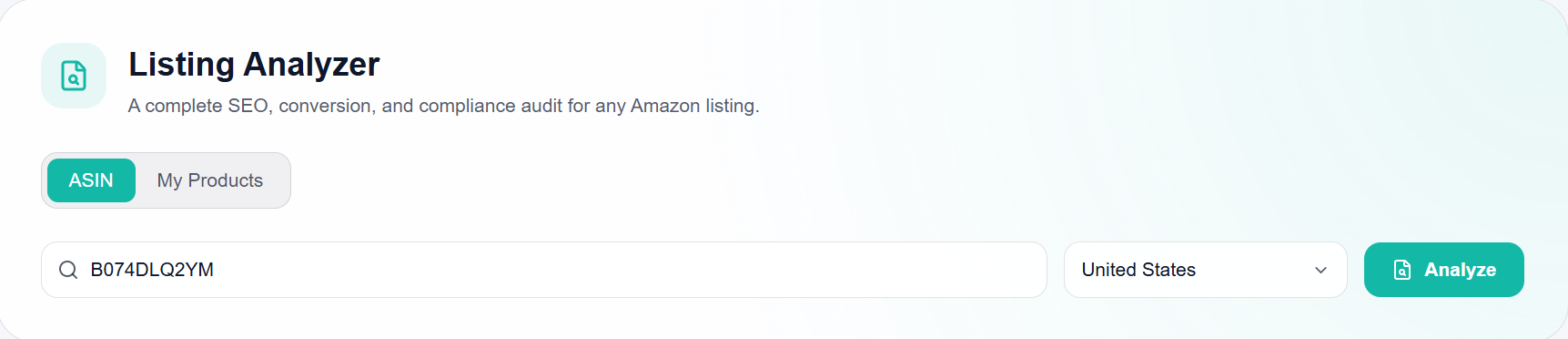
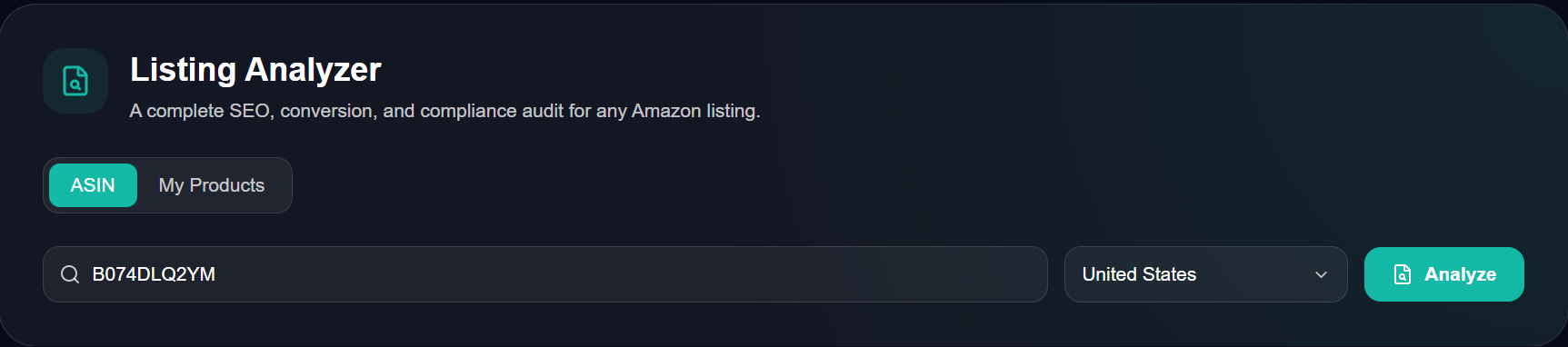
Default tab. Paste any 10-character ASIN — yours or a competitor's — and pick the marketplace it's on. The tool doesn't need your Amazon account connected to analyse an external ASIN.
- Placeholder: "Enter an ASIN (e.g. B0XXXXXXXX)".
- Validation: "Please enter a valid 10-character ASIN (e.g. B0XXXXXXXX)."
My Products
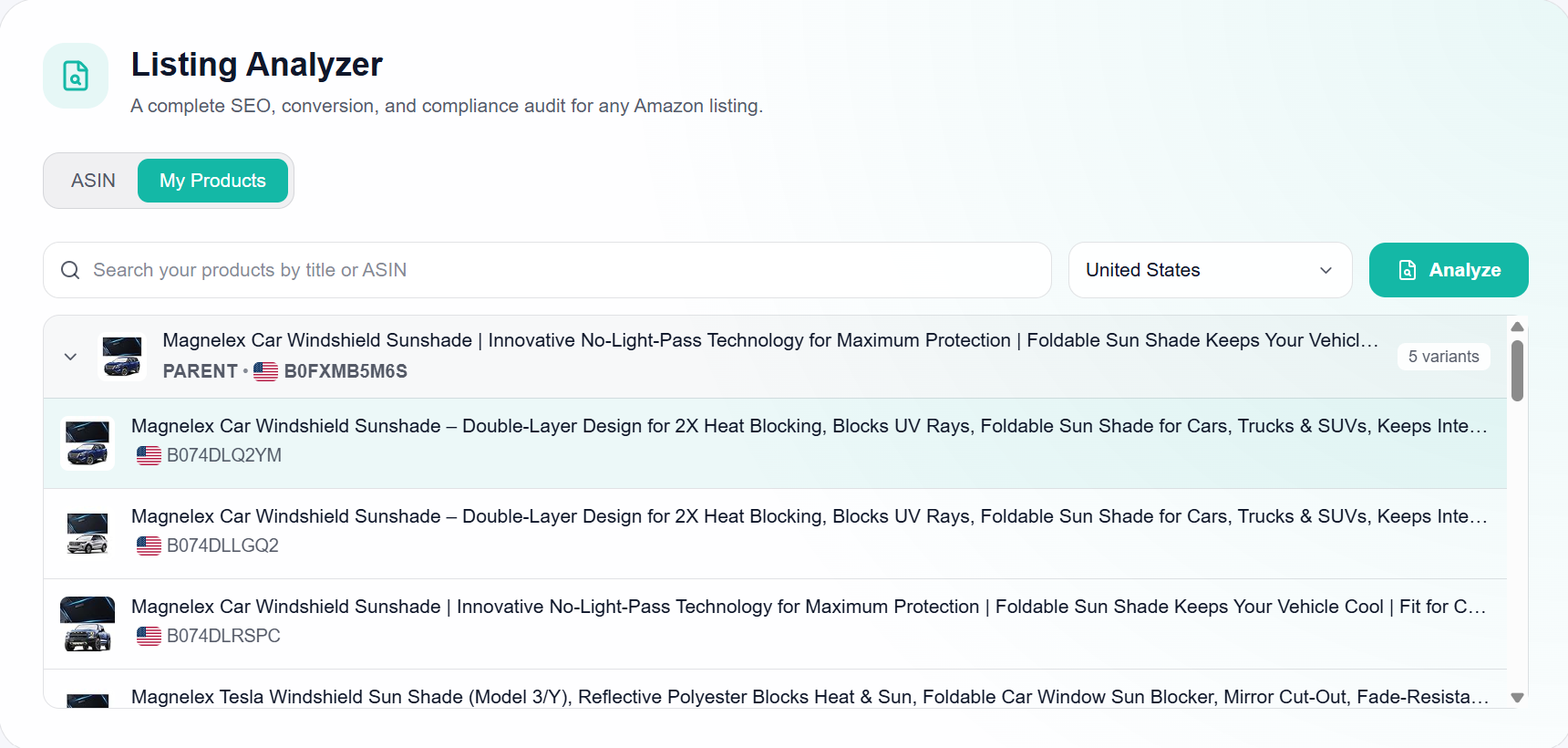
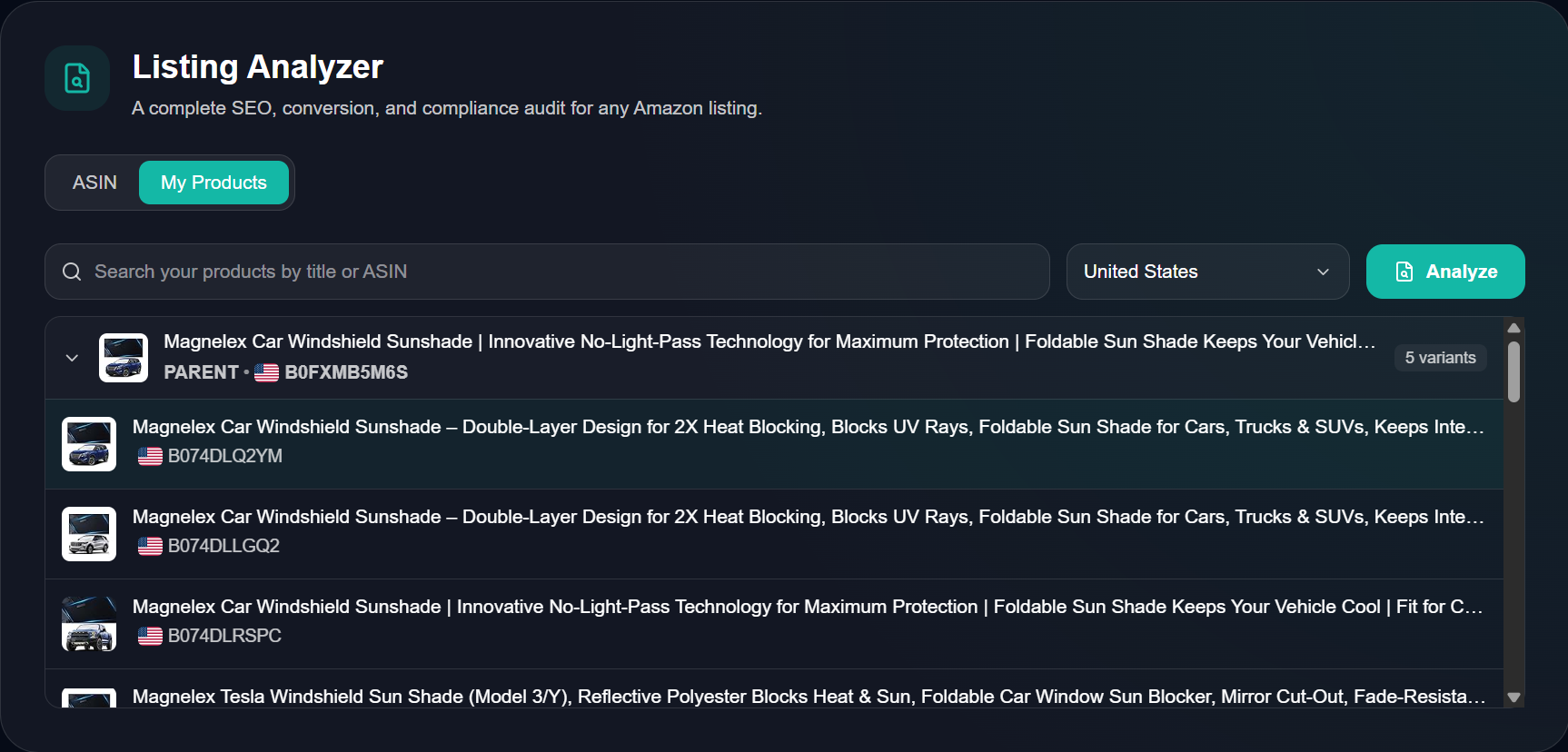
Loads the catalog from your connected Amazon account. Useful when you don't want to hunt for your own ASINs by hand.
- Search: "Search your products by title or ASIN".
- Parent listings show a PARENT badge and a " variants" count — pick the variant that matches the marketplace you care about.
- Loading state: "Loading your products…".
- Empty catalog: the tab is disabled until Amazon products sync.
- No match on search: "No products match your search.".
If you're not signed in with an Amazon connection, stick with the ASIN tab.
Competitors (optional)
Under the input row, Competitors (optional) folds out three ASIN fields. Use them when you already know which listings you're really up against — the analyzer then benchmarks your keywords against exactly those products instead of choosing competitors for you.
- Leave all three empty (the default) and competitors are picked automatically. Nothing changes for you.
- Fill in one, two or three ASINs and automatic selection is skipped; only the ASINs you entered are used.
- Each field must hold a valid 10-character ASIN that isn't the one being analysed and isn't repeated. A bad entry blocks Analyze with an inline message until you fix or clear it.
Works the same on the ASIN and My Products tabs. Your choice is remembered through the $9 checkout and appears on the confirmation summary.
Marketplace picker
Ten marketplaces supported: US, UK, DE, IN, CA, FR, IT, ES, MX, JP. The marketplace controls which Amazon site the ASIN is read from, which language the listing is in, and which keyword universe is used to score it. Cross-marketplace analysis isn't a thing — an ASIN sold in US and UK is scored twice, once per marketplace.
What happens when you press Analyze
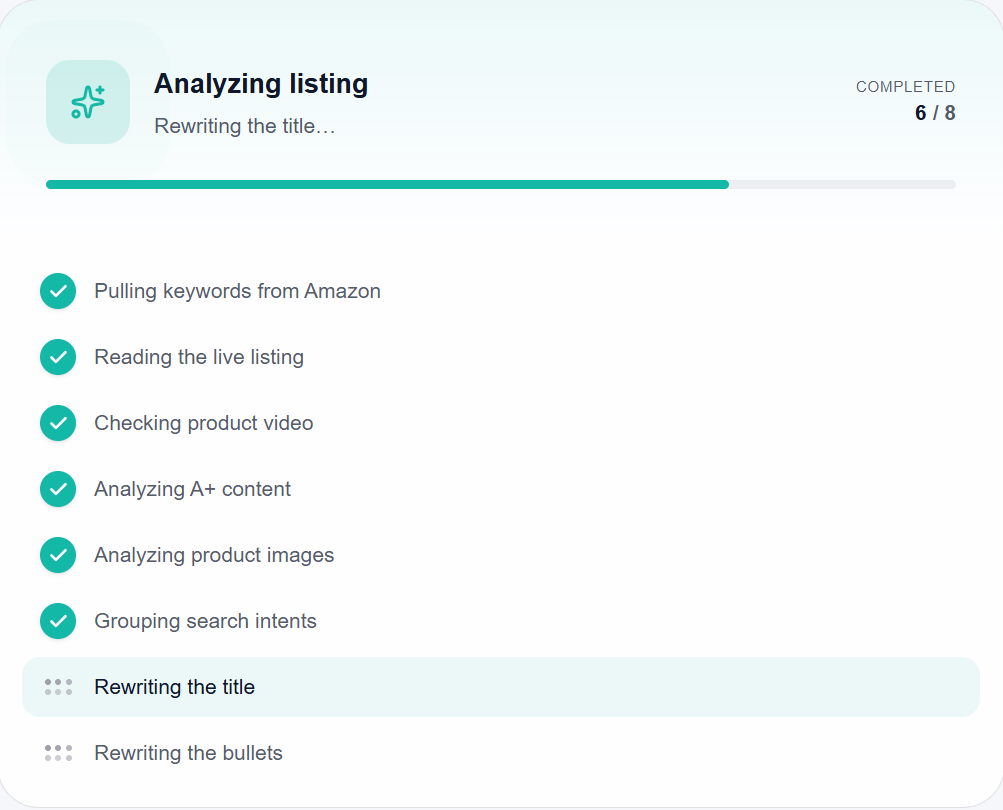
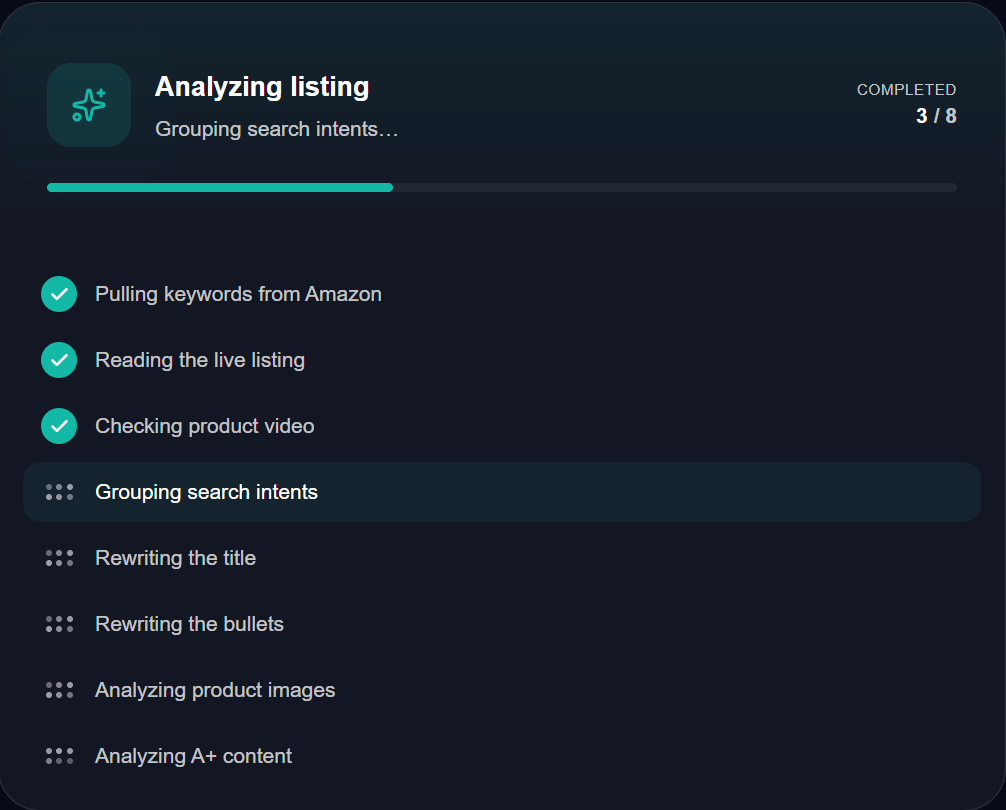
The results panel switches to a loader:
Analyzing listing
Completed X / 8
Eight steps, ticked off as they finish (labels shown on-screen):
- Reading the live listing
- Pulling keywords from Amazon
- Grouping search intents
- Rewriting the title
- Rewriting the bullets
- Analyzing product images
- Checking product video
- Analyzing A+ content
Steps aren't strictly sequential — image and A+ vision work runs in parallel with the title / bullet rewrites — so ticks may light up in bursts rather than a straight line.
Typical timing
- 20–60 seconds — mainstream products with rich A+ galleries and plenty of keyword data.
- ~2 minutes — obscure listings, unusual categories, or gallery-heavy A+.
- ~3 minutes hard timeout — after which you'll see "Timeout: analysis is taking longer than expected." Retry — the second run is typically faster because the keyword step is already warm from the first attempt.
Errors while starting
- "Please enter a valid 10-character ASIN (e.g. B0XXXXXXXX)." — the input isn't the ASIN shape Amazon uses. Check for stray spaces.
- "Failed to start analysis" — the job couldn't be enqueued. Almost always transient; refresh and try again.
- "Analysis failed" or a specific job error — see the message, retry. Common causes: the ASIN was pulled from Amazon between runs, or the target marketplace briefly rejected the read.
- "Timeout: analysis is taking longer than expected." — the job crossed 3 minutes. Retry; the second run is nearly always faster.
Recent analyses
Every finished analysis is saved automatically and listed under Recent analyses, on the entry screen below the input row. Click one to bring the whole report back on screen exactly as it was computed — reopening an analysis costs nothing, no allowance is spent. While a report is open, ← Recent analyses above it takes you back to the list.
Only the last 10 analyses are kept; older ones drop off as new ones arrive, so download the PDF of anything you want to keep permanently. You can also delete an analysis from the list yourself.
Re-analyzing the same ASIN on the same marketplace refreshes that row instead of adding a second one, so a listing you check repeatedly doesn't crowd the other nine out.
Analyses started from Wingman land in the same list.
Re-running
Every click of Analyze re-runs the full 8-step pipeline against the same ASIN — no cached report is ever served, so the score always reflects the listing as it stands today. That also means every click spends one analysis — plan allowance first, then never-expiring extra (top-up) credits if you have any (shown beside the section title). A run that fails or times out doesn't count. When both plan room and extra credits are gone, Analyze greys out and an upgrade card appears until you Buy more, upgrade, or the billing period resets — the report on screen, PDF included, stays put. The previous report stays reachable under Recent analyses, and Download PDF is still the way to keep one for good.