Dayparting
Dayparting turns your ads on and off by hour of the week, in the marketplace's local time. It's how you stop paying for clicks at 3 AM when nobody buys, and how you make sure you're loud during your peak hours.
Ask any fisherman: you fish when the fish are feeding. If your line is in the water during the hours fish are actually hunting for food, your catch rate naturally goes up. Sure, if you have all the time in the world you can fish around the clock — not an unreasonable choice — but when the fish are full, they'll nibble your bait and swim off far more often. That's bait wasted.
And then there are the con-artist fish. Their only goal in life is to eat your bait and disappear.
Here's the point: your PPC budget is your bait bucket, and every hour your line sits in the water costs you something. Your customers have feeding hours — the hours they browse with real intent to buy. Dayparting lets you fish exactly then: line in the water during those hours, bait safe in the bucket while the fish sleep.
As for the con-artist fish — in the real world, that's click fraud: bots and competitors clicking your ads with zero intent to buy, purely to drain your budget. You can't stop them from showing up, but you can give them less to work with. An ad running 24/7 spends many of its hours in waters where real fish are scarce and con-artists make up most of the bites. During your real feeding hours, genuine buyers vastly outnumber the fraudsters, so their impact gets diluted. And since you haven't been feeding con-artists through the empty hours, you enter the busy hours with a fuller bucket.
What it can be applied to
Campaigns, Ad Groups, and Products — all three tree levels. Drop it wherever you want the schedule enforced.
The two modes
At the top of the Dayparting panel there's a two-tab switch — Automatic and Manual. Both modes ultimately produce the same thing: a 7×24 weekly on/off grid in the marketplace's local timezone. What differs is how you shape that grid.


Automatic mode
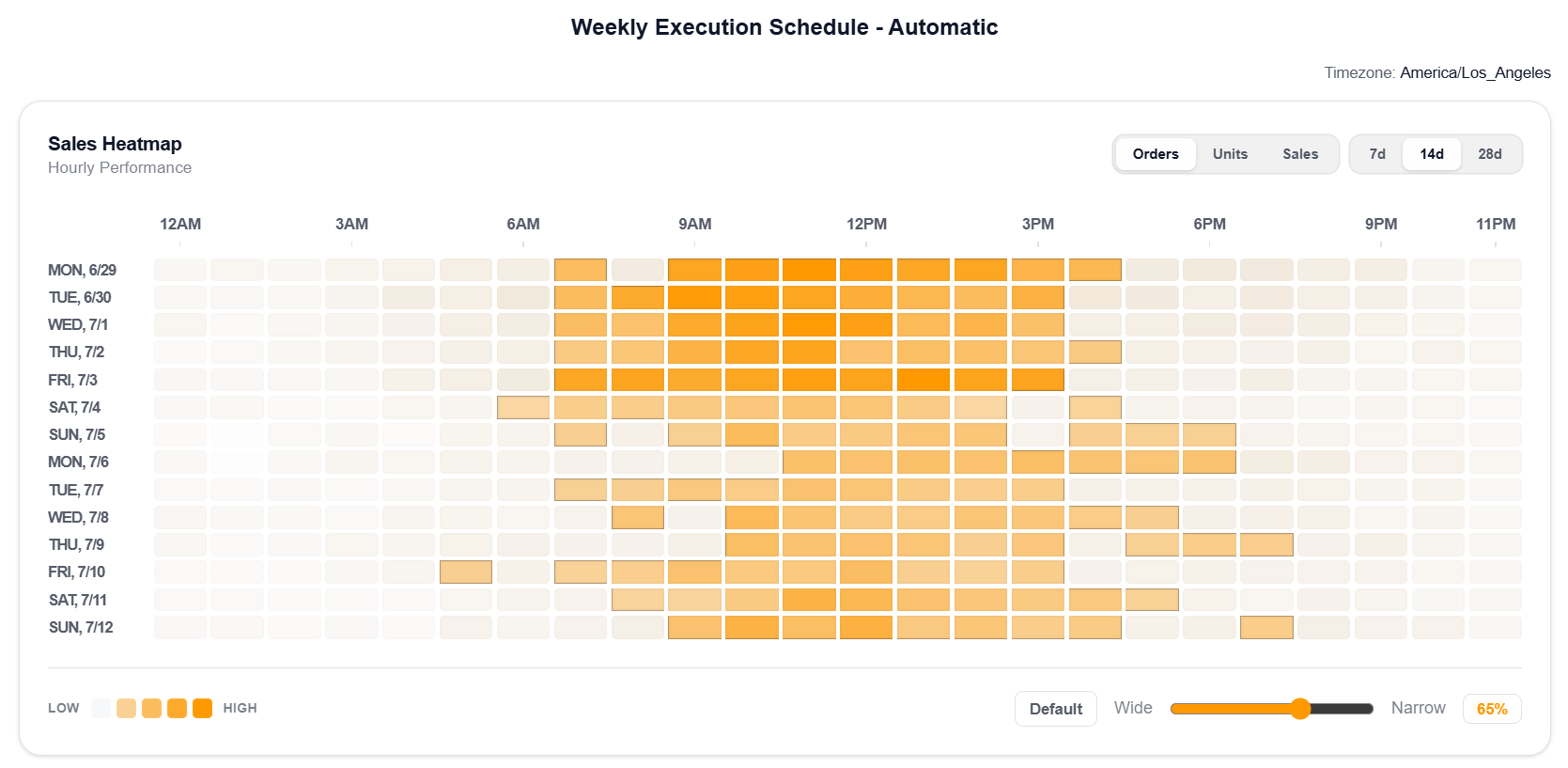
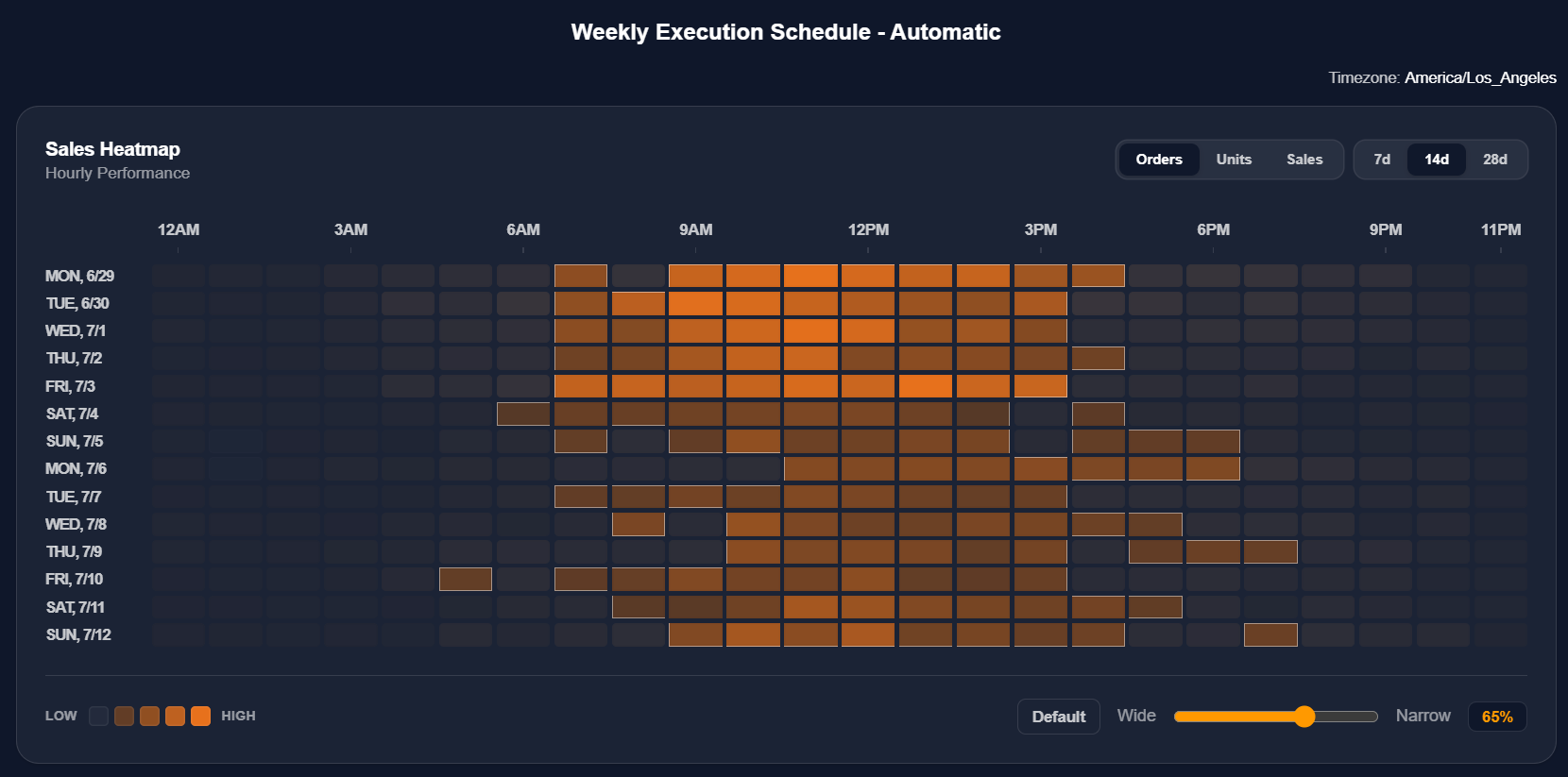
Automatic mode looks at your own sales history — hour by hour, day by day — for the ASINs that sit under this row, and works out which hours of the week are actually worth advertising in. It then visualises that history as a heatmap: the darker the cell, the busier that hour typically is for these products. Because the data is scoped to just the ASINs this assignment manages, what you see is always about your buyers, on these products, in this marketplace — not some generic average.
The heatmap has three controls, all live-updating:
- Source period — how many days of history to read from: 7d, 14d, or 28d. Shorter = more responsive to recent behaviour; longer = more stable.
- Metric — Orders, Units or Sales. Whichever number best represents what a "good hour" means for your business.
- Selection slider — a Wide ↔ Narrow slider that controls how strict the filter is. Move it toward Wide to keep more hours active; toward Narrow to keep only the strongest hours. There's a Default button that snaps it back to the smart preset for the current source/metric combination.
The active hours are highlighted on the heatmap itself, so you can immediately see the schedule Automatic mode is proposing.
Below the heatmap, a Weekly Execution Schedule panel summarises the result day by day — Mon / Tue / Wed / … / Sun — as clean time ranges (e.g. 9:00 – 22:00). If a day has no active hours, it shows Off. The panel also carries a small footer with the exact Source (7d/14d/28d) and Metric that produced it.
Automatic mode auto-refreshes every week from your latest sales data (Mondays ~00:00 UTC in the marketplace's timezone), so your schedule keeps up with shifting buyer behaviour without you having to touch anything.
When there isn't enough data: automatic scope widening
Automatic mode starts by looking at just the ASINs this assignment covers — a product-level Dayparting reads only that one ASIN, an ad-group Dayparting reads that ad group's ASINs, and so on. A brand-new product ad or a low-volume ad group can easily be too thin at that narrow scope for a heatmap-driven schedule to mean anything (imagine a heatmap where only a handful of cells ever saw a sale — most "quiet" hours would just be quiet because nothing had a chance, not because that's a bad hour to advertise).
To avoid basing your schedule on noise, Dayparting checks how many of the 168 weekly hour buckets actually have orders in them:
- If at least 50% of hour buckets have orders, the heatmap is dense enough — Dayparting uses that scope as-is.
- If it's under 50%, Dayparting widens to the next level up the tree and tries again: product → ad group → campaign → account. It keeps widening until either a level passes the 50% rule or it hits your account-wide data.
When widening happens, a small info banner appears above the heatmap explaining what got escalated and why, e.g.:
Heatmap scope widened to CAMPAIGN
Product level had only 22% of hour buckets filled, which is below the 50% minimum. Using campaign "Wireless Earbuds — US" instead (68% filled) so the schedule is based on enough sales signal.
If even the account-wide heatmap fails the 50% rule (a very new account or a completely dormant catalog), Automatic mode admits defeat and shows an amber warning telling you the data is too sparse to build a meaningful schedule, with a Switch to Manual button to move you over in one click.
Practical implication: on brand-new product ads, don't be surprised if the heatmap you see is derived from a wider slice of your business. That's usually what you want — a naive product-level heatmap on 3 orders/week would produce a random-looking schedule. If the widened scope isn't representative of the specific product you're advertising, use Manual mode instead.
Manual mode
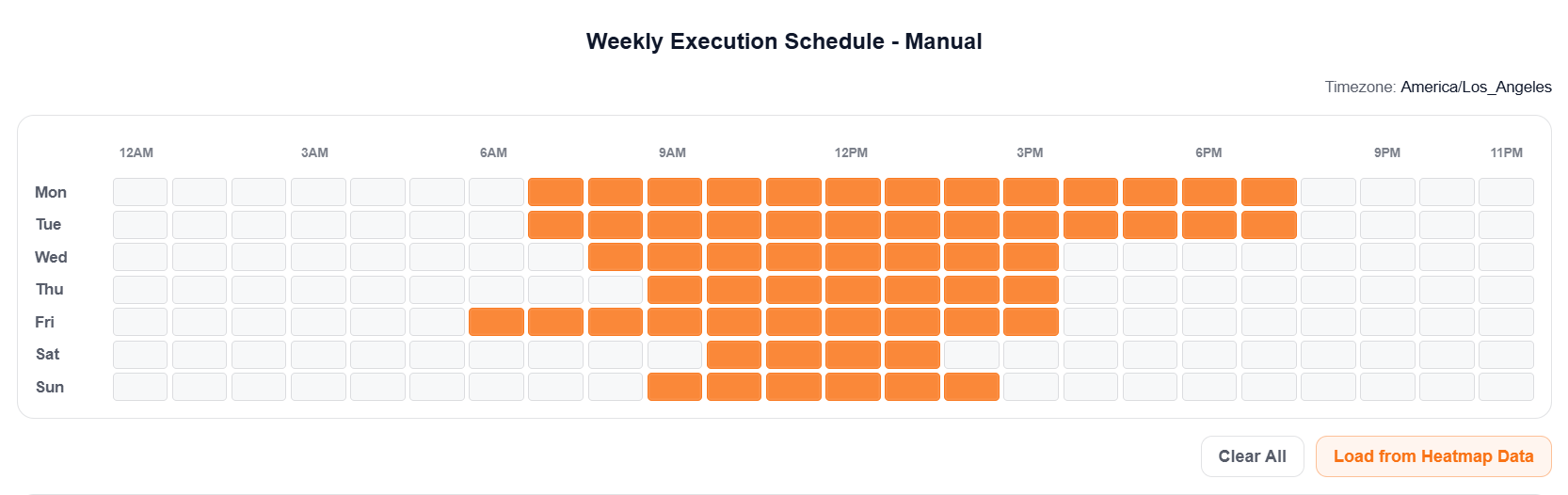
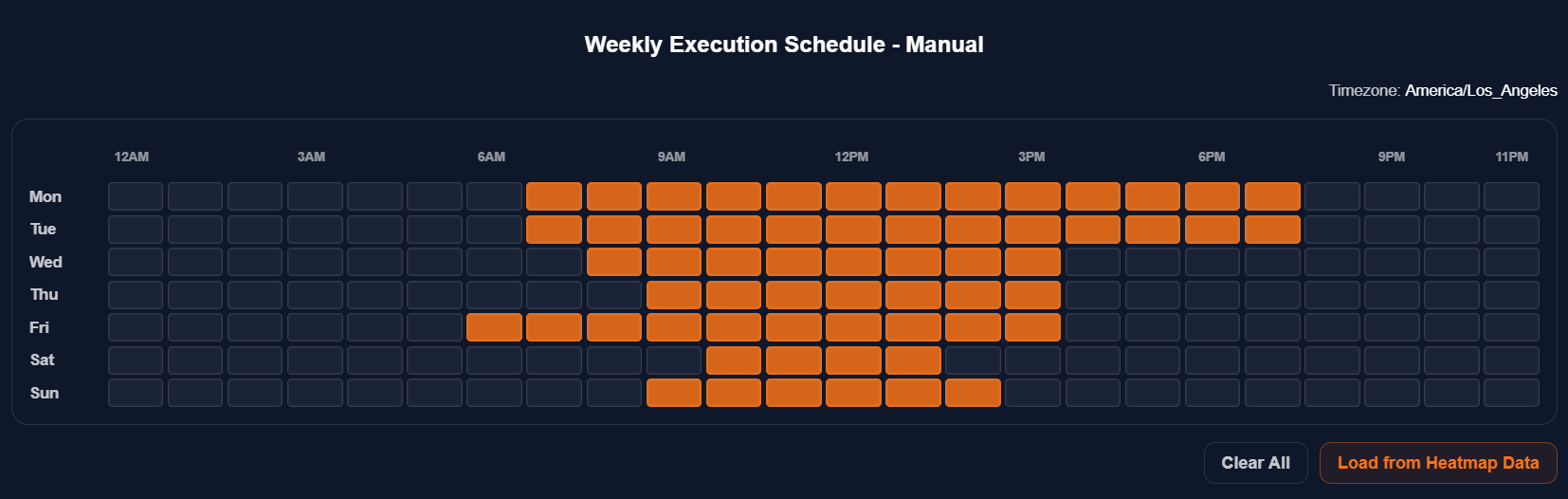
Manual mode gives you a naked 7×24 grid — one row per weekday, one column per hour. Click any cell to flip that hour on or off. Click the weekday label on the left to toggle the whole row at once (useful for "block off entire Sundays"). The same Weekly Execution Schedule panel appears below, updating live as you paint.
Two shortcut buttons sit above the schedule panel:
- Load from Heatmap Data — pre-fills the manual grid with whatever the Automatic mode's current selection would be. Great for "start from the smart schedule, then tweak".
- Clear All — wipes every selected hour so you can start from a blank grid.
Use Manual when:
- You have external knowledge the heatmap can't see (an upcoming promo, a launch push).
- Sales history is too thin for the Automatic mode to be reliable.
- You want a specific pattern for compliance, budget, or brand reasons.
Timezone — it's always local
Both modes always operate in the marketplace's local time, not your dashboard timezone or UTC. There's a small Timezone: America/Los_Angeles label above the schedule (whichever TZ applies for the marketplace this assignment sits in), so you always know whose 2 PM you're looking at.
A schedule of "9 AM – 9 PM" therefore means:
- 9 AM – 9 PM in Los Angeles for the US marketplace.
- 9 AM – 9 PM in London for the UK marketplace.
- 9 AM – 9 PM in Tokyo for the JP marketplace.
DST transitions are handled automatically because the snapshot stores the real IANA timezone (e.g. America/Los_Angeles) rather than a UTC offset.
How activation freezes the schedule
When you save Dayparting, AMZSeller snapshots the currently resolved schedule (as a 7×24 boolean grid) plus the marketplace timezone into the assignment. The worker runs from that frozen snapshot — a live edit in the form doesn't take effect until you save again.
The one exception is Automatic mode's weekly auto-refresh: every Monday it recomputes the schedule from your latest heatmap data and replaces the snapshot with the new one. Manual mode has no such refresh; your painted grid stays exactly as you left it.
What actually happens each hour
Every hour, on the hour (in the marketplace's clock):
- Look up the resolved schedule for this weekday-hour.
- For every campaign / ad group / product ad under this assignment: should it be enabled or paused right now?
- If the current Amazon state doesn't match: PUT the new state.
Dayparting flips state, it doesn't touch budgets or bids. So if you want less spend at night, Dayparting will pause the entity (spend goes to zero), not lower a bid.
Ownership — who paused what
AMZSeller tracks which algorithm paused each entity, so nothing gets clobbered:
- Dayparting will not re-enable a Stop-Loss pause. If Stop-Loss decided a keyword should be off, Dayparting respects that even when the schedule says "on now".
- Dayparting will not re-enable an Inventory Brake pause. Same principle — the algorithm that owns the pause is the only one that can lift it.
- Manual pauses you did directly in the Amazon UI are also respected — Dayparting only manages the state it originally set.
The one exception: when you activate a fresh Dayparting assignment, it takes ownership of the current on/off state going forward. That's the deliberate hand-off from manual to automated.
Interactions with other algorithms
- Bidding co-enabled — Bidding continues to evaluate targets that Dayparting has paused-by-schedule, so their bids stay current for when they wake up.
- Stop-Loss — Stop-Loss can pause entities independently; Dayparting won't un-pause them.
- Inventory Brake — same rule; if Inventory Brake has paused a product ad due to low stock, Dayparting doesn't touch it.
Common questions
Why not just lower the budget at night instead of pausing?
Budget adjustments are per-day, not per-hour. If you want hour-of-day control, state flips are the only Amazon-approved way.
What about placement? Can I dial down Top of Search at night instead of pausing?
Yes — that's what the Placement algorithm is for. Different tool, different job.
My marketplace observes daylight saving. Do I need to re-edit the schedule twice a year?
No. The snapshot uses the marketplace's IANA timezone, so DST transitions are handled automatically. Your 9-to-9 pattern stays 9-to-9 through the year.
Can I switch from Automatic to Manual without losing the schedule I had?
Yes — use Load from Heatmap Data inside Manual mode. It copies the current Automatic selection into the grid, then you can fine-tune from there.