Negative
Negative is the mirror image of Mining. Mining finds the winners and promotes them into their own keywords; Negative finds the losers and blocks them so you stop paying to be seen there again.
Two flavours in one algorithm, both driven from the same weekly Search Terms report:
- Search-term negatives — auto-detect wasted spend using your criteria and add matching search terms as negatives.
- Blacklists & Whitelists — reusable, account-level term lists. Blacklist terms are negated immediately regardless of metrics; whitelist terms are never negated even when they'd otherwise qualify.
What it can be applied to
Campaigns and Ad Groups. Negative can't be attached at the Product level — negatives always live inside an ad group (or across all ad groups of a campaign), so the algorithm needs at least an ad-group-level foothold.
The idea in one paragraph
A big chunk of PPC waste sits in search terms that keep spending without ever ordering. Left alone, Amazon will happily re-serve you on those terms week after week. Negative watches the exact same search-term feed that Mining does, but with your loser criteria instead of winner criteria: "if a term has racked up 15 clicks with 0 orders, block it". Add a Whitelist to protect terms you care about (your own brand, for example), and a Blacklist for the trash you already know you never want to show up on ("free", "cheap", competitor brand names), and you've got a fully-automated hygiene loop.
The setup — a library of rules
Just like Mining, Negative is a rule library — you can save any number of named rules on the same assignment, and they all run side by side on every scheduled run.
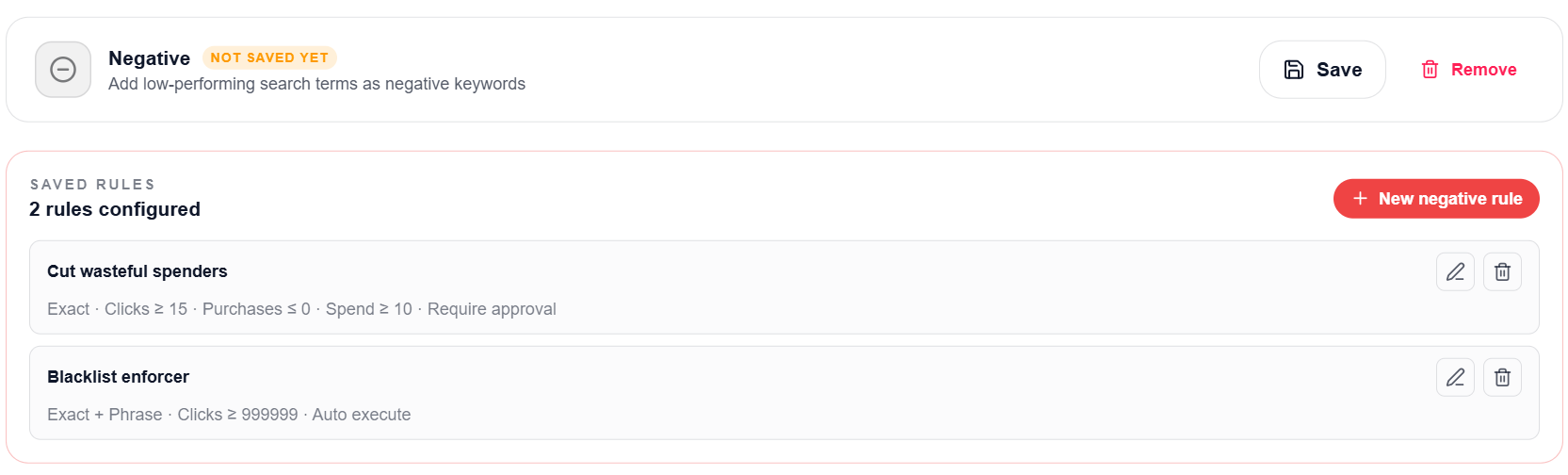
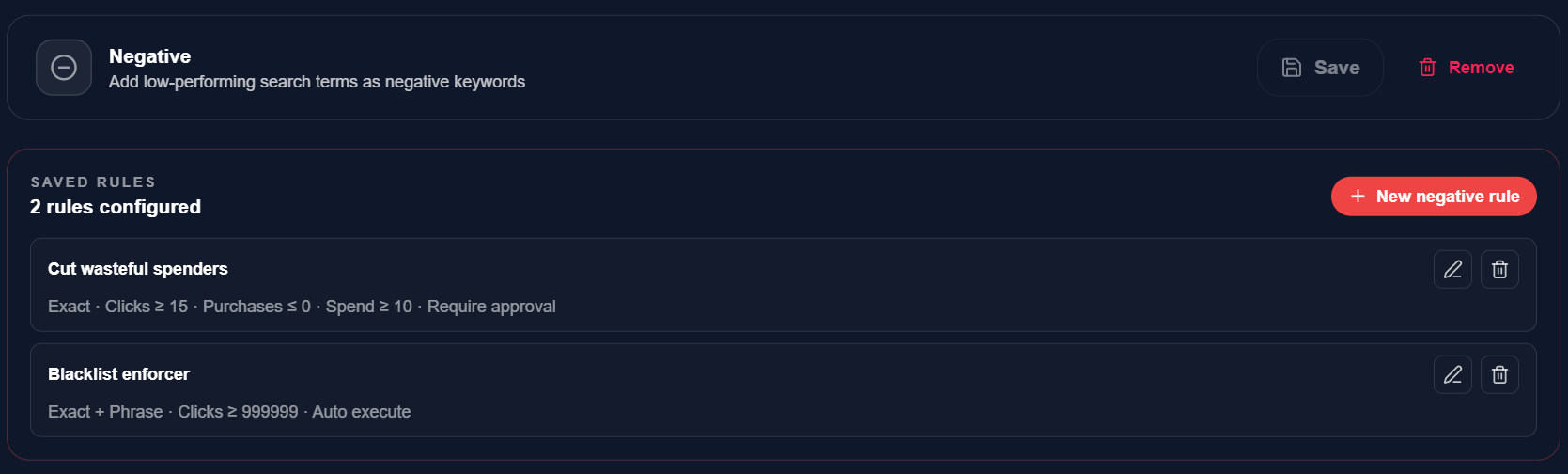
The main screen shows:
- Saved rules header with a count of how many rules are configured.
- Each existing rule as a summary card: name + a one-line summary (match types · criteria · execution mode) + Edit (pencil) and Delete (trash) icons.
- A New negative rule button (top-right) to open the wizard.
Empty account? A dashed empty-state prompts you to add your first rule.
The rule wizard — seven gated steps
Clicking New negative rule (or Edit on an existing one) opens a 7-step wizard. Each step must be completed before the next unlocks. A Rule name field sits at the top and must be filled in before you can save — if you try to advance without it, the field flashes amber and scrolls into focus.
Step 1 — Choose which ASINs this rule applies to
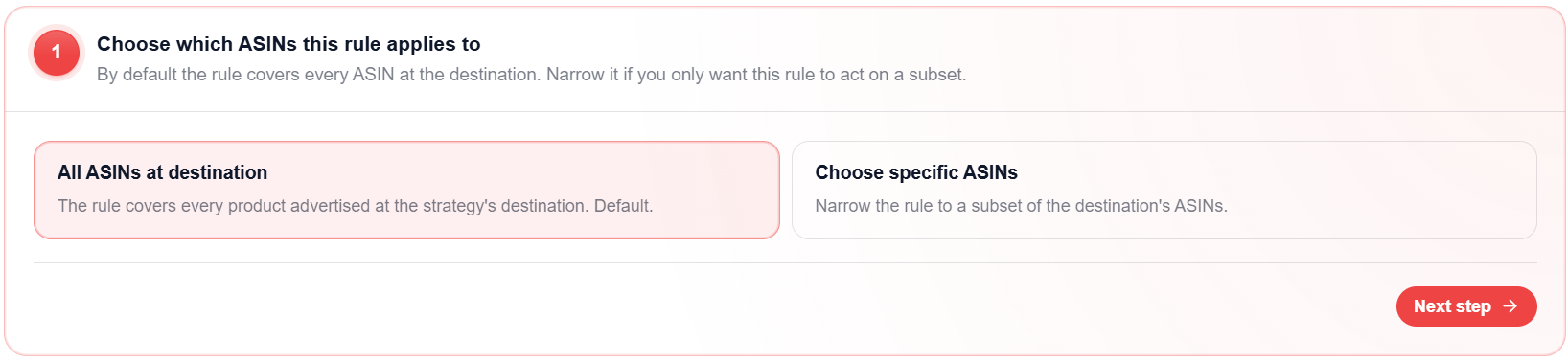
By default the rule covers every ASIN at the destination. Narrow the scope if you only want this rule to protect a specific subset. Non-empty scope filters both:
- The source pool — only search terms served by ads advertising these ASINs are considered.
- Where the negatives land — only ad groups advertising these ASINs will receive negatives from this rule.
Step 2 — Define wasteful signals
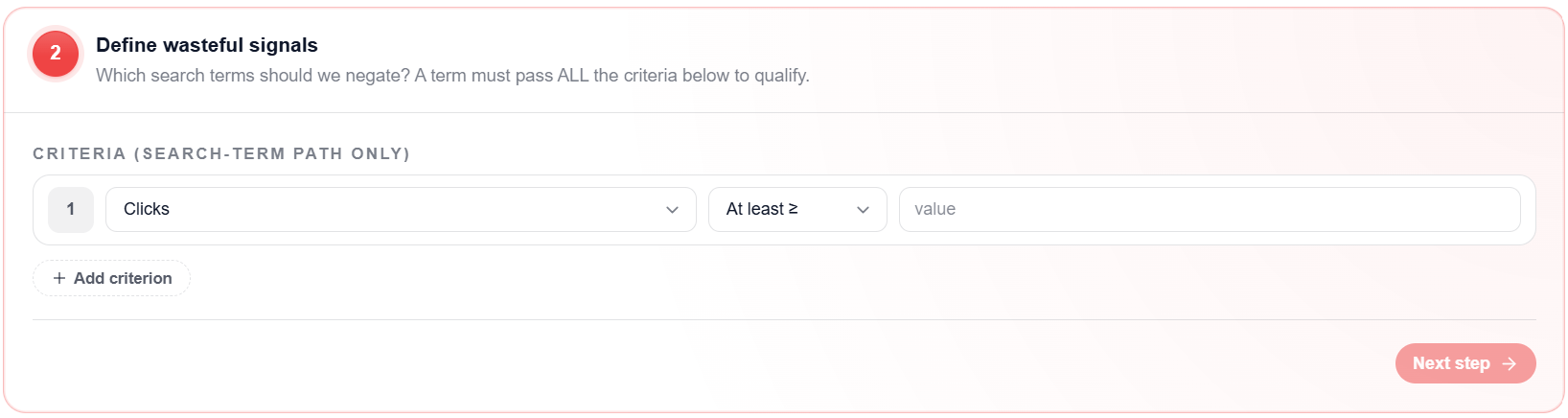
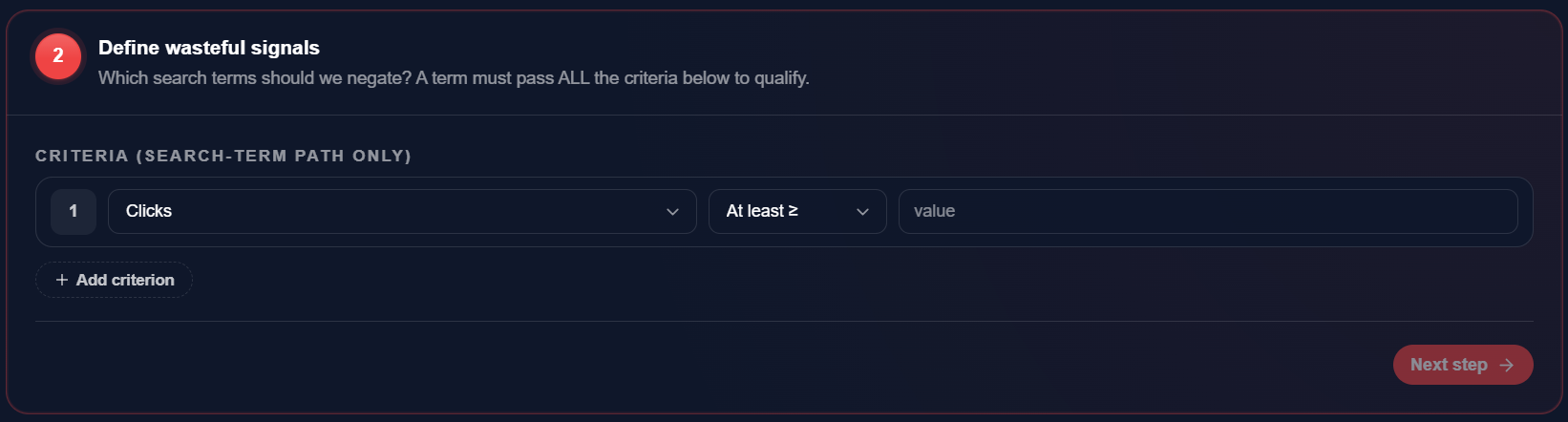
Which search terms should count as losers? Each row is one criterion, all rows are AND-ed together, and a search term must pass every one to qualify.
Each row has three parts:
- Metric — pick from 10 metrics (Impressions, Clicks, Purchases, CPC, CTR, Conversion, ACOS, ROAS, Spend, Sales). Every metric can only appear once per rule.
- Operator — At least ≥ or At most ≤.
- Value — the threshold (with the right suffix: $, %, or no suffix).
Use Add criterion for more rows and the × icon to remove one. At least one criterion is required.
Just like Stop-Loss, always include a spend or clicks floor so you don't blacklist terms that never got a real shot. A common winner rule is "Clicks ≥ 15 AND Purchases = 0 AND Spend ≥ $10" — enough activity to be sure it's really a loser.
Note: these criteria apply to the search-term path only. Blacklists (Step 6) always apply regardless of metrics.
Step 3 — Where to source from
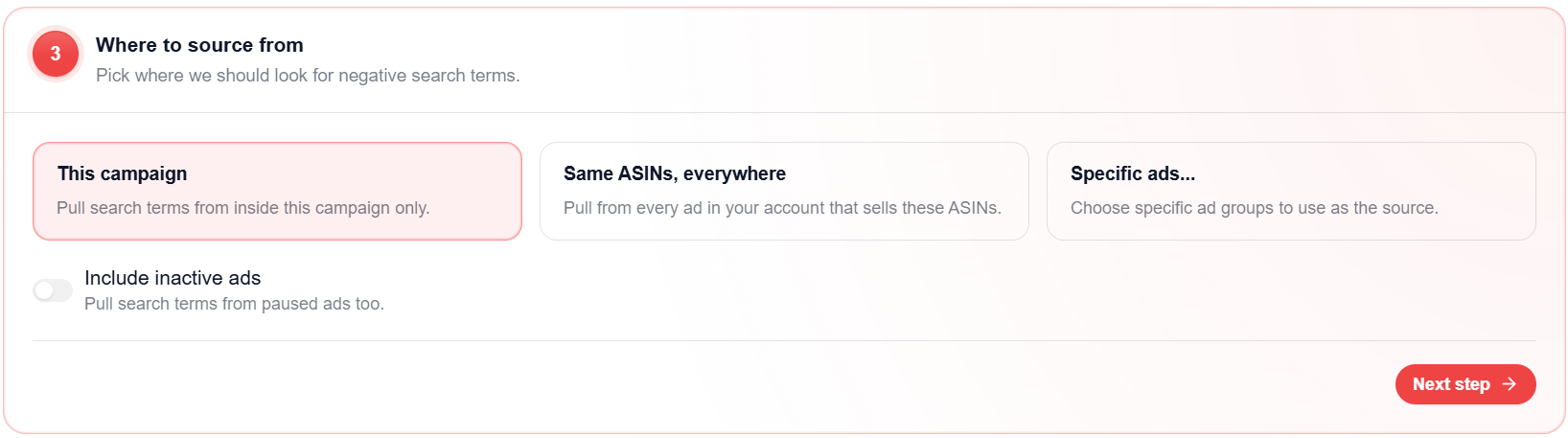
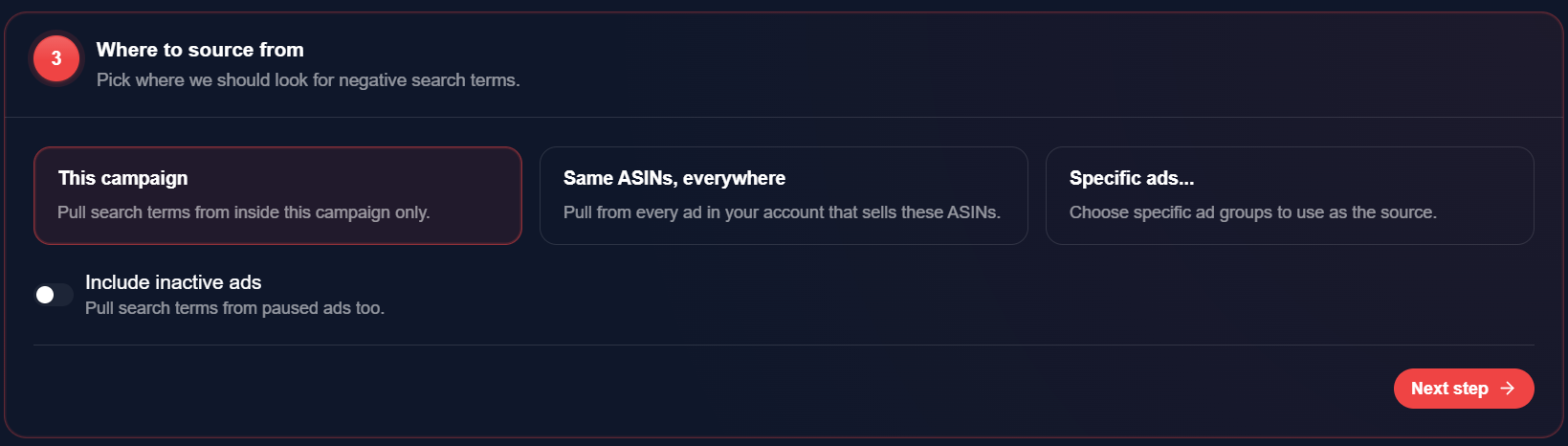
Three tiles (labels adapt to whether you dropped the assignment on a campaign or an ad group):
- This campaign / This ad group (default) — pull search terms from inside this node only.
- Same ASINs, everywhere — pull from every ad in your account that sells these ASINs. Great for consolidating hygiene across duplicated launch structures.
- Specific ads… — hand-pick individual ad groups as the source. Opens an inline ad-group picker.
Below the tiles there's an Include inactive ads toggle. Off by default; turn it on if you also want to pull from paused ads (some sellers keep old ad groups paused but still want their historical junk terms blocked going forward).
Step 4 — How to negate
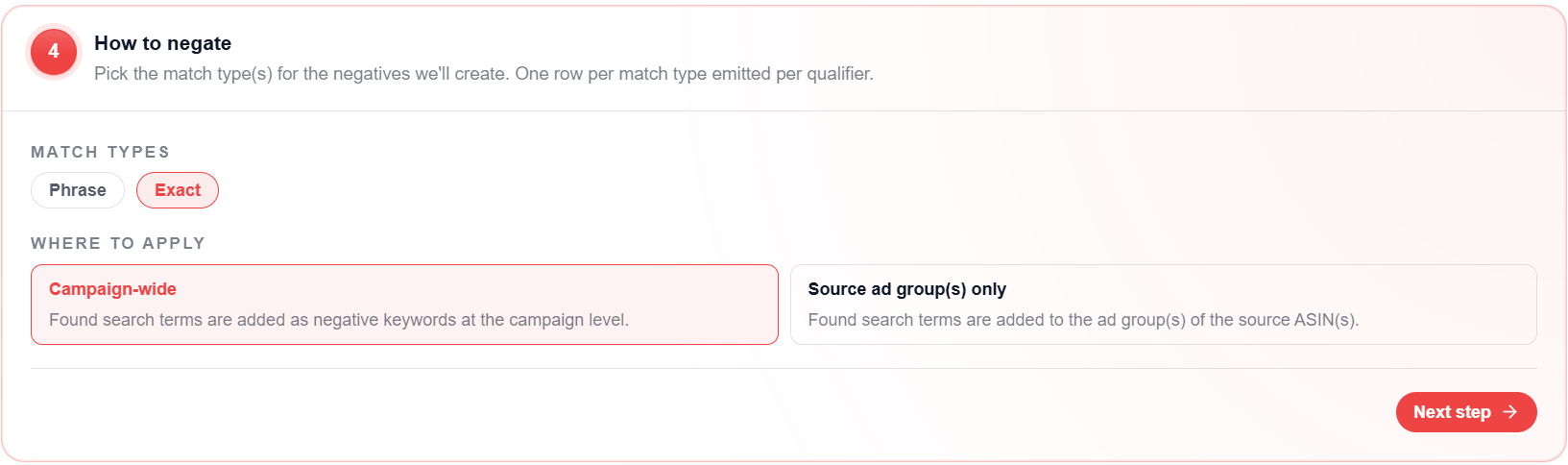
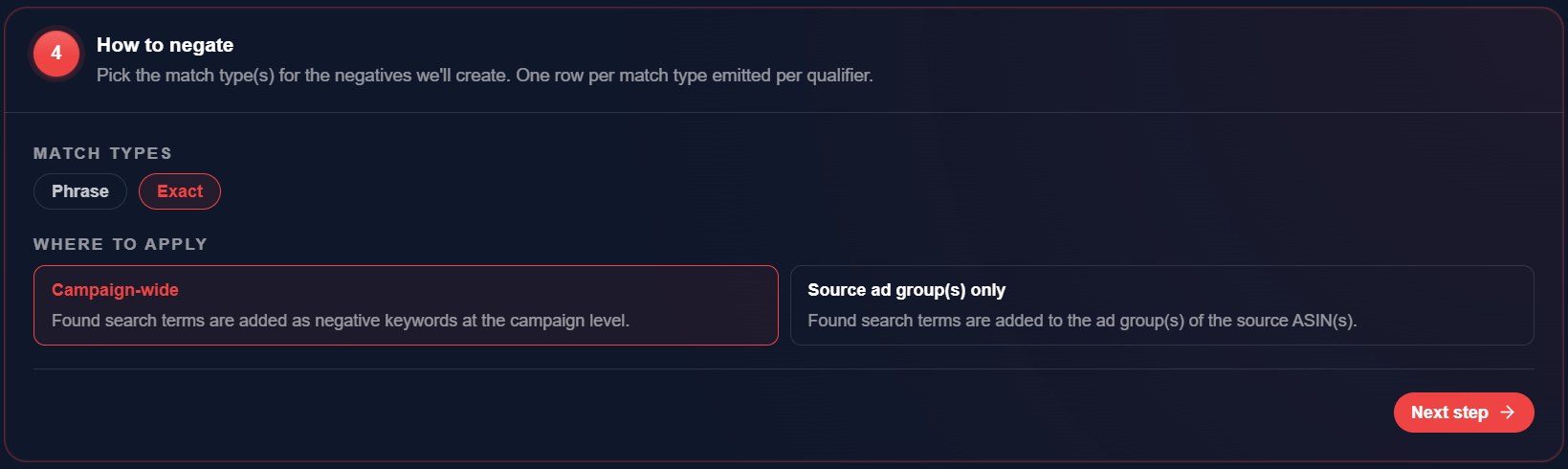
Two decisions here:
Match types — pills (multi-select, at least one must be on):
- Phrase — matches when the negative keyword appears anywhere in the query. Wider coverage, fewer negatives needed.
- Exact — matches only the exact keyword. Tighter, safer, doesn't accidentally starve other traffic.
Selecting both means every qualifying search term is added twice — once as a Phrase negative and once as an Exact negative. Common for high-confidence trash terms where you want defence in depth.
Amazon caps a Phrase negative at 4 words (Exact allows 10, and either way 80 characters). A qualifying term longer than that is not added as Exact instead — Phrase blocks a family of queries and Exact blocks a single one, so swapping them would quietly change what your rule does. The term is listed under Not usable on the run instead. If you want those long queries blocked, add Exact to this rule's match types.
Search terms are whatever shoppers typed, so some of them can never be a keyword at all: Amazon only accepts letters, numbers and spaces (a period, hyphen or plus is allowed inside a word). Those land under Not usable too.
Where to apply (campaign-level assignments only) — two tiles:
- Campaign-wide (default) — negatives are added at the campaign level, blocking the term across every ad group inside that campaign.
- Source ad group(s) only — negatives are added directly to the ad group(s) the search term came from, leaving other ad groups in the campaign untouched. Narrower, useful when you have differentiated ad groups where the same query might be relevant in one but not another.
At the ad-group level this step doesn't appear — the negative always goes on that ad group.
Step 5 — Lookback window
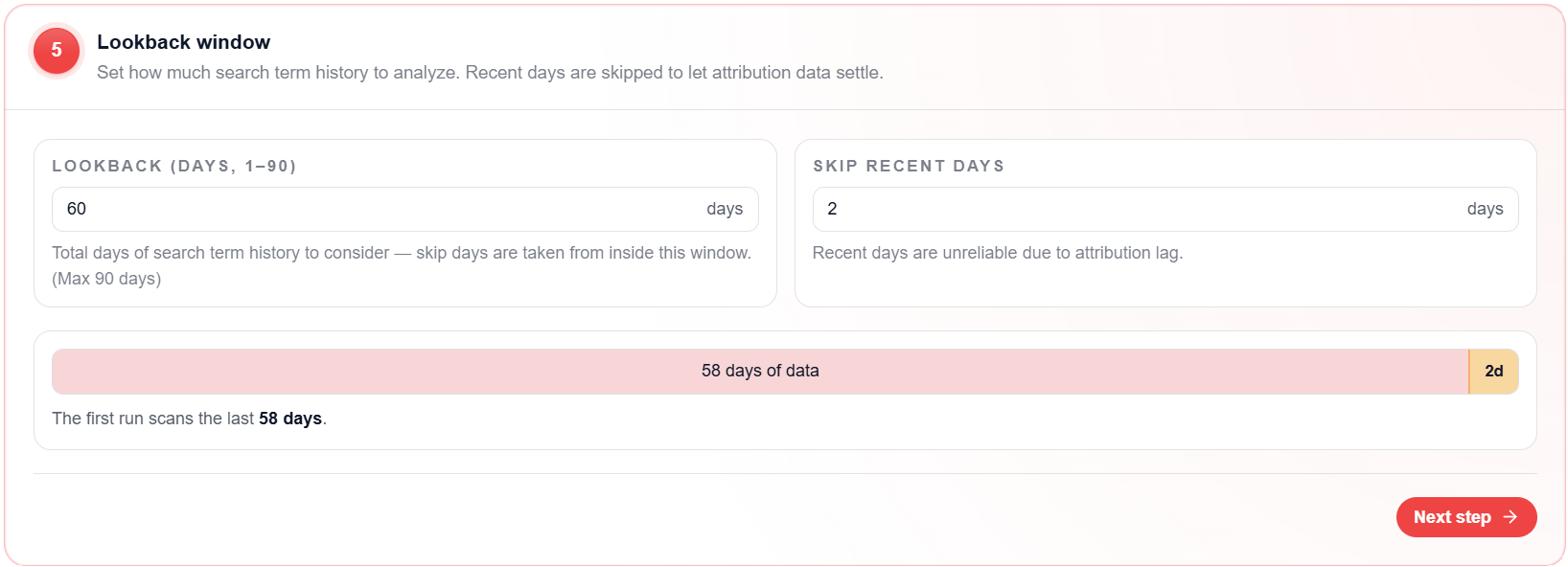
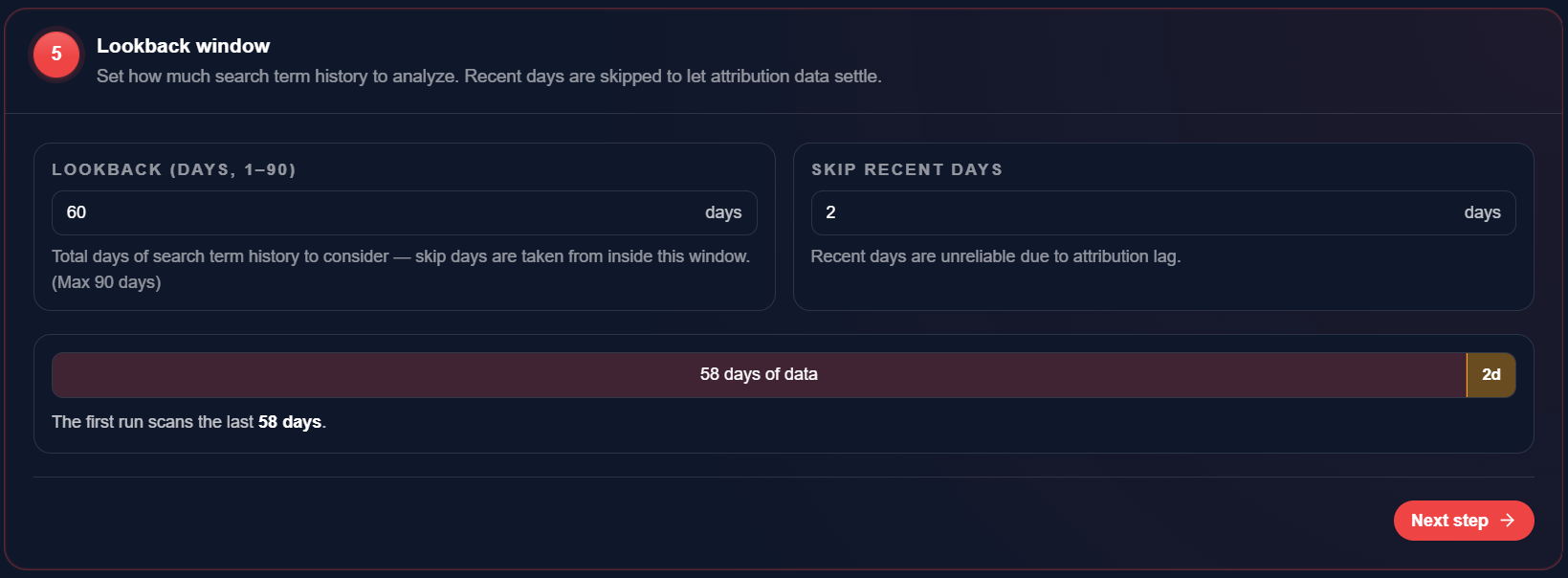
Identical shape to Mining's lookback step:
- Lookback (days, 1–90) — total history window. Default 30.
- Skip recent days — how many of the most-recent days to ignore while attribution settles. Default 2.
A live timeline bar visualises the split — the coloured band is analysed, the amber sliver on the right is ignored recent. Extra warnings:
- Lookback < 7 days shows an amber note (noisy results).
- Skip = 0 shows a blue note (today's incomplete data will be included; 2 recommended).
- If Skip ≥ Lookback you get a red error and can't proceed.
Step 6 — Choose lists
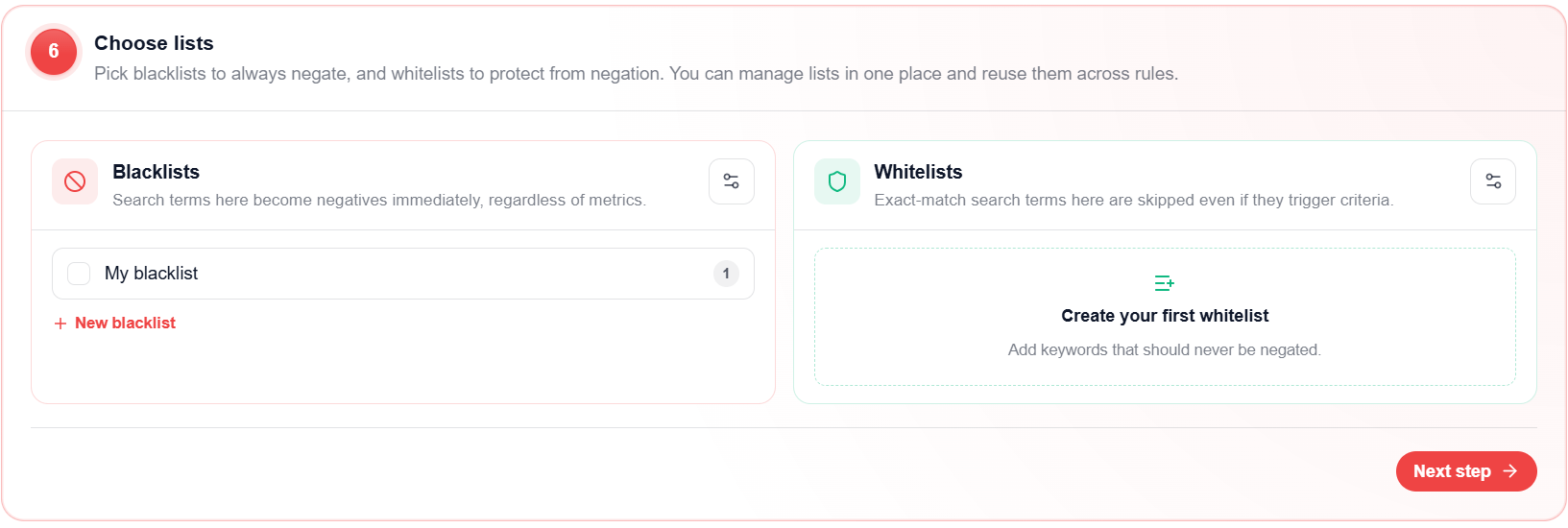
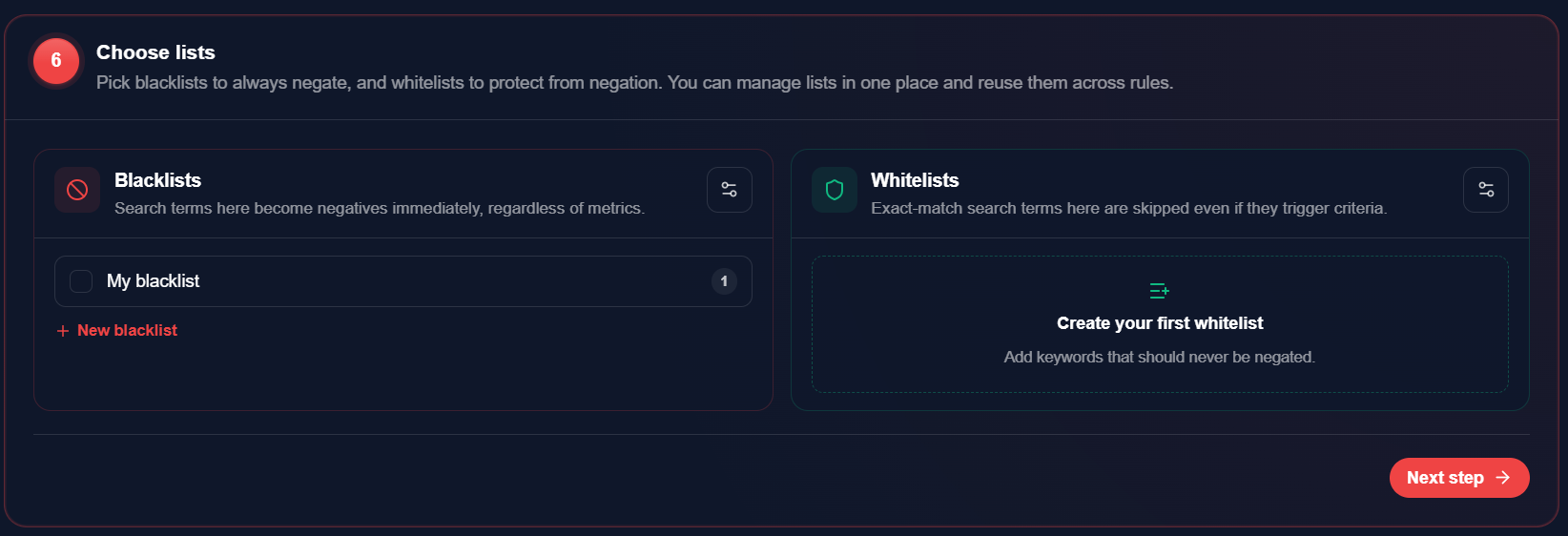
Two side-by-side panels — a red Blacklists card and a green Whitelists card.
Each panel shows:
- The list of available lists (of that kind) as checkable items with a term count on the right.
- A count chip at the top: "N active · M terms" when at least one is selected.
- A Manage gear icon (top-right of the panel) that opens the Negative Keyword Lists Manager — a modal where you can create new lists, rename them, add/remove keywords, and delete lists entirely.
- A New blacklist / New whitelist shortcut link at the bottom that jumps straight into the manager.
Blacklists (red)
Terms you always want negated, no criteria evaluation needed. On every run, every keyword in every selected blacklist is added as a negative in every match type this rule uses. Classic examples: "free", "cheap", "counterfeit", competitor brand names, unrelated categories.
Whitelists (green)
Terms that should never be negated by the search-term path, even if they'd otherwise trigger your criteria. The whitelist is the safety net for your own brand terms, high-strategic-value queries, or anything you don't want touched by automation. Whitelist wins over criteria — always.
Lists are per-account and reusable across rules. Create your "brand defenders" whitelist once and drop it onto every Negative rule you build; the lists live independently of any single rule.
Step 7 — What happens when matches are found?
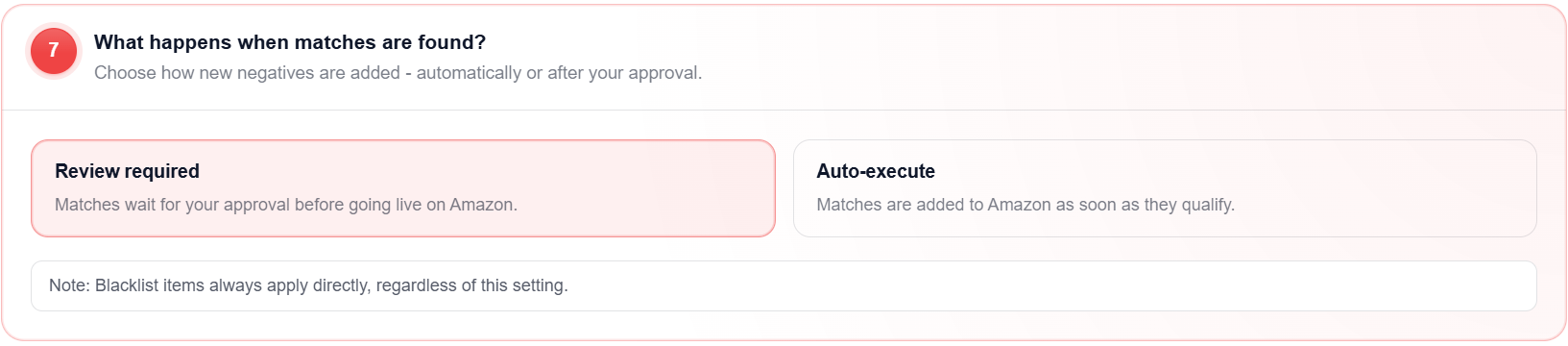
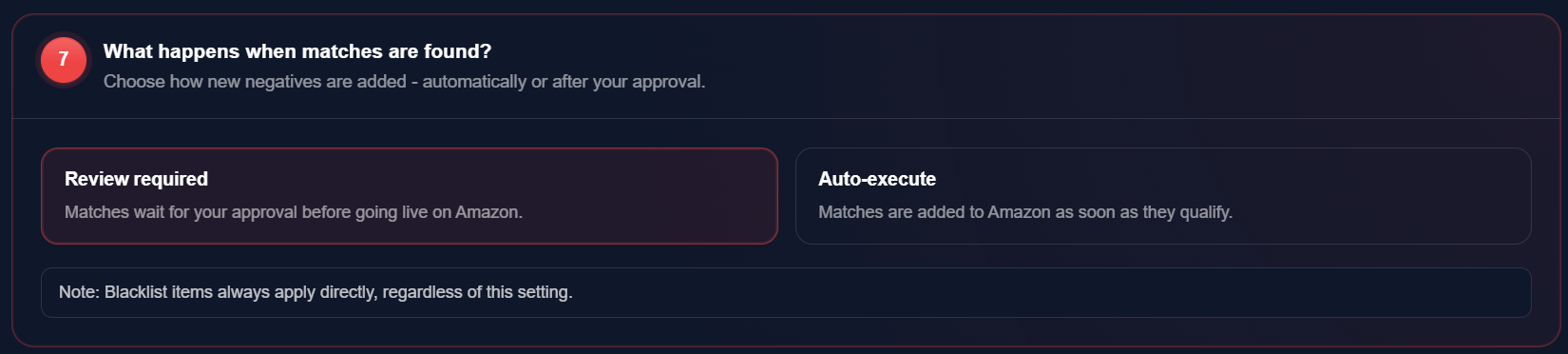
Two tiles:
- Review required (default) — every match waits in a queue for you to approve or reject. Safer, especially when you're still tuning the rule.
- Auto-execute — matches are pushed straight to Amazon as soon as they qualify. Faster but requires trust in your criteria.
Below the tiles there's an important note that appears in both modes:
Blacklist items always apply directly, regardless of this setting.
That's a critical detail. Even in Review required mode, blacklist entries go live immediately — the review queue only exists for the search-term path. If you want a term to not be applied without a review, put it in a whitelist, not the blacklist.
Saving the rule
At the bottom of the wizard: Cancel + Add rule (or Save changes when editing). Save is disabled until:
- The Rule name is filled in.
- At least one criterion has a value in Step 2.
- Step 5's window is valid (Skip < Lookback).
Editing and deleting rules
- The pencil icon reopens the wizard pre-filled with that rule's settings, all seven steps unlocked, so you can jump straight to whichever one you want to change.
- The trash icon deletes the rule.
Deleting a rule doesn't remove the negatives that rule already added — those stay live on Amazon. It just stops the rule from creating any more.
The Lists Manager
Clicking the gear icon on either panel (or the New … shortcut) opens the Lists Manager modal, filtered to the panel you clicked from. From here you can:
- Create a new list (blacklist or whitelist) with any name.
- Rename existing lists.
- Add or remove keywords in a list (one per line).
- Delete lists you no longer need — a warning fires if the list is currently attached to any rule.
Lists are account-wide, not tied to any single strategy or assignment. Editing a list changes the behaviour of every rule that references it on the next run.
Interactions with other algorithms
- Mining — shares the exact same weekly Search Terms report pull. Mining runs first (add the winners) then Negative runs (block the losers). This ordering means a term Mining just promoted won't also be proposed as a negative in the same run.
- Whitelist beats criteria — a search term on your whitelist is never added as a negative from the search-term path, no matter how bad its metrics are.
- Blacklist ignores Execution mode — blacklists always apply directly. Review required only affects the search-term path.
- Strategy scope — a rule with Specific ads… references specific ad group IDs, which are marketplace-specific. If you re-use the strategy in a different marketplace, the strategy library will warn you that this scope can't travel.
Common questions
What's the difference between Whitelist and just rejecting from the review queue?
Whitelist is a lasting, portable rule: "never propose this term ever, in any rule that uses this list". Rejecting from the review queue is per-decision — it stops that specific proposal but doesn't teach the algorithm the term is off-limits going forward.
Should I use Phrase, Exact, or both?
For truly wasted junk (misspellings, unrelated categories) → Phrase is often enough and cheaper on the negative count. For terms where you want defence in depth → both. Exact-only is unusual — it protects against the exact same query but not variations of it.
How do I preview what a rule would add?
Set the rule to Review required and activate. The first run produces a queue you can browse before anything hits Amazon. Once you're happy with what the rule is catching, switch it to Auto-execute.
Can I import my Amazon-side negative keyword lists?
The Sync from Amazon button in the campaign tree brings existing Amazon-side negatives into AMZSeller's view. Blacklists / Whitelists inside Negative are AMZSeller-managed lists, separate from anything you have directly on Amazon.
Can I have multiple rules at the same time?
Yes — that's exactly the point of the rule library. Common setup: one strict "kill obvious waste" rule set to Auto-execute + one looser "flag borderline terms" rule set to Review required.