Configuring rules
Clicking Configure on any product row opens the Rank Guard settings modal — one modal per product, holding every rule and action that will run on that product.
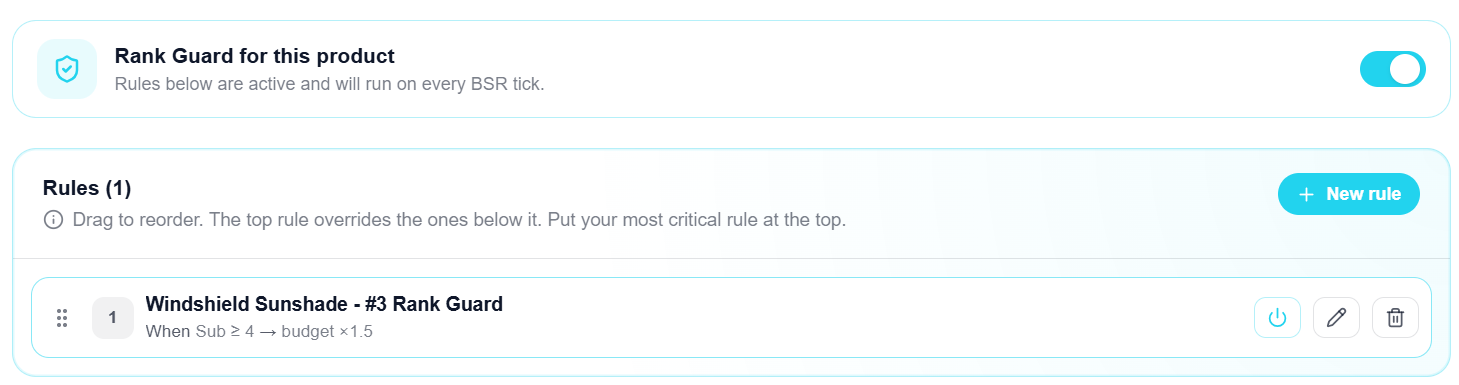
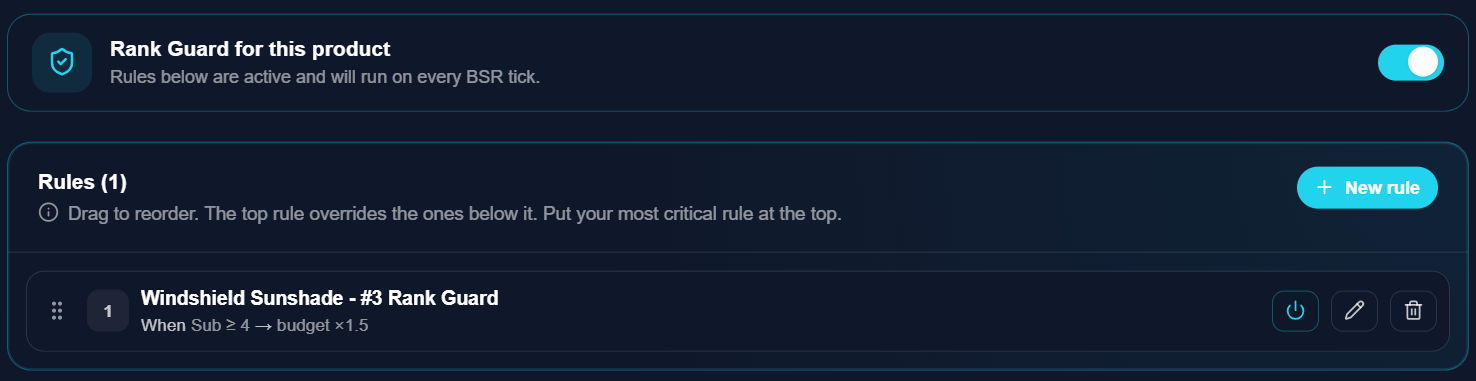
The modal at a glance
At the top:
- The product's image, title, ASIN, and its live Main BSR / Sub BSR / Price for reference.
- Rank Guard for this product — the master enable toggle.
- On: "Rules below are active and will run on every BSR tick."
- Off: "Rules are saved but paused. No pricing or ad changes will be applied."
Below that is the rules list, and below that the rule wizard you open when you add or edit a rule. At the bottom of the modal: Cancel and Save Settings.
Turning the master toggle off doesn't delete your rules — they're kept but skipped on every tick. Useful for pausing a guard while you rethink it without losing the setup.
Heads up: while Guard is on it manages the price, budget, placement, and ad state its rules set. If you change any of those yourself, Guard automatically turns off for that product and emails you — it never overrides your manual change. See Activity, restore & emails for details.
The rules list
Each rule is a card with:
- A short When / → summary (trigger on the left, actions on the right).
- Enable / disable toggle for that specific rule.
- Edit and delete buttons.
- A drag handle for re-ordering.
Rule order matters
Rules are evaluated top-to-bottom on every tick, and the first matching rule wins. Everything below it is ignored for that tick. The list hint spells it out:
"Drag to reorder. The top rule overrides the ones below it. Put your most critical rule at the top."
A typical stack looks like:
- "Rank crashed hard (BSR > 50,000)" → aggressive discount + budget bump
- "Rank slipping (BSR > 20,000)" → smaller discount, gentle budget bump
- "Rank in soft zone (BSR > 10,000)" → mild placement boost only
If BSR hits 60,000, rule 1 fires and 2/3 stay silent. If BSR is 15,000, rule 1 skips (not above 50k), rule 2 skips (not above 20k), rule 3 fires. Guard automatically restores the previous rule's state when a different rule takes over.
You can have up to 20 rules per product.
The rule wizard
Adding a rule or editing an existing one opens an inline 3-step wizard.
Step 1 — Define the trigger
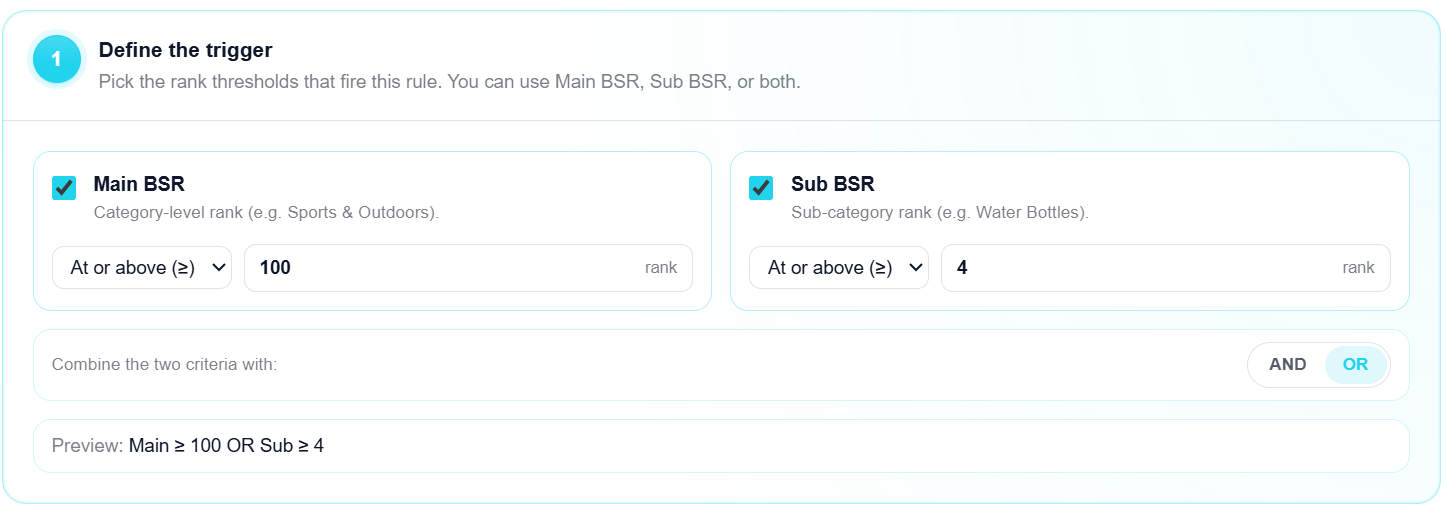
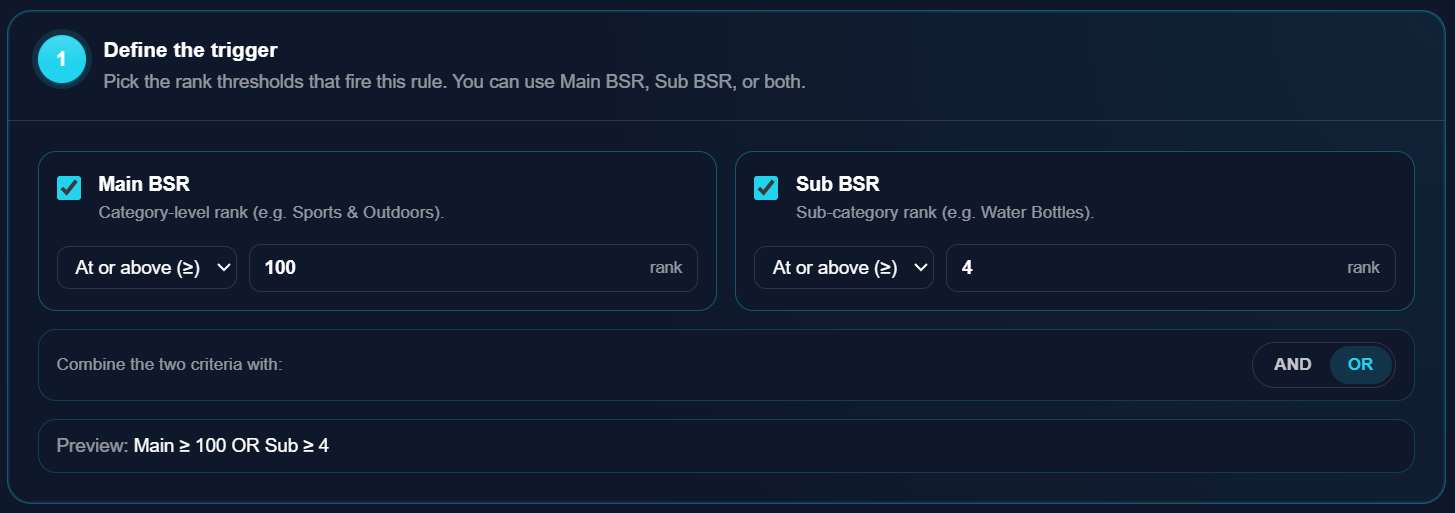
Pick the rank thresholds that fire this rule. You can use Main BSR, Sub BSR, or both.
Each criterion has:
- An enable toggle (only enabled criteria are evaluated).
- An operator: At or above (≥) or At or below (≤).
- A threshold number.
Watch the operator carefully. BSR numbers get bigger as rank gets worse:
- ≥ 20,000 means "my rank has dropped to 20,000 or worse" — the classic "defend when it slips" trigger.
- ≤ 500 means "I'm in the top 500 or better" — useful for triggering behaviours only while you're actually a bestseller (e.g. mild placement modifier while ranked hot).
If both Main and Sub are enabled, a combinator appears — "Combine the two criteria with:" — with AND or OR. Use AND to require both signals to slip together (steadier trigger). Use OR if either slipping is enough reason to act.
A Preview line summarises the trigger as a single sentence ("When Main BSR ≥ 15,000 or Sub BSR ≥ 200"). If nothing is enabled or thresholds are missing, the step is blocked and the button reads "Enable Main BSR or Sub BSR and set a threshold to continue."
Step 2 — Pick the actions
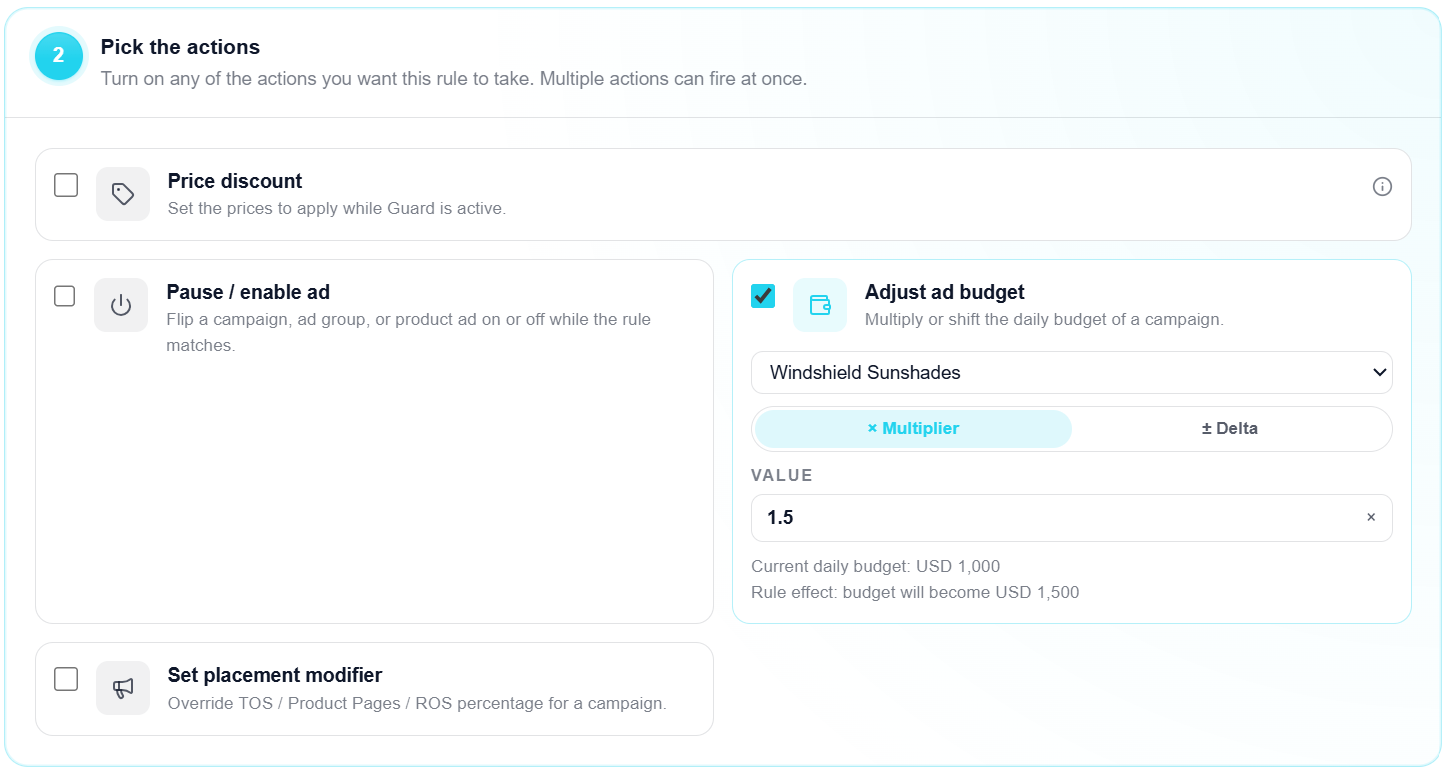
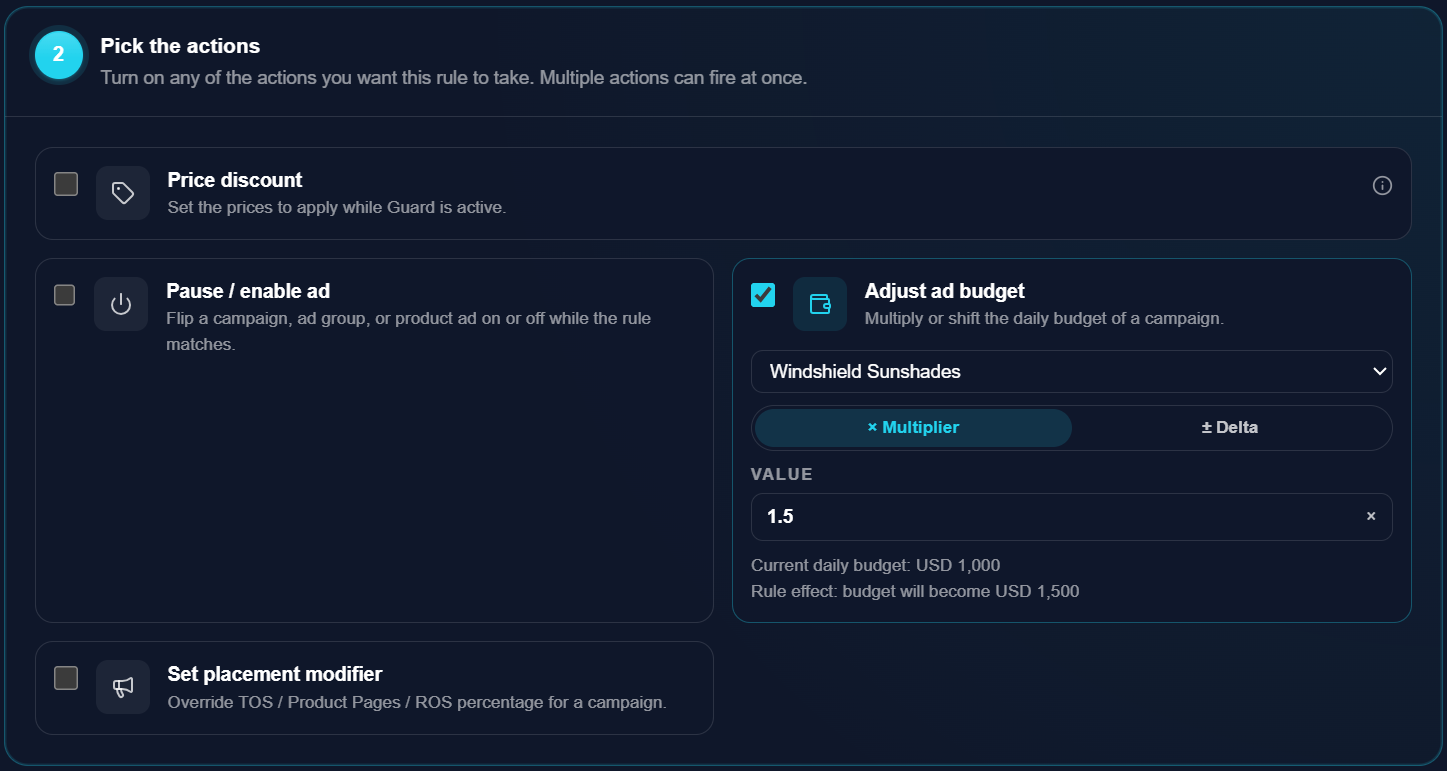
Four action cards, any combination allowed. At least one must be enabled to continue — "Enable at least one action to continue."
Price discount
"Applies these prices while the rule matches, then restores the originals when rank recovers."
Per SKU, you can set:
- Sale Price — the B2C discounted price shown to shoppers.
- Business Price — the B2B price.
- (Your Price is read-only — it's the current regular price, shown for reference. Rank Guard doesn't overwrite the base price, only the sale / business overlays.)
Rules to remember:
- Prices are absolute currency values, not percentages. Set the exact price you want to appear.
- Leaving a field empty means "don't touch this price". So you can lower only the sale price on some SKUs and only the business price on others.
- Every child SKU has an Include this SKU / Skip this SKU switch — useful for parents where some variants shouldn't be discounted.
- If a product has no SKUs yet, you'll see: "No SKUs available for this product yet — wait for the next catalog sync."
When the rule stops matching, the original sale price + sale end date + business price are put back, exactly as they were before the guard fired.
Pause or force-enable an ad
Flip a Sponsored Products campaign, ad group, or product ad on or off while the rule matches.
- Scope — Whole campaign (all ad groups), Whole ad group (all product ads), or a single product ad.
- Mode — Pause or Enable.
- Pick the campaign / ad group / product ad from the picker (only entities that target this product are shown).
When the rule stops matching, the entity returns to whatever state it was in before Rank Guard touched it (its state_before).
If the product has no live Sponsored Products campaigns yet, you'll see "No Sponsored Products campaigns target this product yet." — you'll need to launch or attach one first (or pick a different action type).
Adjust ad budget
Multiply or shift the daily budget of a campaign while the rule matches.
- × Multiplier — e.g. 2.0 doubles the campaign's baseline daily budget.
- ± Delta — e.g. +50 adds $50 to the baseline (or −20 to trim it).
Limits: multipliers between 0.1× and 10×; deltas between −$1000 and +$1000.
Rank Guard writes this as an override so the rest of the automation stack sees it too — the Budget algorithm stands down while Rank Guard owns the campaign. When the rule stops matching, the override is cleared and Budget takes back over.
Set placement modifier
Override the campaign's placement percentages while the rule matches:
- TOS — Top of Search
- Product Pages
- ROS — Rest of Search
Each is a percentage from 0 to 900. Leaving a field blank means "don't change this placement".
Same override contract as Budget — Placement Modifier stands down while Rank Guard holds the wheel, and the override is cleared on recovery.
Step 3 — Name & save
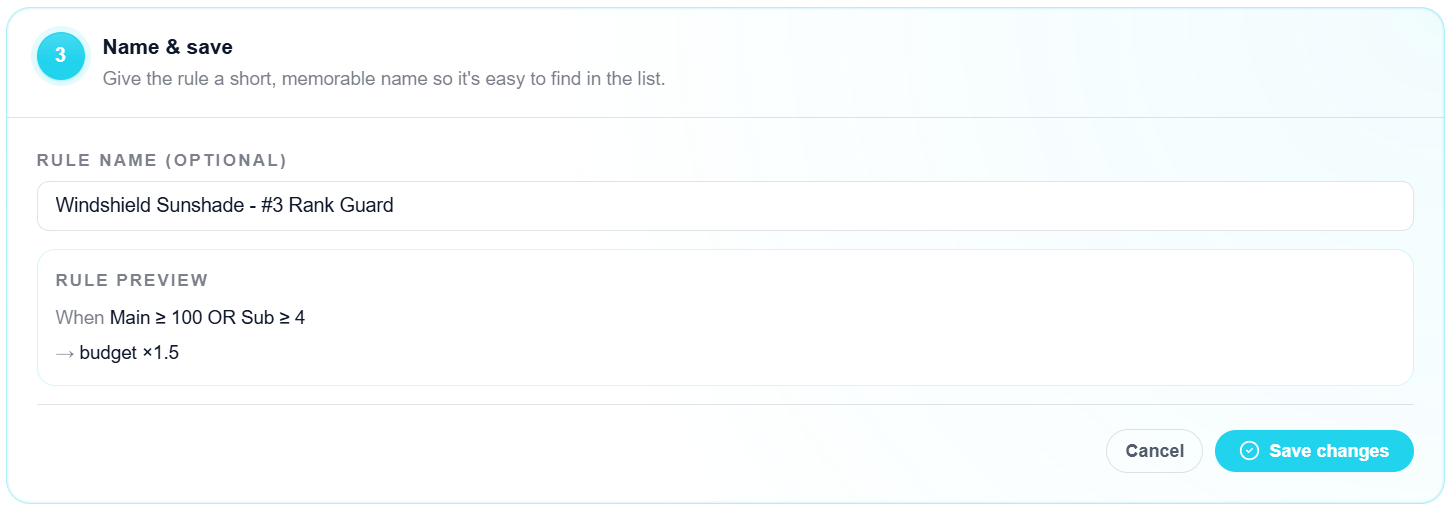
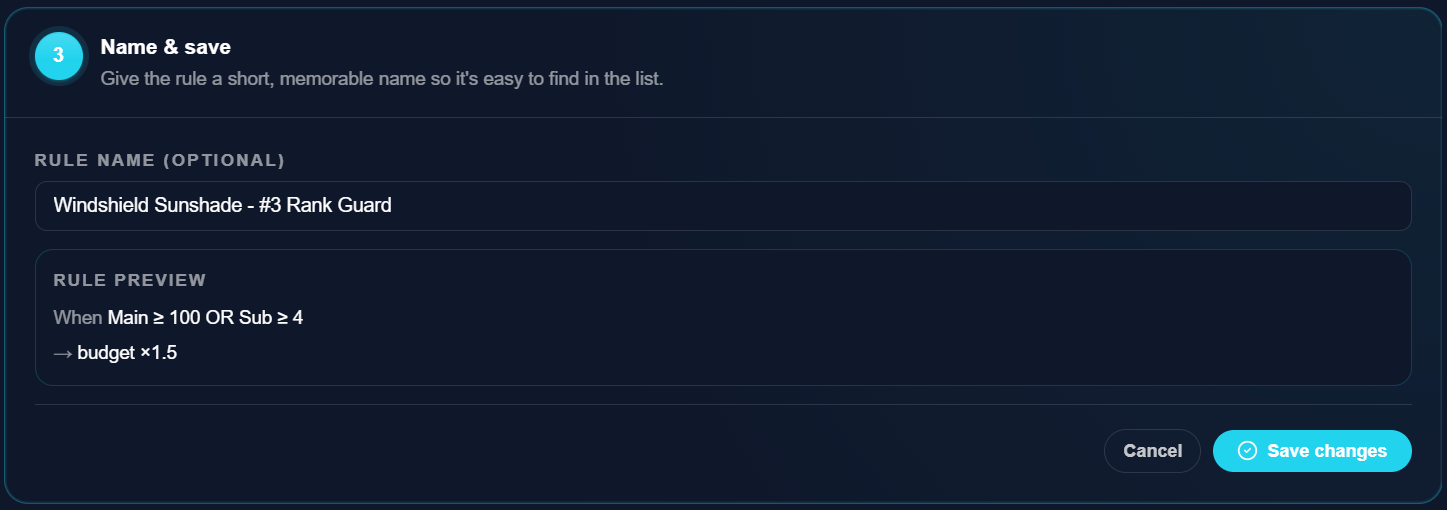
A short Rule name (optional) — placeholder: "e.g. Defend top 50 in Water Bottles". Purely for your own labelling; if you skip it the rule shows as "Rule #{index}" in the list. A Rule preview on the right side shows the trigger + actions summary the way it will render on the rules list, so you can eyeball it before saving.
Hit Save rule (new) or Save changes (edit). The rule is added to the list; nothing is committed to Amazon yet — that happens on the next 8-hour tick, once you close the modal with Save Settings.
Save Settings vs Cancel
- Save Settings — persists all your changes (enable/disable, rule list, individual rule toggles). The next tick will pick up the new configuration.
- Cancel — discards unsaved changes since the modal was opened.
The modal never applies changes to Amazon directly; every actual action lives on the 8-hour tick.