The group dashboard

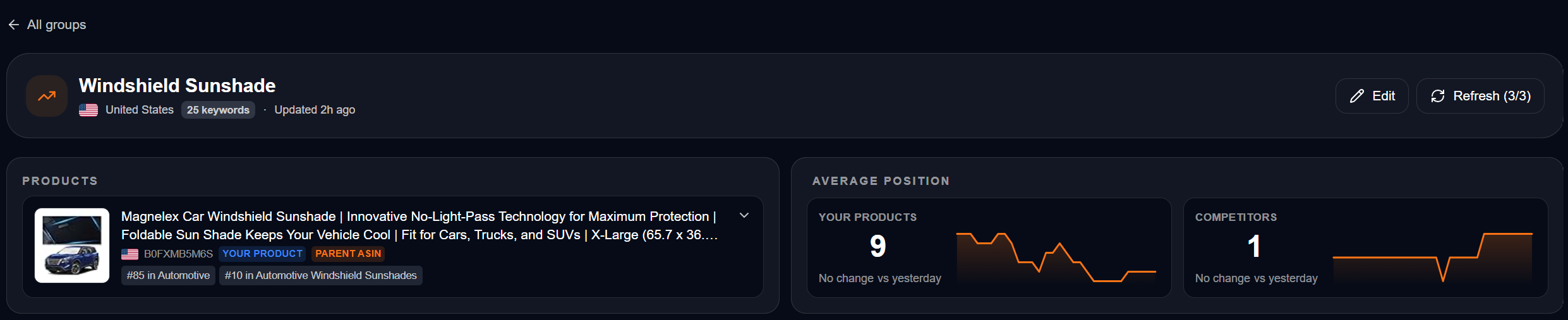
Clicking a group card takes you into its dashboard — one page with everything the group knows about your keywords over the last month.
Header
Top strip:
- ← All groups — back to the list.
- Group name + marketplace flag + keyword count.
- Updated {relative time} — when the last scan finished. Reads "never" right after creation until the first scan lands.
- Edit — opens the same modal used on the list page (add/remove products, competitors, keywords; rename; delete).
Products card
Shows every ASIN in the group split into Your products and Competitors sections (dropdown selector). Each tile displays image, title, ASIN, and any badges that apply:
- Your Product (blue) / Competitor (rose).
- Parent ASIN / Parent · best of N — a parent listing whose rank is the best across its variants.
- Variant — a single child you elected to track individually.
- A live BSR chip (#{rank} in {category}) when Amazon returned a fresh BSR value.
Selecting a product on this card is what drives the average-position numbers and heat-map cells below (whichever product you picked is the one being ranked).
Average Position card
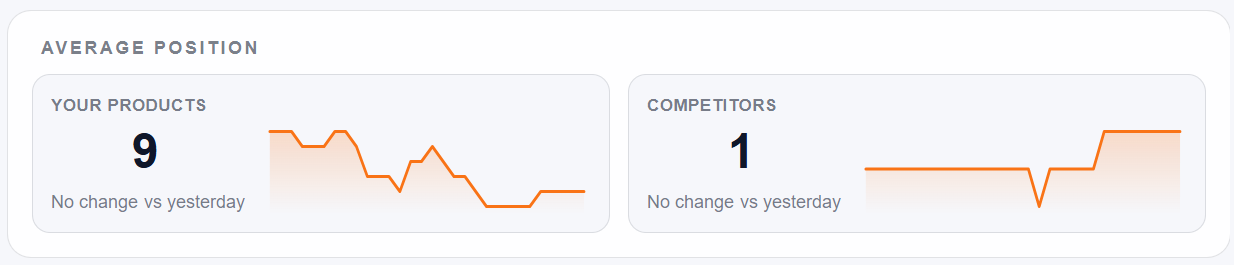
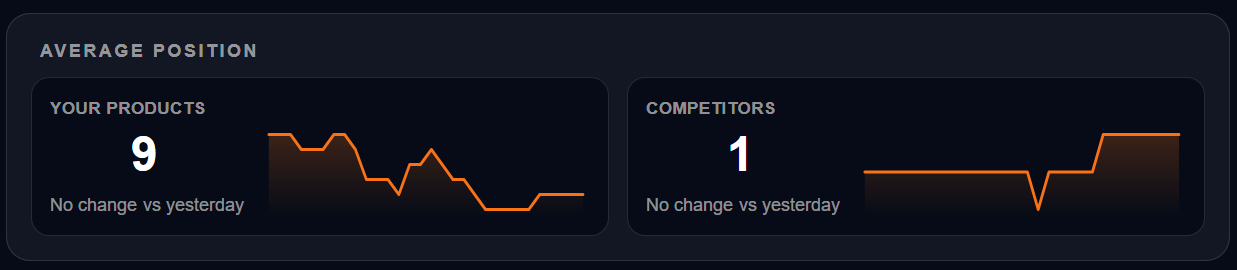
Two stat blocks side-by-side (only one if the group has no competitors):
- Your Products — a single number that averages the best organic rank across all your tracked ASINs for every keyword, across every keyword in the group. Lower is better.
- Competitors — same math, but on the rival ASINs.
Each block also shows:
- A delta badge —
±X.X% vs yesterday, "No change", or "Not enough data yet" if the group is too fresh (only one scan so far, or a gap between scans). - A sparkline — 30 days of trend; the Y axis is reversed (down = better rank).
Keywords section
This is the heart of the dashboard — a table with keywords going down the left and the last 30 days going across the top. Need more history? Scroll the table all the way to the right and an expand arrow appears on the edge — click it to widen the window to 90 days. The table opens at 30 days again on your next visit.
Controls above the table


- Heat map toggle — switches the date cells between coloured heat cells and plain numbers. Preference is remembered per browser.
- Search keywords — filters the visible rows to keywords matching what you type.
- Rank tabs — Organic / Sponsored / Overall. Switching a tab redraws the whole table with the corresponding rank number in every cell. Preference is remembered.
- Bulk select — checkbox on any row starts a selection. A sticky bar at the top shows "{N} selected" plus two actions:
- Star keywords — toggles the favourite state (starred rows float to the top of the table).
- Delete from group — permanent removal after a confirm prompt ("Delete {N} keyword(s) from this group?").
The table itself
- The first column is sticky: it holds the checkbox, favourite star, the keyword text, a small Amazon-search icon (opens that exact search in the marketplace), and — where available — the monthly search volume as a subtitle.
- The date columns (30 by default, 90 when expanded) are one calendar day each in the marketplace's local timezone, oldest → newest.
- Each cell holds the rank number, or a dash – if the ASIN wasn't ranked in the top 200 that day.
- Click any keyword row to open the keyword drawer with the rank chart and a Top Products view.
Sorting
Rows aren't sortable by rank on purpose (rank changes daily; a sort would rearrange the table under you). The order is:
- Favourites (starred) first, in the order they were starred.
- Everything else in the order the keywords were added to the group.
Add a keyword → it appears at the bottom. Star a keyword → it jumps to the top.
Empty states
- No keywords in this group yet. — happens right after group creation before the first keyword was added.
- No keywords match "{query}" — clear the search box to bring rows back.
Reading the ranks
The specific meaning of every rank number, dash, and colour band lives in its own section: Reading the ranks.