Order Activity
The Order Activity table at the bottom of the page shows every order Review Automation has seen in the last 30 days. It's the source of truth for what's queued, sent, and skipped — and it's where you make one-off exceptions.
Orders that were canceled in full are not listed — there is nothing to send and often no product detail to show. An order where only some items were canceled still appears (Order Status Mixed), with the canceled items marked inside the expanded row.
Section header:
Order Activity
"Track queued, sent, and skipped review requests across your orders."


Columns
Each row is one order. Columns, left to right:
- ⏻ (request toggle) — turn the review request for this specific order off or on. See The per-order toggle.
- Order Date — when the order was placed.
- Order ID — Amazon order ID, with the marketplace name underneath. Replacement and exchange orders Amazon opened for another order carry a small Replacement order / Exchange order badge here; hovering it shows the original order ID. Multi-item orders expand from View items (N) on the product.
- Product — product image (same catalog image as the Dashboard) + title; single-item orders also show ASIN / SKU underneath.
- Order Status — Amazon-side order state (Pending / Shipped / Refunded / Mixed).
- Delivery Date — Amazon's estimated delivery, updated as tracking progresses. This is the anchor for the send date (delivery + your delay).
- Request Status — where this order sits in the pipeline (Scheduled / Not Scheduled Yet / Sent / Skipped / Paused), plus a short note when there's something to add (e.g. why a row is paused, or "Returned after request" / "Replaced after request").
- Request Date — when the request was sent (Sent rows) or when it's due to go out (Scheduled rows). Empty for anything else.
- Skip Reason — populated only when the Request Status is Skipped.
Reading the status pills
Request Status
| Pill | Meaning |
|---|---|
| Scheduled | Queued to send. The planned time is in the Request Date column. |
| Sent | Amazon has been asked; buyer notification will land shortly. The send time is in the Request Date column. |
| Skipped | Blocked before send. Reason shown in the Skip Reason column. |
| Paused | Global, marketplace, or product-level setting is pausing this order. The note under the pill says which. |
| Not Scheduled Yet | Delivery estimate hasn't come through yet, so there's no send time. Every new order starts here (FBA and FBM alike), usually for a day or two. Once the estimate arrives the order moves to Scheduled; if none arrives within 5 days of the order date it's scheduled 15 days after the order date instead. |
"Returned after request"
A Sent row can carry an orange Returned after request note under the pill. It means the buyer's return came in after the review request had already gone out. Nothing was skipped — the request was sent while the order looked clean, and the return surfaced later.
This isn't a shield failure and there's nothing to undo; Amazon doesn't let a sent request be recalled. The note is there so you can see how often returns arrive after your send date. If you see it a lot, a longer delay in Settings gives returns more time to show up before the request goes out.
The same pattern applies to Replaced after request and Exchanged after request: Amazon opened a replacement or exchange order for this one after the request had gone out. Had it arrived earlier, the Replacement order / Exchange order shield rules would have skipped the send.
Order Status
Reflects the Amazon-side state, which drives what Review Automation does with the order:
- Pending — Amazon hasn't reported the order as shipped yet. The send still fires on its scheduled time; in practice that time is always after delivery, so a pending order rarely reaches it.
- Shipped — in transit or delivered; sends fire on schedule.
- Refunded — refund landed; auto-skipped (the Refund issued rule is always on).
- Mixed — a multi-item order where items ended up in different states (for example one item canceled, the other shipped).
Fully canceled orders are auto-skipped and hidden from the table.
The per-order toggle
The first column (header ⏻) carries a small toggle:
- On — order will send on schedule (default state).
- Off — you've manually turned this specific order off. Skip Reason will read "Manually disabled".
Rows that are already Sent or Paused show the toggle greyed out — there's nothing left to switch.
Use the manual toggle when you know an order shouldn't get a request but the shield hasn't flagged it — e.g. the buyer emailed you personally about an issue but hasn't opened a return, or you know they got a damaged unit and you've already promised to replace it.
Paused rows can't be toggled On — the pause is upstream. Turn the marketplace or product setting on if you want to send.
Filters
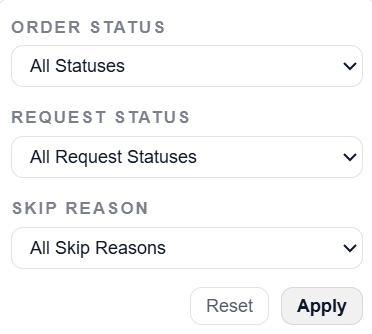
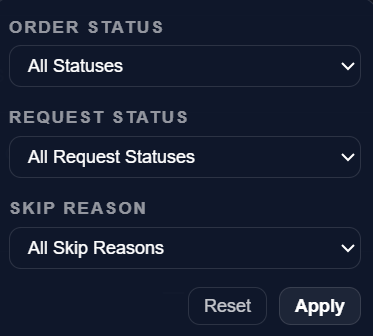
Above the table, three funnel filters plus a search:
Search
"Search: Order ID, SKU, ASIN, Product" — narrows the table to matching rows. Useful when you're chasing a specific case ("did this order actually send?").
Order Status
Filter by Amazon-side state:
- All Statuses
- Pending
- Shipped
- Refunded
- Mixed
Request Status
Filter by pipeline state:
- All Request Statuses
- Scheduled
- Not Scheduled Yet
- Paused
- Sent
- Skipped
Skip Reason
Only relevant when Request Status is Skipped, but useful even standalone:
- All Skip Reasons
- No Skip Reason
- Manually disabled
- Customer return requested
- Replacement order
- Exchange order
- Refund issued
- High refund-rate product
- Product automation disabled
- Missing delivery date
- Review window closed
- Multiple reasons
Choosing a filter applies it immediately. Reset clears all filters. Apply closes the panel.
Multi-item orders
Amazon groups multi-item purchases under one order ID. In the table, the top-level row shows the first item's image and title plus a "+N more items" hint and a View items (N) link, and the composite state (Order Status = Mixed if items ended up in different pipelines). Expanding the row lists the individual items, each with its own image, SKU, ASIN and state.
The request is per order. Amazon accepts one review request per order, so the row has one Request Status for every item in it. If any item is refunded or canceled, the whole order is skipped. The items the buyer kept do not get a request of their own. Expanded rows show each item's Order Status only.
Request Date
The Request Date column is the one timestamp that matters per row:
- Scheduled: the time the request is due to go out.
- Sent: the time it actually went out.
- Everything else (Not Scheduled Yet, Skipped, Paused): empty.
All timestamps are shown in UTC to avoid ambiguity across marketplaces.
Pagination
The table shows 100 rows per page. Controls at the bottom:
- First / Previous / Next.
- Direct page input.
- "Showing -" counter.
- "100 rows per page" label.
30-day window
The table only shows the last 30 days of orders. Older orders have already fully cycled through the pipeline (either sent, skipped, or aged past the Amazon 5–30 day sending window) and aren't shown to keep the table focused.
Historical KPIs (Requests Sent — 1 year, Requests Sent — Lifetime) still count the older activity in the KPI cards at the top of the page.
Chart above the table
The 30-Day Requests Sent bar chart is a simple daily count of actual sends. Empty state: "No requests sent yet". If your daily count suddenly drops to zero, that's a signal to check:
- Master toggle isn't off.
- A shield threshold isn't inadvertently catching your entire catalog.
- Your SP-API connection is still healthy (a broken connection blocks sends).
Actions worth knowing
- Manually disable a specific order — per-row toggle. It saves immediately, and the row shows Skip Reason "Manually disabled". This is separate from Save Settings in the settings modal.
- Investigate a skip — filter Request Status = Skipped, then filter Skip Reason to the reason you want to inspect.
- See returns that beat your send date — filter Request Status = Sent and look for the orange "Returned after request" note.
- Audit a marketplace — use the marketplace picker in the page header to scope the Order Activity table to one marketplace. The chart and KPI cards stay on the whole account.
- Export — not available in the current version. If you need to hand data to a spreadsheet, filter the table and screenshot / copy from the browser view.