Filters & export
Sorting gets you to the interesting keywords; filters cut the noise around them. This page covers Advanced Filters, Customize columns, the Generic Keywords section, and Export CSV.
Advanced Filters
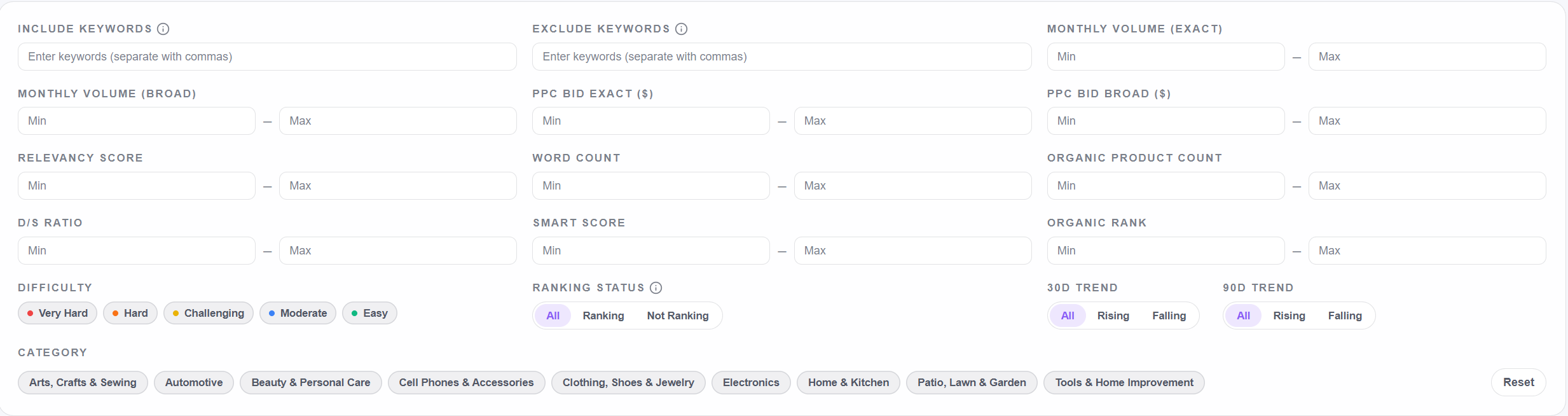
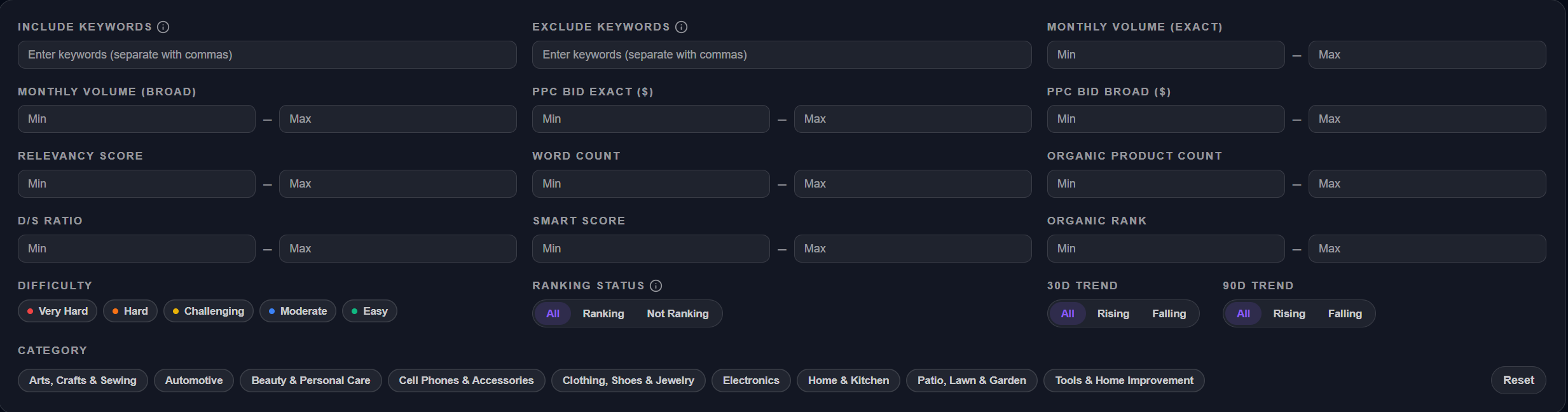
Click Advanced Filters above the table to expand the filter panel. Everything here narrows the visible rows in real time — no "Apply" button. The count line above the table (" of keywords shown") tells you how much you've trimmed.
Text filters
- Include Keywords — comma-separated list. Only rows whose keyword contains at least one of the terms stay. Example:
bag, backpack, tote. - Exclude Keywords — same syntax, opposite effect. Rows containing any of these terms are dropped. Handy for stripping brand names or off-topic drift (
kids, toddler).
Range filters
Every numeric column has a Min / Max pair. Leave one blank for an open bound:
- Monthly Volume (Exact) and Monthly Volume (Broad)
- PPC Bid Exact ($) and PPC Bid Broad ($)
- Relevancy Score
- Word Count — number of words in the keyword.
Min 3, Max 5is a fast way to isolate long-tail phrases. - Organic Product Count — cap it low to spot uncrowded terms.
- D/S Ratio — set a floor to only keep "demand outrunning supply" keywords.
- Smart Score — set a floor to hide low-priority tail.
- Organic Rank (ASIN mode only) — floor at 1 and ceiling at, say, 20 shows "where I'm already on page 1".
Bucket filters
- Difficulty — click chips to include or exclude buckets: Very Hard, Hard, Challenging, Moderate, Easy. Combine with a volume floor to get "moderate-difficulty keywords with 1k+ searches".
- Ranking Status (ASIN mode only) — All / Ranking / Not Ranking. "Whether the searched ASIN ranks organically for the keyword." Set to Not Ranking to build your ad-target shortlist.
- 30d Trend — All / Rising / Falling. Rising catches keywords with momentum; Falling flags terms you'd want to de-prioritise.
- 90d Trend — same, over 90 days. Combine 30d Rising + 90d Rising for durable growth.
- Category — pill multi-select of the categories present in the result set. Toggle to keep only in-category terms and drop off-topic drift.
Resetting
Every filter group has its own reset control. The panel remembers what you set — collapse it and the filters stay applied.
Customize columns
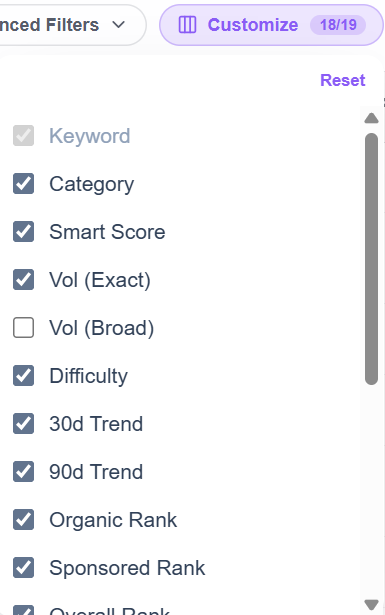
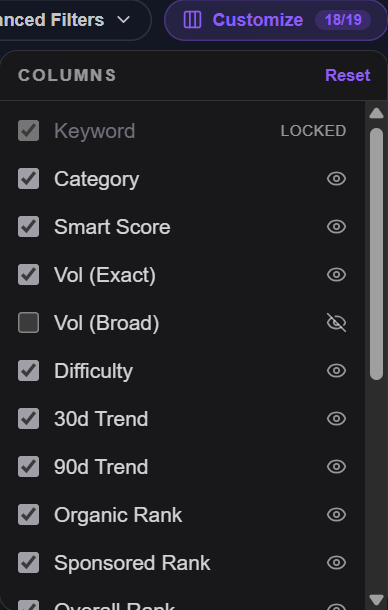
Hit Customize to change which columns are visible.
- Header: Columns.
- Reset returns to the default column set.
- The Keyword column is marked locked — always the leftmost, always visible.
- Any other column can be turned on or off. Hidden columns don't participate in CSV export either — the file matches your on-screen view.
Useful custom sets:
- Ads targeting — Keyword, Vol (Exact), PPC Exact, PPC Broad, Difficulty, Organic Rank (ASIN mode).
- SEO planning — Keyword, Vol (Exact), Relevancy, Word Count, Difficulty, Smart Score.
- Competitive analysis — Keyword, Category, Organic Rank, Sponsored Rank, Overall Rank (ASIN mode).
Generic Keywords


Below the table you'll find a Generic Keywords section:
Unique words extracted from found keywords. Use these terms in title, bullet points, description, and backend search terms.
Keyword Hunter takes every keyword in the full captured hunt result (not the filtered table view), splits it into individual words, deduplicates, and stacks them into a space-separated block. Table filters and sort affect the rows and CSV only — they do not change the Generic Keywords bag. Two constraints:
- Up to 80 unique words.
- 249 bytes total — Amazon's cap on the backend search-terms field. Bytes, not characters: plain English letters, digits and spaces cost one byte each, but an accented letter costs two and a CJK character three, so a German or Japanese bag holds fewer words than an English one of the same length. Some categories cap the field lower still; if yours does, trim words from the end of the block before pasting.
The counter ({bytes} / 249 bytes) shows how full the bag is. Copy to clipboard grabs the whole block for pasting straight into Seller Central's backend keywords field. If nothing's there yet, you'll see "No keyword terms available yet.".
Export CSV
Export CSV downloads the current on-screen view of the keyword table.
- Only visible columns are exported. Turn off columns you don't want in the file via Customize first.
- Only filtered rows are exported. Whatever the count line says is what you get.
- File name follows the pattern
keyword-hunter-{query}-{timestamp}.csv. - Encoding is UTF-8 with commas as separators — opens cleanly in Excel, Google Sheets, and Numbers.
CSV is the current bridge to Keyword Rank Tracker and Campaign Builder — copy the terms you want to track or target, paste them in the other tool's input.
An efficient workflow
Most sellers converge on the same rhythm:
- Sort by Smart Score (default).
- Set a Vol (Exact) floor to strip the tail — often 300–500.
- Constrain Difficulty to Moderate and Easy if you're launching, or add Challenging if you're established.
- In ASIN mode, filter Ranking Status to Not Ranking to find the ad-target shortlist.
- Use Exclude Keywords to drop brand names and off-topic drift.
- Copy the Generic Keywords block for the backend field.
- Export CSV and move the keepers into Rank Tracker or Campaign Builder.
Two minutes of filter work saves an hour of scrolling.