Budget
The Budget algorithm rewrites your daily campaign budget every marketplace-local midnight based on:
- a baseline you set,
- optional day-of-week multipliers, and
- optional performance criteria multipliers that kick in when the campaign is running above or below your thresholds.
Result: campaigns run hotter on their best days, cooler on their weakest, and adapt to real performance instead of sitting on a flat budget you set once and forgot.
What it can be applied to
Campaigns only. Amazon exposes the daily budget field at the campaign level, so that's where the algorithm lives. If you try to drop it on an ad group or product, the UI blocks it with a tooltip explaining why.
The setup — four steps
The wizard walks you through four gated steps. Only Step 1 (Baseline) has a hard gate — the other steps require it to be > 0.
Step 1 — Baseline & caps
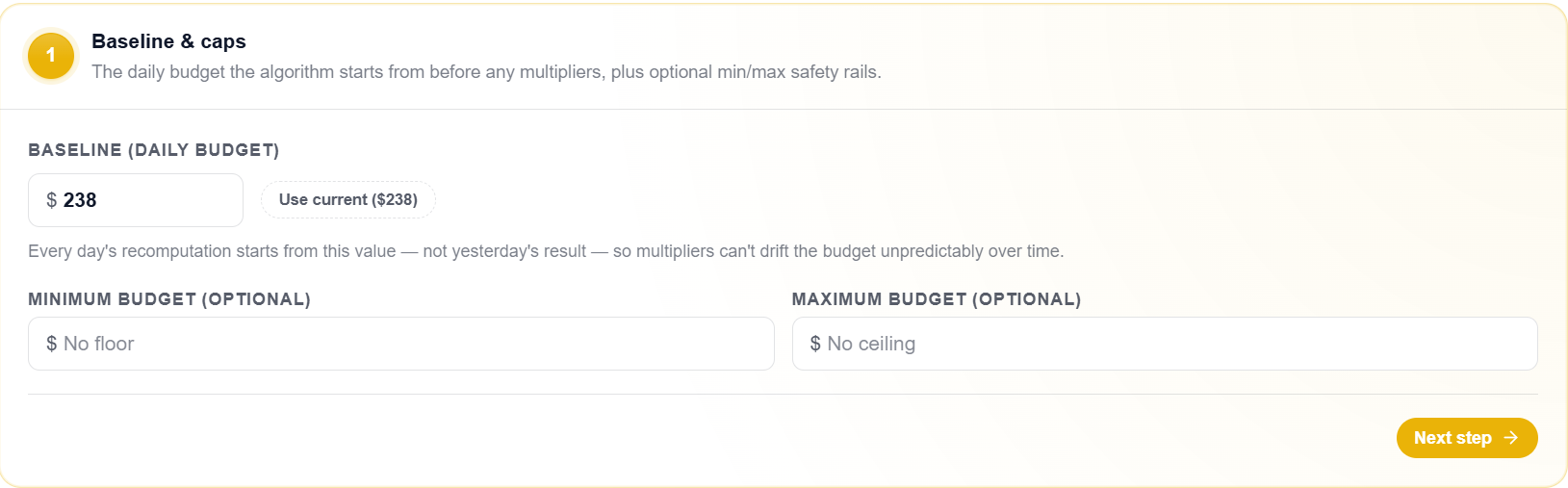
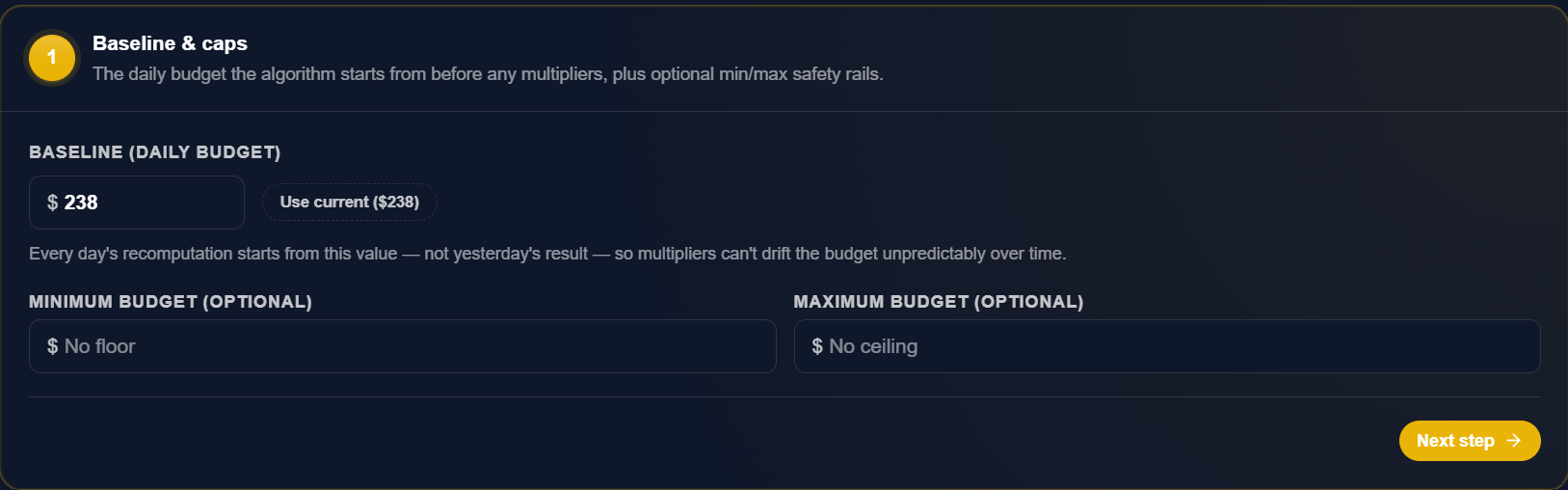
Three fields:
- Baseline (daily budget) — the single dollar figure this campaign's budget should orbit around. When you drop Budget onto a campaign, AMZSeller seeds this from the campaign's current Amazon-side daily budget (and shows a Use current ($X) shortcut if you cleared the field). Every day's recomputation starts from this value — not yesterday's result — so multipliers can't drift the budget unpredictably over time.
- Minimum budget (optional) — the floor. Even if every multiplier collapsed toward the low end, the pushed budget won't drop below this. Leave blank for no floor.
- Maximum budget (optional) — the ceiling. Even if every multiplier stacked toward the high end, the pushed budget won't jump higher than this. Leave blank for no ceiling.
Setting at least a Maximum is strongly recommended: runaway multipliers on a viral day shouldn't quintuple your budget without your say-so.
Step 2 — Day-of-week multipliers
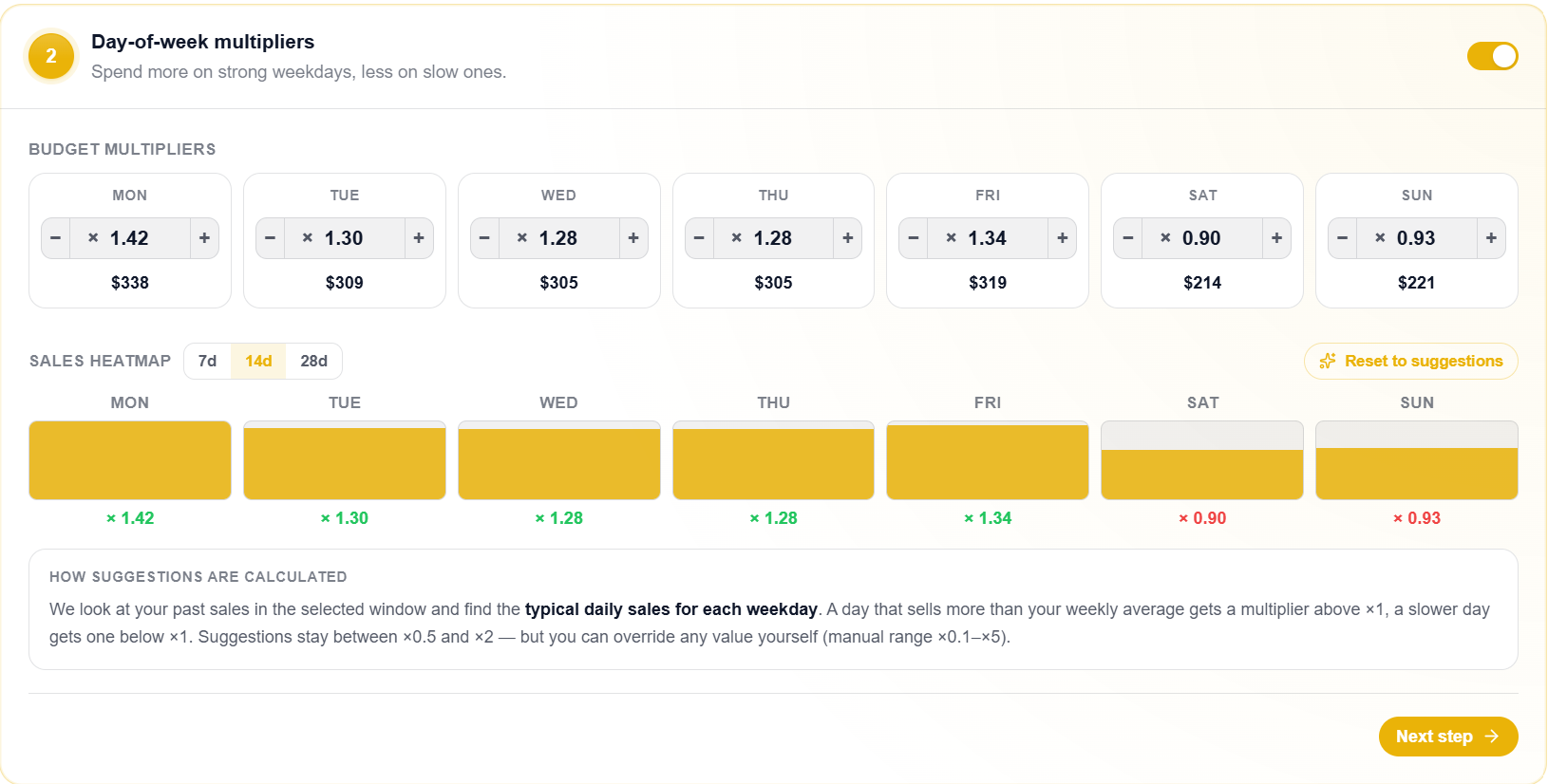
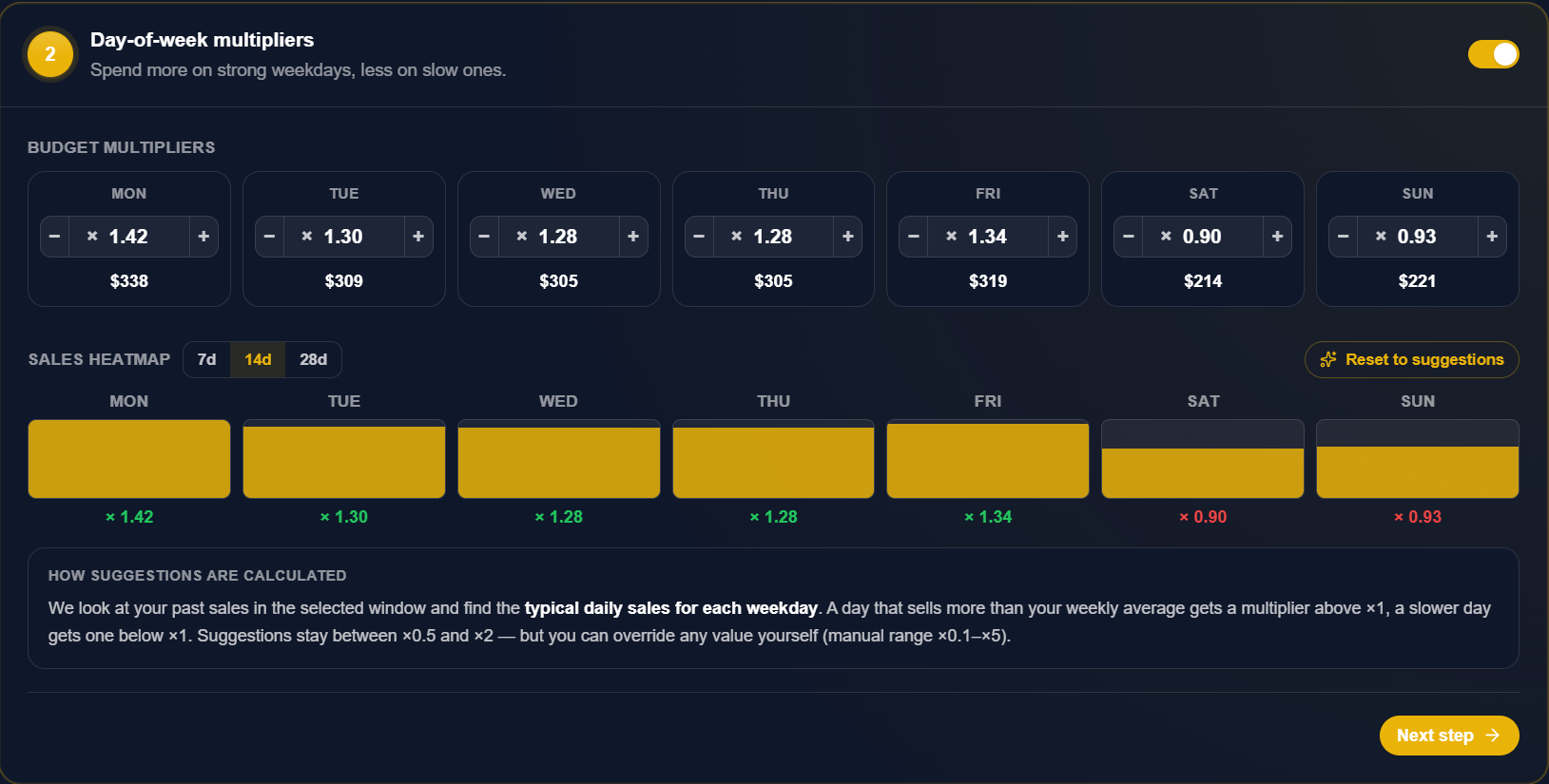
Seven inputs — one per weekday (Mon–Sun) — each holding a multiplier between 0.1 and 5.0. 1.00 means "spend the baseline this day"; 1.50 means "spend 50% more"; 0.50 means "spend half". Each cell also shows the resulting dollar amount below the multiplier so you can see the effect immediately.
The whole step has a master toggle in its top-right corner — turn it off and day-of-week has no effect (all multipliers behave as 1.0). Turn it on to activate the numbers you've set.
The sales heatmap sparkline
Below the seven inputs, a small bar chart shows your historical median sales per weekday, plus the suggested multiplier for each day (green for above 1.00, red for below):
- Window chips — 7d / 14d / 28d switch which lookback the suggestions are based on.
- Reset to suggestions — a one-click button that overwrites the seven inputs with the current heatmap-derived values.
AMZSeller auto-seeds the multipliers from the heatmap on the very first mount, and again when you change the window chip (explicit intent to re-derive). Otherwise your manual edits are never overwritten in the background.
The gray "How suggestions are calculated" box beneath the sparkline explains the formula: for each weekday, we compute the typical daily sales in the selected window; days above your weekly average get a multiplier above ×1, slower days below ×1. Suggestions are clamped between ×0.5 and ×2 — but you can manually override up to the full ×0.1 – ×5.0 range.
Step 3 — Performance criteria
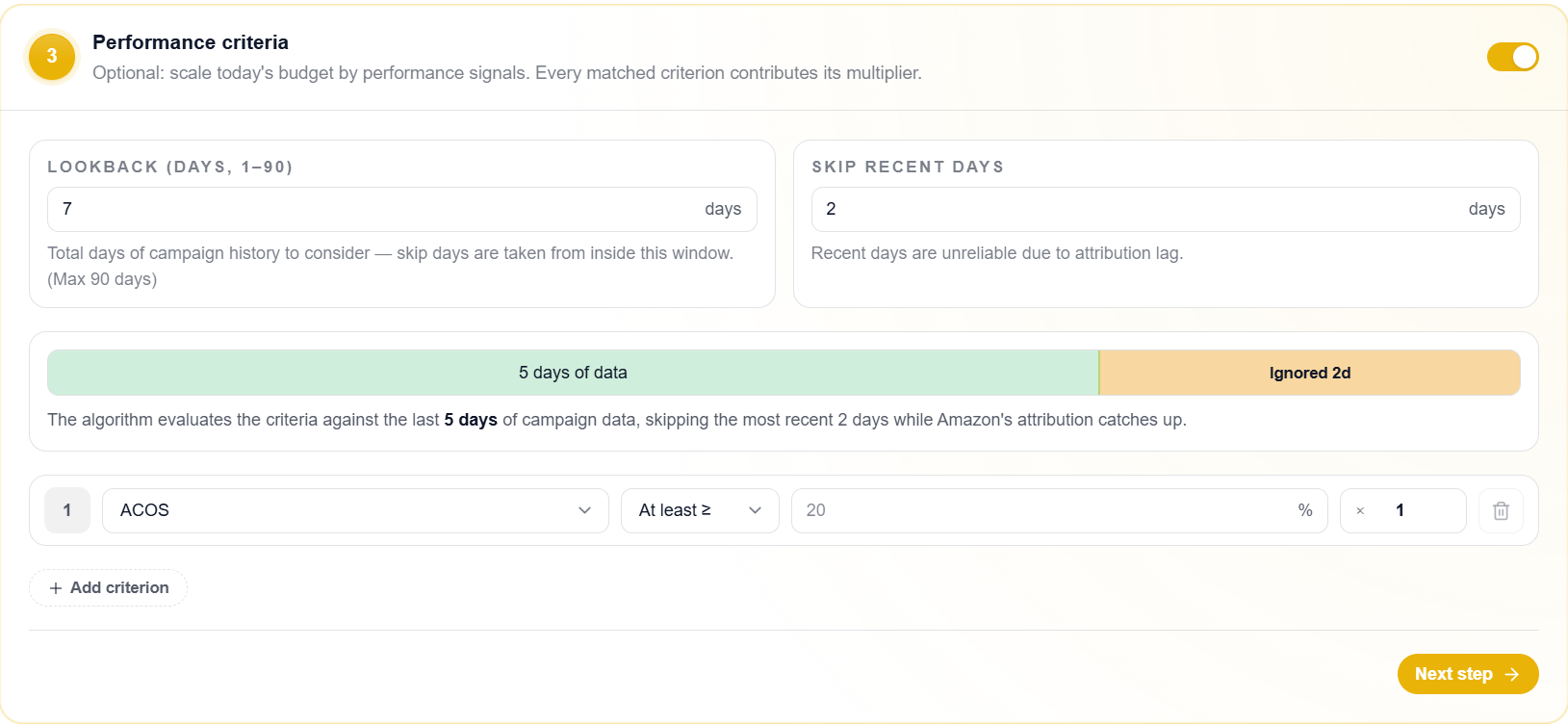
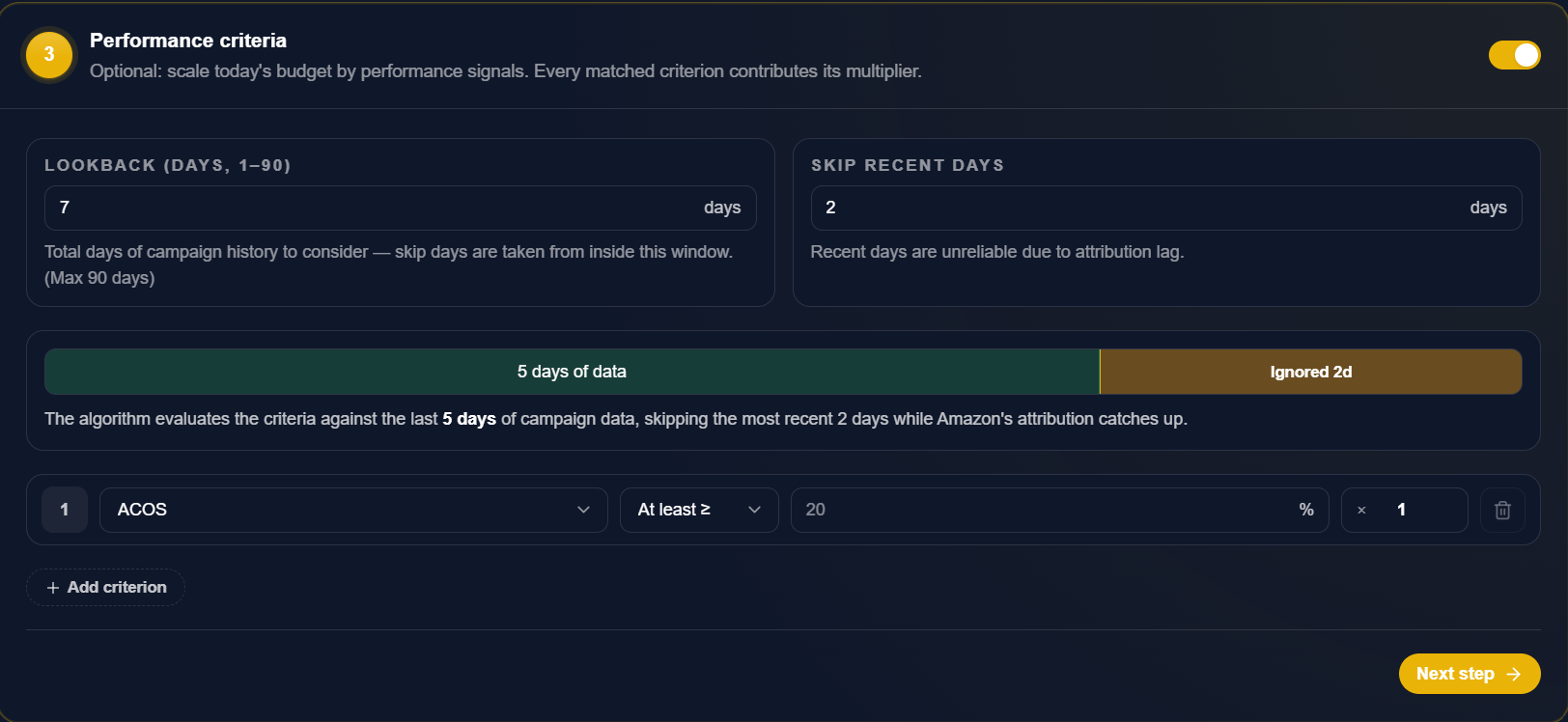
Optional. Scale the budget based on actual campaign performance, not just the calendar. Master toggle at the top-right; when off, criteria have no effect.
Each criterion row has four parts:
- Metric — the 10-metric vocabulary (Impressions, Clicks, Purchases, CPC, CTR, Conversion, ACOS, ROAS, Spend, Sales). Each metric can only appear once.
- Operator — At least ≥ or At most ≤.
- Value — the threshold with the right suffix.
- × Multiplier — the multiplier applied when this criterion matches (range 0.1 – 5.0).
Criteria are AND-ed: the campaign must match every criterion for its multiplier to kick in. Multiple matching criteria's multipliers stack (multiply together).
Above the criteria rows there's a Lookback + Skip recent days block identical to the one in Mining / Negative — same 1–90 day range, same skip-recent validation, same live timeline preview. The default is 7 days lookback / 2 days skip.
Step 4 — Live preview
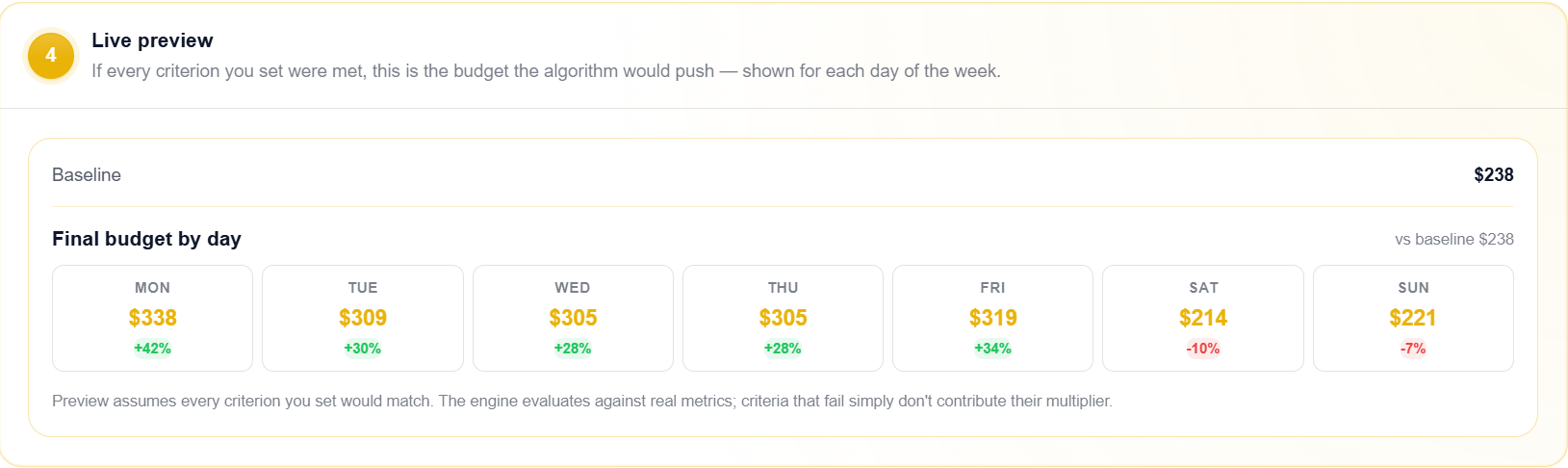
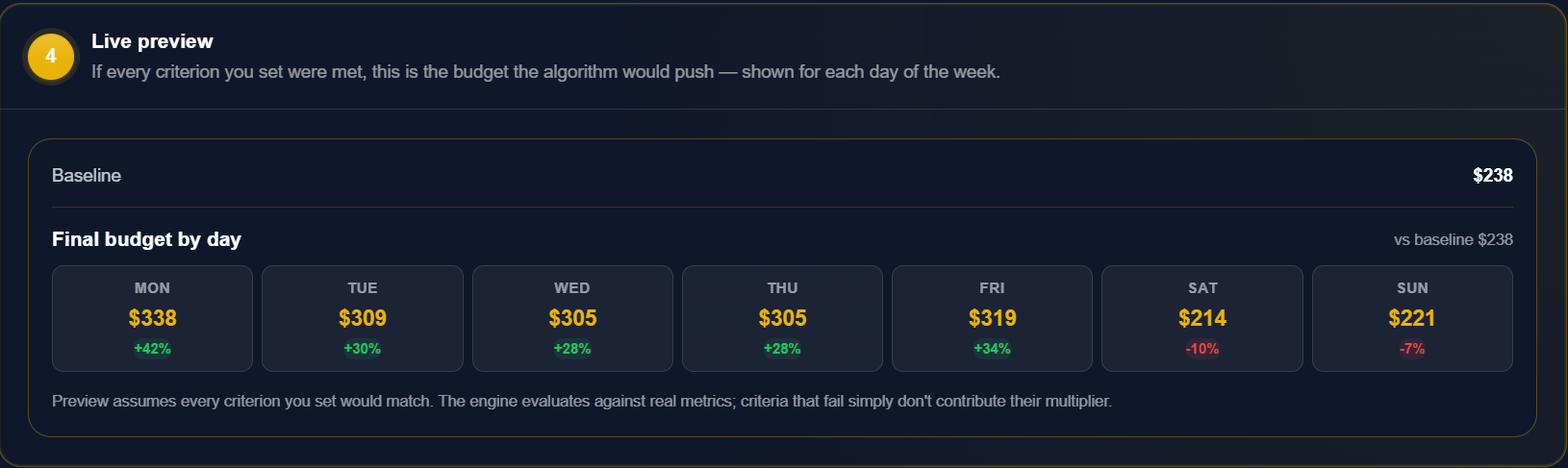
A read-only summary of how your settings will translate into an actual pushed budget:
- Step-by-step math — baseline → × day-of-week × criteria multipliers → clamped by caps → final. Each row shows the factor applied and the running value.
- Final budget by day — a Mon–Sun grid showing what the pushed budget would be on each weekday, colour-coded by delta vs. baseline (green +, red −, muted grey ≈).
A note at the bottom reminds you that the preview assumes every criterion would match; when the engine actually runs, criteria that fail simply don't contribute their multiplier, so the real number could be lower.
The math in one line
Every marketplace-local midnight:
newBudget = baseline
          × dayOfWeekMultiplier(today)     (if the day-of-week step is on)
          × productOfMatchingCriteria      (if the criteria step is on)

newBudget = clamp(newBudget, capMin, capMax)
If newBudget differs from what's on Amazon, we PUT it. Otherwise we log a "no change" decision and move on.
Where the metrics come from
Budget reads from the same ads.daily_metrics table the rest of the Advertising dashboard uses — no separate pull just for Budget. It uses the most recent daily sync, which is why Skip recent days defaults to 2: it lets attribution settle before your budget decision leans on possibly-incomplete data.
Timing
- When it runs — hourly cron, self-gated to fire only inside the marketplace's local 00:00 – 01:00 window. In practice: one budget update per campaign per day, at the start of that campaign's day.
- On activation — a first run is enqueued immediately so you don't have to wait for the next local midnight.
Interactions with other algorithms
- Rank Guard can block a budget change if it's actively defending the product's rank in a specific window. The decision is still recorded, marked as "blocked by override".
- Dayparting is orthogonal — Budget sets the daily total, Dayparting decides which hours of the day that budget is available.
- Stop-Loss — if a campaign is Stop-Loss-paused, Budget still writes the new budget to Amazon (so when the campaign wakes up, its budget is current). The state itself stays paused.
Common questions
Can I make the budget follow revenue proportionally?
Not directly — Budget multiplies, it doesn't target. But you can approximate it with laddered criteria: "if sales ≥ X, multiplier 1.5; if sales ≥ 2X, multiplier 2.0" and so on.
What if I want a portfolio-wide cap instead of per-campaign?
Not supported here — Amazon exposes budgets per campaign, so that's the granularity Budget works at. Manage the portfolio cap manually inside Amazon.
Do I have to use both day-of-week and criteria multipliers?
No — each step has its own toggle. Many sellers start with only day-of-week (calendar-driven) and add criteria later once they see how the campaigns behave on a fixed weekly rhythm.
What does "Reset to suggestions" actually reset?
Only the seven day-of-week multipliers. Baseline, caps and criteria are untouched.