Filters
The Filters panel lets you narrow the Dashboard down to just the products you actually care about — click Filters in the toolbar above the products table to open it. Once a filter is on, every KPI card, the products table and its totals all recalculate to match, so what you see up top is exactly what you're looking at down below.
How it works
- Every filter is AND-ed together. Turn on "Profitable" and "Has ads" and "Refund rate ≤ 5%" and you'll see only the products that satisfy all three.
- Edits are staged in the panel — click Apply to run them, or Clear all to reset everything at once.
- The button in the toolbar shows a small orange badge with the number of active filters. When you've got filters on, the button itself glows orange so you never lose track.
- Filters live only for the current browser session. Closing the tab or reloading the page clears them — this is intentional, so you always start from a clean slate.
- Filters narrow the KPI cards and the products table. They do not narrow the two charts.
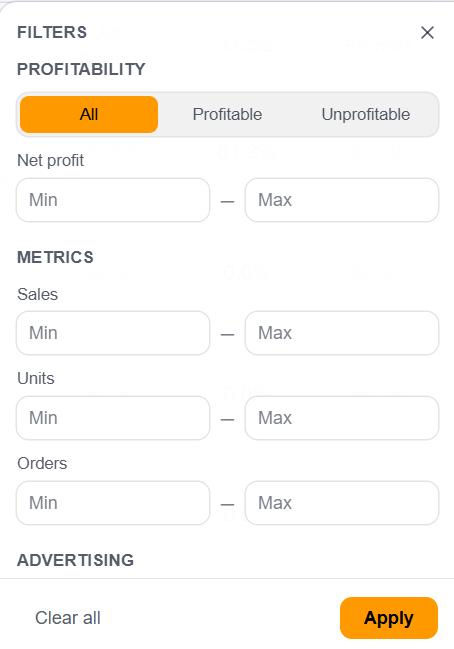
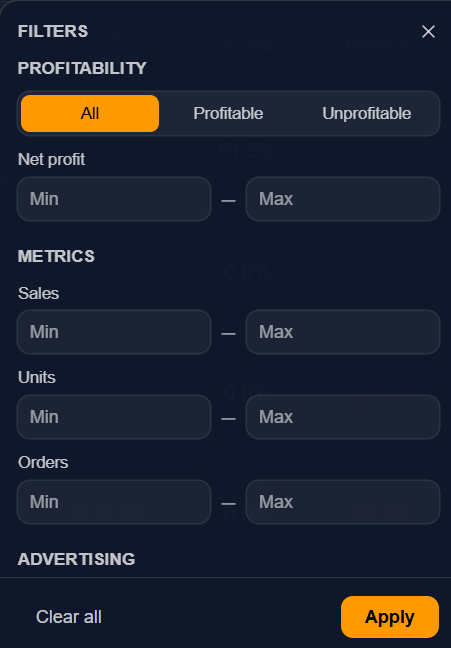
Every filter
The panel is organised into sections. You don't have to set them all — any filter you leave blank (empty min/max, or a toggle left on "Any") is simply ignored. Only the ones you actively set take effect.
Profitability
- All (default), Profitable (net profit > 0), or Unprofitable (net profit < 0).
- Net profit min / max — narrow to a specific profit band.
Metrics
- Sales min / max
- Units min / max
- Orders min / max
Great for "show me only my ≥ $500-sales products in the period", or "hide anything with fewer than 10 orders".
Advertising
- Has ads — Any (default) / Yes / No. "Yes" leaves only products with ad activity; "No" leaves only organic-only products.
- ACOS min / max (%)
- TACOS min / max (%)
- ROAS min / max (×)
ACOS, TACOS and ROAS filters only apply to products with ad activity. Products with zero ad spend are excluded from these three filters even if their computed value is technically 0.
Refunds
- Has refunds — Any / Yes / No.
- Refund amount min / max
- Refund rate min / max (%)
Useful for hunting down problem SKUs — set Refund rate ≥ 5% and see who's dragging your numbers down.
Promotions
- Has promotions — Any / Yes / No.
- Promo units min / max
- Promo amount min / max
BSR
- Main BSR min / max — narrow to a specific main-category rank band.
Like every other filter, BSR matches against the currently selected date range — but the way it's calculated is different. Sales, units, refunds and so on all sum to a total across the period; a rank can't be summed like that, so BSR uses the median rank across the range's days, exactly like the Sales Rank column in the table. So "Main BSR ≤ 5,000 over April" really means "products that were typically ranked 5,000 or better in April".
Products with no stored rank at all are excluded from this filter — it narrows among products that have a rank.
Marketplace
Appears only when you're viewing "All Marketplaces" or a whole region and have more than one marketplace connected. Tick the specific marketplaces you want to keep in the view.
Clearing filters
- Clear all at the bottom of the panel wipes every filter at once.
- Or open the panel, clear the individual fields you don't want any more, and click Apply.