Product groups
Product groups let you organise your SKUs into named collections — "Kitchen Line", "Winter Collection", "Amazon Choice hero SKUs", whatever makes sense to your business — and then slice the entire Dashboard by group with one click.
Where they live
Just above the products table is a row of tabs:


- All Products — always the leftmost tab, always available. Shows everything.
- Your groups — every group you've created, in the order you set.
- Settings icon — create a new group or manage existing ones.
Click any group tab to narrow the whole Dashboard — KPI cards, products table, Compare Sales chart and Sales Heatmap all recompute for just the products in that group.
Product groups aren't just for the Dashboard. The Inventory page uses the same groups you set up here — so the "Winter Collection" tab you create on the Dashboard also shows up on Inventory to filter stock levels, restock alerts and everything else there. One place to set them up, two pages to use them.
Creating and managing groups
Click the settings icon at the end of the tab bar to open the group manager:
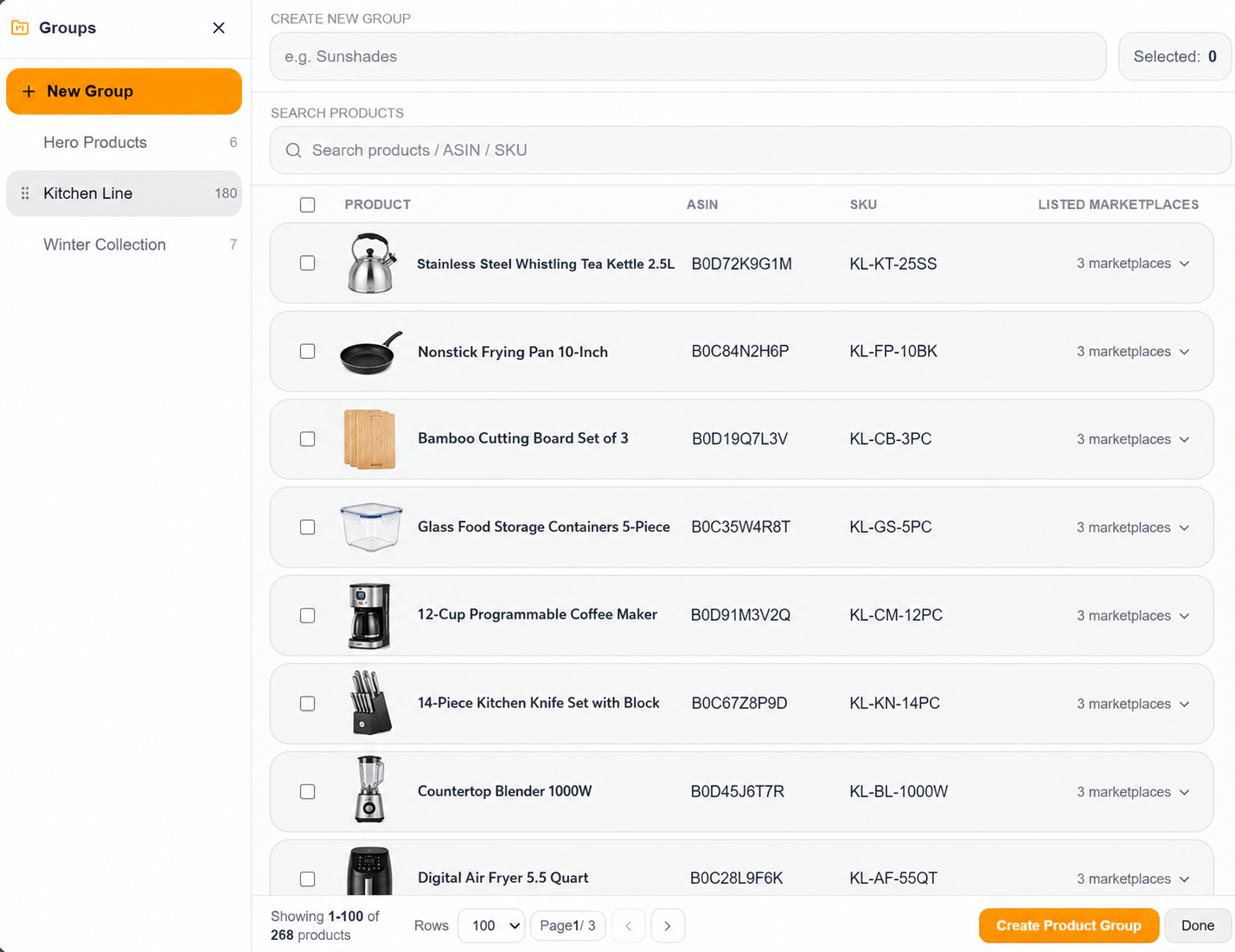
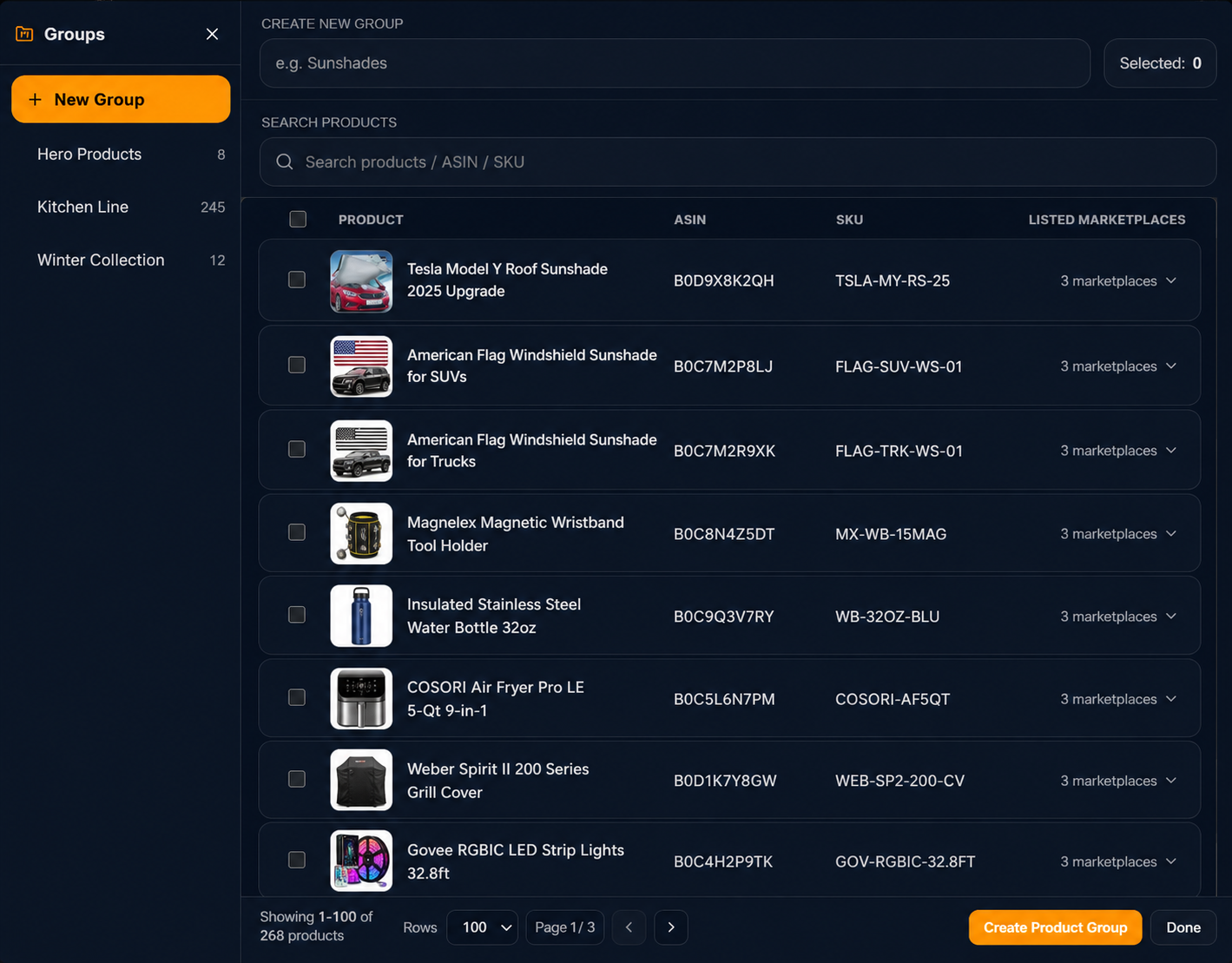
- Create — name the group, tick the ASINs and SKUs that belong in it, save.
- Rename — change a group's name any time.
- Reorder — drag groups up and down to change the tab order.
- Delete — remove a group. This never touches the underlying products.
A single product can belong to as many groups as you like — groups are just labels, not folders.
When to use groups
A few ideas:
- Split your catalog by brand if you sell more than one.
- Group hero products vs long-tail so you can watch them separately.
- Isolate a launch cohort — the SKUs you launched this quarter — to track their combined performance.
- Group by cost structure — the SKUs that share a supplier or a shipping lane.
Once a group is set up, the whole Dashboard becomes a mini-dashboard for it — the KPIs, the table, and the charts.