KPI cards
The KPI cards at the top of the Dashboard are the headline numbers for the period you've picked in the date range bar. Nine cards, each one a different piece of the "Sales → Payout → Profit" chain.


The nine cards
| Card | What it shows | Sub-line |
|---|---|---|
| Sales | Gross sales for the period. | "Gross sales" |
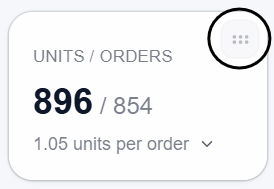
| Units / Orders | Total units sold and total orders. | Units per order |
| Fees | Amazon fees (negative — money going out). | Expandable into FBA Fees + Referral Fees |
| Refunds | Refunded amount (negative). | Refunded units + refund rate (%) |
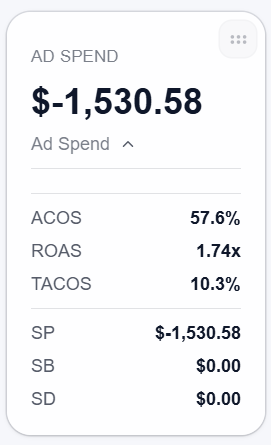
| Ad Spend | Total advertising spend (negative). | Expandable into ACOS, ROAS, TACOS, SP, SB, SD |
| Promotions | Promotion cost (negative). | "Promotions" |
| COGS | Cost of goods sold (negative). | "Cost of Goods Sold" |
| Payout | Net revenue after Amazon costs and ads. | Margin (% of gross sales) |
| Profit | Payout minus COGS — your bottom line. | Margin (% of gross sales) |
Payout vs Profit — the two key formulas
These are the numbers you'll look at most often, so it's worth knowing exactly what they mean.
Payout = Gross Sales − Fees − Refunds − Ad Spend − Promotions
Profit = Payout − COGS
Payout is what Amazon leaves in your pocket after their fees, your ad spend, your refunds and your promotional discounts. It's what actually gets deposited into your bank account.
Profit takes it one step further and subtracts what your goods cost you to make or buy. That's your true bottom line.
Both cards also show a Margin underneath — that margin is calculated against Gross Sales, so you can compare across products and periods on a level playing field.
The Ad Spend card, expanded
Click the Ad Spend card (or its chevron) to expand it. Inside you'll see:
- ACOS — Advertising Cost of Sale.
Ad spend ÷ Ad-attributed sales. "How much of my ad-generated revenue was eaten by ads?" Lower is better. - ROAS — Return on Ad Spend.
Ad-attributed sales ÷ Ad spend. The inverse view — "for every $1 I spent, how much did I make back from ads?" Higher is better. - TACOS — Total ACOS.
Ad spend ÷ Gross Sales(all sales, not just ad-attributed). This is the truer measure of how much your ads cost your whole business. Watch this one closely. - SP / SB / SD — Sponsored Products, Sponsored Brands, Sponsored Display spend, broken out. Handy for spotting which ad type is doing the heavy lifting.
Units / Orders — organic vs PPC
When ad data is available, the Units / Orders card also splits your orders into Organic (bought without clicking an ad) and PPC (bought after clicking an ad). This gives you a quick sense of how much of your daily volume is being paid for.
The split is worked out from your Sponsored Products data.
Fees card, expanded
Click the Fees card to expand it into:
- FBA Fees — fulfillment, storage and related FBA line items.
- Referral Fees — Amazon's per-category commission.
What "Promotions" covers
The Promotions card (and the Promotions column in the table) shows how much was taken off your sales by Amazon-side discounts that Amazon reports as separate line items. Concretely:
- Coupons — the "Get $X off with coupon" kind shoppers clip on the product page.
- Lightning Deals and other time-limited deal promotions.
- Promo campaigns you set up in Seller Central (percentage-off, buy-one-get-one, tiered discounts).
Promo Units on the units breakdown counts the units that had any of the above applied.
Some Amazon-side discounts don't show up here. Anything Amazon treats as a Price Discount — including Prime Exclusive Discounts, plain price discounts, Best Deals and Prime Deals — is not reported as a separate discount line. Instead, the discounted price simply becomes the sale price, so it shows up as a lower Sales figure rather than as a Promotion. If you ran one of these and are wondering why Promotions didn't move, that's why — the money never appears here because Amazon never separated it out.
Drag to reorder
On desktop, grab any card by its handle in the top-right corner and drag it to a new position. On mobile, press and hold any card for a moment — it lifts up and you can drag it wherever you want.
Your order is remembered on this browser, so next time you open the Dashboard the cards are already where you like them. Desktop and mobile keep separate orders — the layout you set on your phone doesn't disturb the one on your computer.